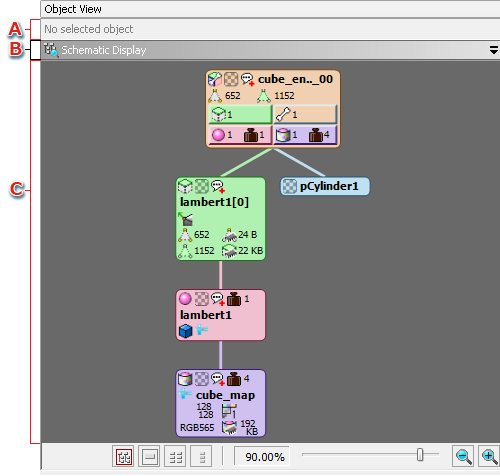
This View is for displaying and selecting the various objects contained in a loaded 3D intermediate file.
Object View offers various layouts and display modes for the selection of objects. You can switch between layouts and modes to fit the task at hand.
When multiple objects are selected, this shows the name of the object in focus and the number of selected objects of the same type.
| Content shown | Description |
|---|---|
 |
No object has been selected. |
 |
One object has been selected. |
 |
Multiple objects have been selected. (In this case, three.) |
You can change the display mode using the arrow on the right (or by right-clicking inside the title area to open the context menu).
The display modes are explained in detail below in the section Object View display modes.
Below is a list of the different types of objects that are displayed in Object View.
| Icon | Object | Description |
|---|---|---|
 |
Scene | Corresponds to the Scene (.cscn) file. |
 |
Camera | The cameras included in the Camera (.ccam) file. |
 |
Ambient light | The ambient lights included in the Light (.clgt) file. |
 |
Hemispherical Light | The hemispherical lights included in the Light (.clgt) file. |
 |
Fragment light | The fragments lights included in the Light (.clgt) file. |
 |
Vertex light | The vertex lights included in the Light (.clgt) file. |
 |
Fog | The fogs included in the Fog (.cfog) file |
 |
Model | Corresponds to the Model (.cmdl) file. |
 |
Bone | The bones included in the model. |
 |
Mesh | The meshes included in the model. |
 |
Material | The materials included in the model. |
 |
Texture | Corresponds to the Texture (.ctex) file. |
 |
Lookup table set | Corresponds to the Lookup Table Set (.clts) file. |
Object View can be presented in eight different kinds of layouts for showing multiple Views at the same time.
You can switch between layouts from the Menu or from the Toolbar.
| Icon | Layout | Description |
|---|---|---|
 |
Single-screen layout | Displays a single View encompassing the entire region. |
 |
Two-screen layout (horizontal break) | The region is divided into upper and lower sections for the display of two Views. |
 |
Two-screen layout (vertical break) | The region is divided into left and right sections for the display of two Views. |
 |
Three-screen layout (lower part split) | The screen is divided into upper and lower sections and the bottom section is divided again for the display of three Views. |
 |
Three-screen layout (upper part split) | The screen is divided into upper and lower sections and the upper section is divided again for the display of three Views. |
 |
Three-screen layout (right part split) | The screen is divided into left and right sections and the right section is divided again for the display of three Views. |
 |
Three-screen layout (left part split) | The screen is divided into left and right sections and the left section is divided again for the display of three Views. |
 |
Four-screen layout | The region is divided into four sections for the display of four Views. |
With a multi-screen layout, you can show a View more than once in different display modes.
However, you cannot display the same View in the same display mode multiple times.
There are certain common features for multi-screen View layouts:
Below is a list of the display modes for the various View screens in Object View.
Depending on the display mode, the content on display will differ, as will the method for selecting objects.
| Icon | Display Mode | Description |
|---|---|---|
 |
Schematic Display | Displays a hierarchically structured schematic of a model and the nodes and materials included in that model. |
 |
Tree View | Shows the hierarchical structure of a model and the nodes and materials included in that model in the form of a tree view. |
 |
Model List | Displays models in list format. |
 |
Bone List | Displays the bones included in the model in list format. |
|
Mesh List | Displays the meshes included in the model in list format. |
 |
Material List | Displays the materials included in the model in list format. |
 |
Texture List | Displays textures in list format. |
 |
Lookup Table Set List | Displays lookup table sets in list format. |
 |
Scene List | Displays scenes and the objects included in the scenes in list format. |
|
Light List | Displays lights in list format. |
|
Fog List | Displays fogs in list format. |
|
Camera List | Displays cameras in list format. |
The following common features and operations are available in List View mode for models, bones, meshes, materials, textures, scenes, lights, cameras, fogs and lookup table sets..
When you right-click on a selected object in Object View, a context menu displays.
The context menu varies depending on the display mode, so see the descriptions of the various display modes for details.
If you are connected to the Viewer, when you select an object in Object View certain information will be highlighted in the Viewer. What gets highlighted depends on the type of object that has been selected.
CONFIDENTIAL