Schematic Display
Displays a hierarchically structured schematic of a model and the nodes included in that model (bone/mesh/material/texture), or a scene and the cameras, lights and fog configured in that scene.
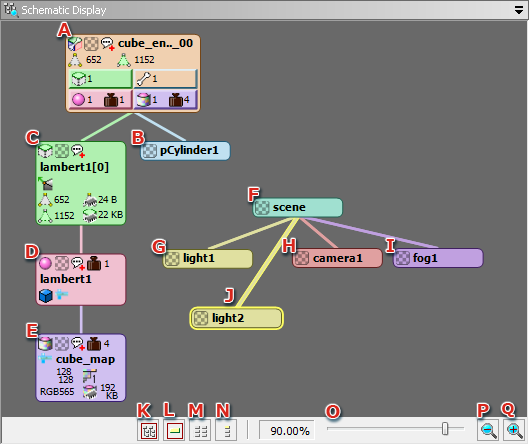
- Shows a model.
- Shows a bone.
- Shows a mesh.
- Shows a material.
- Shows a texture.
- Shows a scene.
- Shows a light.
- Shows a camera.
- Shows a fog.
- Shows the selected object.
For details on selecting objects, see Operations Inside the View.
- Adjusts the view so that all objects are displayed therein.
There may be times, based on model hierarchy, when the view will be unable to display all objects at once.
- Adjusts the view such that the selected objects are centered therein.
- Adjusts the object overall for display in the View.
- Aligns the selected objects and their child objects.
- Sets the view magnification level.
Slide it to the right to enlarge and to the left to shrink.
- Reduces the view magnification.
- Increases the view magnification.
Operations Inside the View
The following can be performed in Schematic View mode.
- Select object
- Right-click an object to select it.
De-select by clicking in an area where nothing is displayed.
- Switch object display
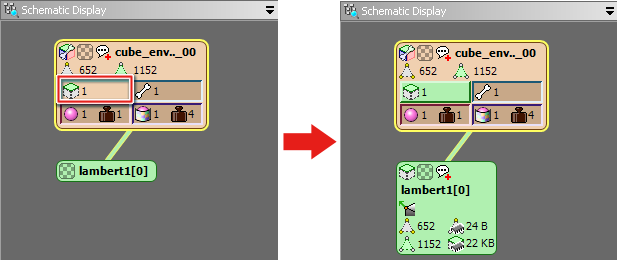
- Press the Model button to toggle the display status between Hide/Show/Details for bones, meshes, materials and textures.
- Open object Property window
- Right-double-click an object to open the corresponding Property window.
- Set object Working color
- Click the object's color icon to open the Color Picker dialog and set the Working color.
- Set object Working comment
- Click on the icon for a Model, Bone, Mesh, Material or Texture to enter a Working comment for that object.
- When an objected is selected, you can also enter and edit Working comments by using the F3 shortcut key.
- Select multiple objects
- Drag to select a range of objects by first clicking in a region where nothing is being displayed.
- Move object
- Left-click the object and drag.
Child objects will move together with the selected object.
Hold down the Shift key while dragging to move only the selected object.
- View texture details window from object
- If the model is using textures, thumbnails will display for the textures being used for material objects and texture objects.
- Click on a texture thumbnail to check information in the Image Details window.
- Scroll the View
- Drag with the center button. The view will scroll in the direction you drag in.
- Zoom in/out the View
- Drag the center button while holding the Ctrl key down. Drag to the right to zoom in. Drag to the left to zoom out.
If the mouse has a center scroll wheel, this can also be used to zoom in and out.
Context Menu
When you right-click on the Schematic Display, a context menu displays with the following menu items:
Edit
- Select All
- Selects all objects.
- You can also select all objects using Ctrl+A.
- Toggle Selection
- If an object is selected, the focus switches to an un-selected object.
Display
- Zoom in
- Increases the view magnification.
- You can also zoom in using the + key.
- Zoom out
- Reduces the view magnification.
- You can also zoom out using the - key.
- Display all in center
- Centers the display of all objects showing in the View so they can be checked.
- The View magnification will be altered automatically so everything can be seen.
- You can also use the A key to center the display of all objects.
- Display selected objects in center
- Displays the selected objects in the center of the View.
- This feature does not work if no objects are selected.
- You can also use the F key to center the display of selected objects.
- Align all
- Aligns all objects being displayed.
- Align selected objects
- Aligns the objects in the child hierarchy of the selected objects.
Properties
This displays only when an object has been selected.
Selecting this menu item opens the corresponding Property window.
CONFIDENTIAL