Properties Panels
The Properties panel has been prepared for editing different kinds of content data loaded into CreativeStudio.
This panel can be opened in its own window separate from the CreativeStudio main window.
For details on common features of the Properties panel, click here.
| Panels | Description |
|---|---|
| Material Properties Panel | Allows you to perform various edits such as add textures, set combiners, and change material color. |
| Model Properties Panel | Allows you to confirm model structure and set visibility. |
| Texture Properties Panel | Displays information such as type and size of textures. |
| Lighting Properties Panels | Allows you to set and edit lights. A panel has been prepared for each light type. |
| Camera Properties Panel | Allows you to make camera settings and set the type of camera. |
| Fog Properties Panel | Allows you to set the fog color and fog start position. |
| Material Animation Properties Panel | Allows you to set the playback time of material animations and make settings when outputting to development hardware. |
| Skeletal Animation Properties Panel | Allows you to set the playback time of skeletal animations and make settings when outputting to development hardware. |
| Effect | Describes the panel to be used when creating an effect. |
| Shader Properties panel | Displays shader information being used. |
| Scene Environment Properties Panel | Allows you to set lights, cameras, and fogs for each of multiple models in a scene. |
Common Features of Properties Panels
This page describes common features of the Properties panel.
- Opening the panel in its own window
- Changing content names
- Selecting categories
- Copy & paste on the Properties panel
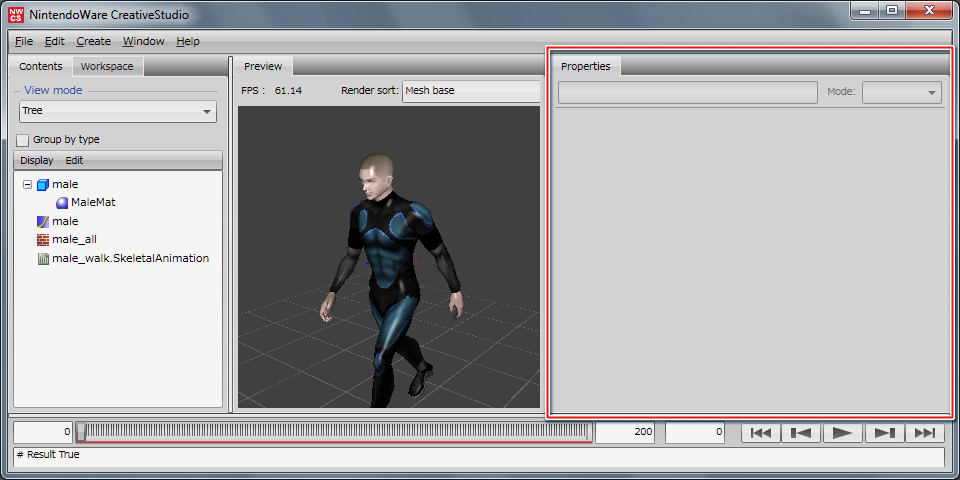
Opening the panel in its own window
Two methods of opening the Properties panel in its own window are given below.
- Select contents in the Contents panel. On the CreativeStudio menu, then select Window > Properties panel.
- Double click the icon of content displayed in the Contents panel.
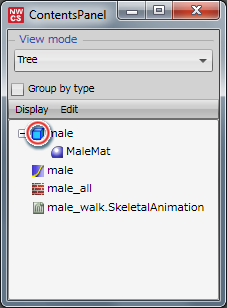
Changing content names
The content name selected on the Contents panel and associated settings are displayed on the Properties panel.
Content names can be freely changed.
After a content name displayed on the Properties panel has been changed, you can apply the change by pressing the Tab key or Enter key.
Selecting categories
Checkboxes for each category are prepared on each Properties panel.
The checkboxes allow you to show or hide the settings for each category on the Properties panel.
Example: Selecting categories on the material Properties panel

If category checkboxes are left unselected as given below, the categories labeled General and Shader parameters on the material Properties panel will not be displayed.
Copy & Paste on the Properties Panel
Settings on the Properties panel can be copy & pasted.
Currently, copy & paste on the Properties panel is supported only by the material Properties panel in Details mode, and on the particle set Properties panel.
Properties Panel Copy
You can copy settings be pressing the Copy button for the given category on the Properties panel.

Properties panel copying is only available for settings under categories that have been checked.
In the above figure, the settings on the General tab and Shader parameters are not copied.
Properties Panel Paste
To paste copied settings, select the item to be pasted on the Contents panel and right click.
Right clicking displays the following menu. Select Edit > Paste properties.

The copied settings for the selected contents are pasted.