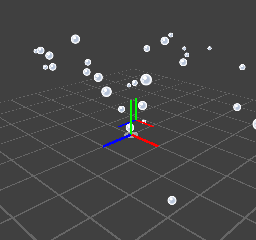
In this tutorial, we describe how to create child particles using the ripple effect caused by falling water in a fountain as an example.
For a detailed description of how to create effects, click here.
The basic procedure is given below.
The effect file used in this tutorial is located in the folder given below.
" SampleData/Effect/Intermediate/ManualResource/Fountain_Effect/Fountain_Effect_Mid_Flow.cptl "
Effect files created for this tutorial are located in the following location.
" SampleData/Effect/Intermediate/ManualResource/Fountain_Effect/Fountain_Effect.cptl "
On the main menu, select File > New > Project to open a dialog box for creating new projects.
Without changing the project name, just press OK.
On the main menu, select File > Open, and load the file Fountain_Effect_Mid_Flow.cptl located in the folder Fountain_Effect.
Select Fountain and press F5 to transfer data to the Viewer.
Check the fountain effect on the Viewer.
Here, we use child particles to create ripples generated when fountain particles strike the ground.
Select Fountain_Drop_Particle.
The following methods of creating child particles are available.
Enter Fountain_Ripple_Particle for the child particle name and press OK.
At this point, the following entries are shown for Fountain.
Here, we set the child particle representing the ripple.
Here, we set the emitter so that the ripple particles are emitted when the fountain particles hit the ground.
Double click Fountain_Ripple_Particle to open the Property Window.
Select Child particles and check that Timing is set to When parent particle expires
As for other settings, you can copy child settings by loading the finished effect file Fountain_Effect.
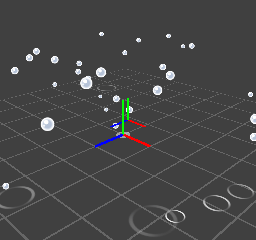
Check the ripple effect when fountain particles strike the ground on the Viewer.
CONFIDENTIAL