This chapter describes the use and features of the Export plug-in.
Export Plug-in Features
How to Use the Plug-in
Errors and Warnings
Batch Export
Independent Batch Export Using Max Script
The Export plug-in has the following features:
To output data for particular nodes only (including lower nodes in the hierarchy), select the nodes you want to output. When outputting the entire scene, it is not necessary to select nodes.
To display the Options window, run NW4C Export with Setting.
To output the intermediate file, specify the appropriate options and click Export or Apply. Unlike Export, Apply does not close the Options window after output. The option settings that exist at the time of output are automatically recorded as the current options.
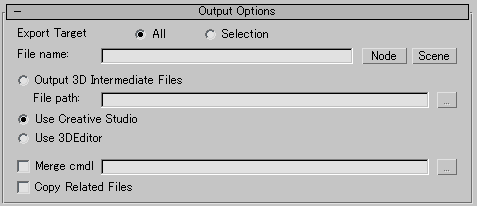
Options related to outputting intermediate files.
Sets the output target.
Specify All to export the entire scene, or Selection to export only the selected nodes and any lower nodes in the hierarchy.
Specify the name of intermediate file. (Omit the file extension.)
Clicking the Scene button to the right sets the current scene name. Clicking the Node button sets the name of the selected node (the topmost node in the selected hierarchy). Characters that cannot be used in file names are double-byte characters, half-space kana characters, equals signs (=), and semicolons (;).
Select this option when outputting an intermediate file to a particular folder.
Specify the folder to which the intermediate file should be output using the option File Path.
Characters that cannot be used in file names are double-byte characters, half-space kana characters, equals signs (=), and semicolons (;).
Texture files are output to the Textures folder located inside the folder specified by File path.
Select this option when transferring intermediate file data to CreativeStudio. It is not possible to select Output 3D Intermediate Files and Use Creative Studio at the same time.
For details on using Creative Studio, see the NintendoWare for CTR CreativeStudio manual.
Select this option when transferring intermediate file data to 3DEditor. It is not possible to select Output 3D Intermediate Files and 3DEditor at the same time.
For details about using 3DEditor, see NintendoWare for CTR 3DEditor Manual.
Turn this option on and specify the path of a CMDL file to merge that specified CMDL file. Characters that cannot be used in file names are double-byte characters, half-space kana characters, equals signs (=), and semicolons (;).
The following information gets merged:
If turned ON, files dependent on the cmdl file specified for Merge cmdl File are copied during merging.
| Copy Related Files Setting | Description |
| ON |
This setting is best used when using a programming style where each instance of model data is managed separately. All files dependent on merge source files are copied below the output folder. This also facilitates passing data back and forth with other people with ease, because all required data is included in the output folder. |
| OFF |
This setting best suits a programming style where various ctex and clts files are being shared with multiple instances of model data. Files referenced by merge source files are not moved, but used as-is. You can merge output data while preserving the location of shared textures and shared lookup tables defined for each project. |
These are general options available for intermediate files.

Specifies the magnification ratio by which the model's vertex coordinates and Translate value should be multiplied.
The physique and default skin pose are determined based on the biped figure mode and bone skin pose. Sometimes turning this option on will correctly output data for which skinning cannot be correctly output otherwise.
When using this option, you must set bones used by the physique and skin and a skin pose for all associated parents. Even if biped and bone are combined, be absolutely sure to set a skin pose for bones.
Specifies the range of animation to output (that is, the start frame and end frame).
Selecting All outputs the full range of animation in 3ds Max (Animation Start/End).
Selecting Range allows the start frame and end frame to be entered as numeric values. Note: If the entered start frame is smaller than the Animation Start value in 3ds Max, this Animation Start value will be used as the starting frame. Similarly, if the entered end frame is larger than the Animation End value in 3ds Max, this Animation End value will be used as the ending frame.
If attributes are being animated, the start frame value will be output to the CMDL file.
Be sure to specify the same mode for the end frame of a loop animation as for the start frame.
This option specifies the type of intermediate file to be output.
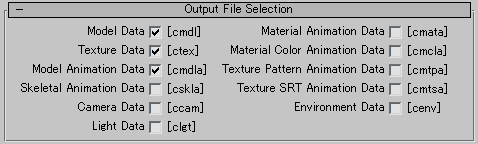
The value of HasSkinningMatrix in the intermediate file will differ depending on whether the CMDL file and the CSKLA file are output at the same time, or only the CSKLA file is output. This is because vertex processing is omitted when the CMDL file is not output in order to shorten the processing time. Nothing is affected by the differing values for HasSkinningMatrix.
You can optimize data using CreativeStudio when outputting intermediate files from 3ds Max. Options for this optimization process are set here.

This option is for setting the degree of precision to use for vertex data when converting to binary data.
If a fixed-point number is used, the amount of data is less than when a floating-point number is used, but precision is lowered.

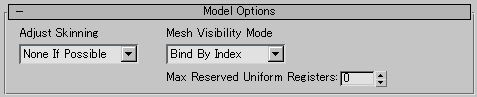
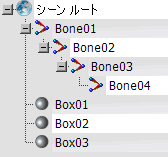
These are model-related options.
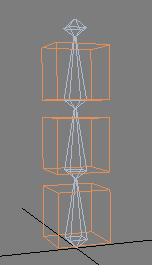
| Example of valid data: Node configuration on Max3ds | |
 |
 |
These are animation-related options.
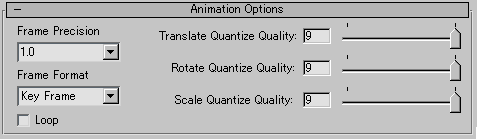
This option specifies the allowable range of errors when animation curve data is optimized.

To input or output the option settings as a C3ES (CTR 3D Export Settings) file, use the NW4C Settings menu item in the Options window.
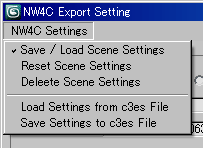
If Save / Load Scene Settings is selected (the default), the option settings used the last time an intermediate file was output will be saved as scene data when a scene is saved. When the scene is opened, the option settings that were saved in the scene data are loaded. The current option settings remain if option settings were not saved with the scene data. Furthermore, an option setting is loaded when a scene for which option settings have been saved is imported.
If Save / Load Scene Settings is cleared, no option settings are saved with the scene. Furthermore, option settings are not loaded when scene data is opened.
Regardless of whether Save/Load Scene Settings is on or off, option settings at the time an intermediate file was last output are saved as a default settings file.
In addition, this default settings file is loaded at time of next startup.
The default settings file is saved under the name nw4cmax.c3es in the plug-in settings folder C:\Documents and Settings\[user_name]\Local Settings\Application Data\Autodesk\3dsmax\[max_version]\jpn\plugcfg.
To delete the option settings saved in the scene data, click Reset Scene Settings.
To delete the option settings that were saved in the scene data, click Delete Scene Settings. However, this only works if you clear Save / Load Scene Settings and then save the scene data. If you do not save the scene data, the option settings are retained.
To output option settings to a C3ES file, click Save Settings to r3es File. Option settings will be output when an output file name is specified on the file selection window. If the extension of the output file is other than .c3es, .c3es will be added automatically.
Click Load Settings from c3es File to enter option settings from a C3ES file. Option settings will be input when an input file name is specified on the file selection window.
If an error or warning occurs during export, it will be output to the listener window.
Some errors are also displayed in a message box.
The error list as currently implemented is presented below in alphabetical order.
When an error is detected, the Export process halts.
This error occurs when the file does not exist, cannot be opened, or cannot be overwritten.
CreativeStudio has not been correctly installed.
CreativeStudio must be installed in the folder tools\CreativeStudio, located beneath the folder defined by the environment variable NW4C_ROOT. If the environment variable NW4C_ROOT is not defined correctly, correct the definition and restart 3ds Max.
CreativeStudio has failed to start. Be sure to check CreativeStudio error output.
3D editor has not been correctly installed.
3DEditor must be installed in the folder 3DEditor, located beneath the folder defined by the environment variable NW4R_ROOT. If the environment variable NW4C_ROOT is not defined correctly, correct the definition and restart 3ds Max.
Failed to start the 3D editor. Check for error output from 3DEditor.
Nodes affected by skinning are not output. This error arises when Export Target is set as selection and nodes affected by skinning are not selected, or when no envelope has been assigned to a vertex even though a skinning modifier and Physique modifier are being applied.
This error occurs if the path for the CMDL file to be merged is left blank or if the filename contains illegal characters.
There is no active node to be output.
This error occurs when the output specifications for the intermediate file are all cleared, or when only the output specifications for texture data are selected but there is no texture to output.
This error occurs if the Export option Output File Name is left blank or if the filename contains illegal characters.
This error occurs if the Export option Output Folder Name is left blank or if the filename contains illegal characters.
More than one vertex color exists for the user vertex attribute of the given number. For example, this error would occur if there were vertex colors with the names nw4cUser0 and nw4cUser0_b for the same single object. Either delete the unnecessary vertex colors or change their names.
A texture has a size whose height and width cannot be handled by CTR. Height and width must both be set to a power of two equal to or greater than 8 and equal to or less than 1024.
The number of mesh vertices excess the limit (65535). If this error occurs, divide up the pertinent mesh to get the appropriate size.
The number of bones used by a polygon exceeds the maximum number of bones that can be referenced by a primitive.
If an error occurs, adjust the Max Reserved Uniform Registers option to decrease the number of uniform registers being reserved.
An out-of-bounds value has been specified for the Max Reserved Uniform Registers option.
The setting value must range from 0 to 57 (from 0 to 54 when the Non-Uniform Scale option is ON.
The Warning List, as it is currently implemented, is presented below in alphabetical order.
The Export process will continue, even if a warning is detected.
The specified output range exceeds the playback range of 3ds Max. The output range is changed to fit within the playback range of 3ds Max.
No material has been set for a node being output. A dummy material is output.
The allocated texture does not exist. If a path is included in the file name for the texture allocated for a material, the image saved in the path is accessed during output. This error occurs when no image exists on the path. Furthermore, if the texture file name does not include a path, images in the directory where the current max file exists are accessed.
This error is issued if more than three textures are set for a material. Make sure the number of textures used by a material is three or less.
This error occurs when UV data used to calculate the tangent used by an anisotropic reflection shader cannot be found.
The channel n map is set in the objects for which a map channel n does not exist.
Because normal output cannot occur in this state, output is performed by forcibly pasting the UV information for map channel 1.
A material name output to the intermediate file was changed because two or more materials had the same name.
This warning occurs when two or more nodes have the same name, when illegal characters are included in a node name, or when the node name to be output to the intermediate file is changed.
The texture name contains illegal characters. Illegal characters are converted to an underscore (_) and output as such.
There are two or more texture files with the same filename as the export target, but in different folders or with a different extension. Make sure that there is only one CTEX file to be output.
The only texture maps that can be used are mipmaps, normal maps and composite maps.
A normal vector that has length 0 exists. Lighting effects will not be carried out normally. Fix this using some means like the Edit normal modifier or a smoothing group.
One of "Hierarchy," "Link Information," or "Inheritance" for the node is OFF. Objects will not display correctly if this is not selected.
Billboard settings are not output when the Convert to Model option is turned ON.
CONFIDENTIAL