This chapter describes procedures and precautions regarding the use of 3ds Max to create animations for NintendoWare.
Animation Overview
Character Animation
Visibility Animation
Color Animation
Texture Pattern Animation
Texture SRT Animation
Scene Animation
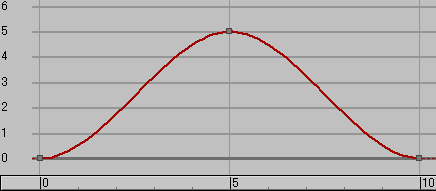
When exporting, animation curve data for output is created automatically from baked data from frame values.
The animation curves from 3ds Max cannot be output without modification.
The rotational value automatically generates animation curve data after adjusting the baked data so that it is continuous and has a small absolute value.
All values in the output range are output for baked animations.
All animations with parameter curves out of bounds are also baked, but not reflected n the animation curve repeat type.
Plans call for providing support for the repeat type of baked animations.
When Loop is set ON in the Export option, specify the End Frame so the conditions are the same as for the Start Frame. For example, if animation is being looped in 3ds Max and frames 1 and 10 have the same conditions, specify 1 for the Start Frame and 10 for the End Frame.
Whether looping is set on or off, the FrameSize in the intermediate file is = (EndFrame - StartFrame).
If attributes are being animated, values for the start frame specified with the Export option are output to the CMDL file. However, the Translate, Rotate, and Scale values of nodes which affect skinning are output in the skinning-configured state.
Be aware that what are being output are not the current values for the frames in 3ds Max.
Character animations are configured by animating the Translate, Rotate, and Scale values of nodes (these nodes may be objects or bones, Bipeds, or dummies).
We recommend setting the axis array to "XYZ" using the Euler Parameters combo box in the Motion panel.
If the axis array is set to something other than XYZ, the volume of animation data could become very large.
Animation curves are always baked inside the Export plug-in before being output.
The animation set in the rendering control display is reflected in the visibility animation.
0.0 is interpreted as invisible. Values greater than 0.0 are interpreted as visible.
Interactive invisibility settings are not reflected in the intermediate file.

For visibility animation, animation curve data is always automatically created and output from baked data.
|
When the Export option Compress Node has been set to Cull Useless Node or Cull Uninfluential Node, make sure nodes which have visibility animations configured are not compressed, since visibility animation is set on a node basis. (You can set the compression disable flag using the NW4C Set No Compress Node Plug-in). When using visibility animation, do not set the Compress Node option to Unite Compressible Node or Unite All Node. |
Color animation is set by animating a material's diffuse reflected light, specular reflected light, transparency and self-illumination.
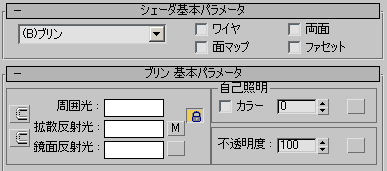
| If the Export option for material compression is enabled, even materials for which color animation is not set sometimes get animated as a result of material collecting. If this happens, use the NW4C Set Material Attribute plug-in to change settings so that materials for which color animation is set are not compressed. |
Texture pattern animations are created using IFL files.
The IFL file is the standard text format file supported by 3ds Max. In 3ds Max, image files can be substituted in every frame for viewing. Specify the IFL files in the same way you use bitmaps to allocate image files to a material's diffuse reflection light.
Texture names are recorded inside the IFL file in the order of substitution.
In the example below, the IFL file has been configured to play animation in the order p1, p2, p3, p1, p2, p3, ....
p1.tga
p2.tga
p3.tga
In this second example, the IFL file has been configured to play animations in the order p1, p1, p2, p3, p3, p1, p1, p2, p3, p3....
p1.tga 2
p2.tga 1
p3.tga 2
The 3ds Max IFL Manager is a useful tool when creating IFL files.
To read about IFL files in more detail, see the 3ds Max Help.
You can use the Material Editor's Time category to control how IFL files get played on 3ds Max.
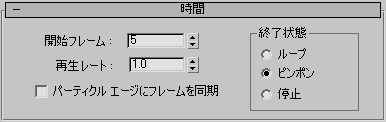
All items in the Time category other than Synchronize frame to particle edge are reflected to the .cmata file.
Animations with coordinates set to Offset U,V, Tiling U,V, or Angle W can be output as texture SRT animations. No other parameters are supported.
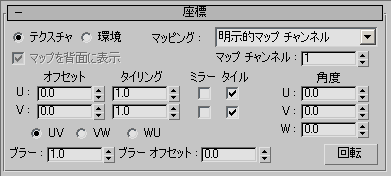
Animation curves are always baked inside the Export plug-in before being output.
| If the Export option for material compression is enabled, even materials for which texture SRT animation is not set are sometimes animated as a result of materials collecting. If this happens, use the NW4C Set Material Attribute plug-in to change the settings so materials are not compressed if texture SRT animation has been set for them. |
Scene animations are configured by animating the camera and light attributes.
The following is a list of attributes that can be configured with animation:
Global coordinate space values are output for the camera position and direction. If camera or target (equivalent to Aim) nodes have parent nodes, the Translate and Rotate settings of the parent node are also applied.
Output of standard lighting is supported as shown below.
The following is a list of attributes that can be configured with animation:
Global coordinate space values are output for the light position and direction. If a light has a parent node, the Position and Rotate for the parent node are also applied.
Currently shape animations (moprhing) cannot be used.
CONFIDENTIAL