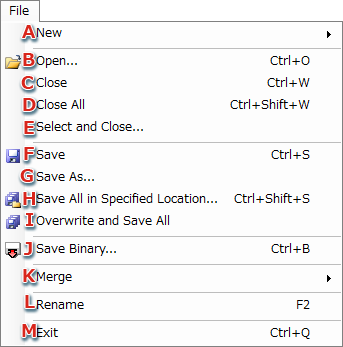
The file menu is used to perform file I/O and general application operations.
For details on the loading of files, see the section About Loading Files.
When a Model file (a .cmdl file) is closed, all Animation files and Texture files being referenced by that model are closed at the same time.
When a Material Animation (.cmata) file or a Texture Pattern Animation (.cmtpa) file is closed, the Texture files being referenced by the animation are closed at the same time.
When this operation is performed from a context menu in File View, the type of files that will close when selected is determined by which item was right-clicked in File View.
If saving for the first time, a dialog will display and prompt you to specify a save location and filename.
A dialog box for specifying the save location and filename will display.
The Specify save location dialog will display.
When a file is being saved for the first time, a dialog displays to confirm where to save it.
The Save Binary File dialog will display.
For the filename, you can use alphanumeric characters and the underscore (_), hyphen (-) and period (.).
If the file extension is omitted it is appended automatically.
This Create New submenu is used to perform operations related to the creation of new files.
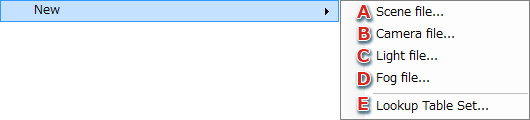
.cscn file).
Selecting this opens the dialog to create a Scene file.
.ccam file).
Selecting this opens the dialog to create a Camera file.
A .ccam file stores multiple Cameras and multiple camera animations for those Cameras.
.clgt file).
Selecting this opens the dialog to create a Light file.
A .clgt file stores multiple Lights and multiple light animations for those Lights.
.cfog file).
Selecting this opens the dialog to create a Fog file.
A .cfog file stores multiple Fogs and multiple fog animations for those Fogs.
.clts file).
Selecting this opens the dialog to create a lookup table set.
This submenu is used to perform operations related to the merging of files.

.cmdl) file into the selected Model file. This dialog box is used to specify which file to save and where to save it.

If a file has the same name as an existing file in the save folder, the message ["Time Modified" of file to be overwritten] is displayed.
Files that have been checked (that will be overwritten) are displayed in red.
<save_folder>/textures. CONFIDENTIAL