Save Binary File Dialog Box
This dialog is displayed when saving data edited using 3DEditor as a binary file.
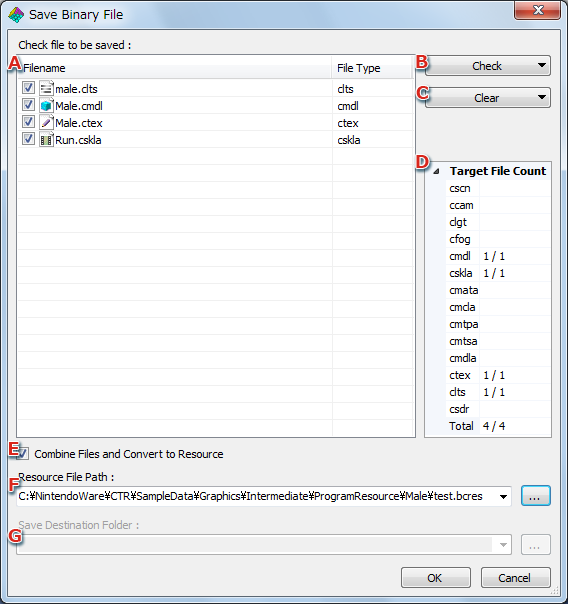
- File list
Displays a list of files to be saved as binary files.
A file will not be saved as a binary file unless the checkbox next to that file is selected.
- Check
File extensions are displayed in the pull-down menu.
Clicking a file extension selects all checkboxes for files having the clicked extension. This allows those files to be saved as binary files.
- Clear
File extensions are displayed in the pull-down menu.
Clicking a file extension unselects all checkboxes for files having the clicked extension. These files will not be saved as binary files.
- Target File Count
Displays the number of taget files to be saved as binary files for each extension.
Files whose checkboxes are not selected in the file list are not counted.
- Select the checkbox if files are to be collected and made into a resource.
The location where files will be stored differs in terms of resource file path or save destination folder depending on whether this checkbox is selected.
- Resource file path
Enabled when the checkbox in E is selected.
Click the file reference icon and set the resource file path.
- Save destination folder
Enabled when the checkbox in E is not selected.
Click the file reference icon and set the foder in which to save binary files.
CONFIDENTIAL