Ambient Lights and Fragment Lights
This section describes the basics of creating and setting ambient lights and fragment lights.
Ambient Lights and Fragment Lights
- Ambient lights are lights that illuminate the entire Preview panel.
- Fragment lights are lights calculated (shadowed) per fragment.
Loading Models
On the CreativeStudio menu, click File → Open → Intermediate file to load the model intermediate file.
This example is based on a spherical model that uses lambert.

Reference:
The size and position of the sample sphere being used are given below.
Here, Maya is being used as the 3DCG tool. (Defaults are used for all tool settings.)
- Radius: 3.5
- X, Y, Z position: 0 , 3.5 , 0
Changing lighting settings
Under Lighting on the material Properties panel, select Enable vertex lighting.
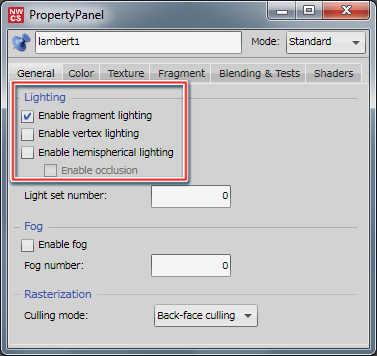
Checking the Texture Combiner
Select MaterialCtr1 in the Contents panel and check the settings for Combiner 0 in the material Properties panel.
For details on texture combiners, click here.

This configures the material to be affected by only the primary color.
With this configuration, the B: Source 1 and C: Source 2 settings are not used.
| Fragment light | Description |
|---|---|
| Primary color | Lighting results for emission, ambient, diffuse lighting. |
| Secondary color | Lighting results for specular lighting. |
Creating Ambient Lights
On the CreativeStudio menu, click Create → Light → Ambient light.
This creates an ambient light and displays AmbientLight in CreativeStudio's Content panel.

Because the ambient color of the material is the ambient color of all lights, the entire model takes on the same hue without any shadowing.
Creating Fragment Lights
On the CreativeStudio menu, select Create → Light → Fragment light.
This creates a fragment light and displays Light in CreativeStudio's Content panel.

Once a fragment light is created, you can change the diffuse color and specular color using the fragment lighting Properties panel.
For details on the fragment lighting Properties panel, click here.
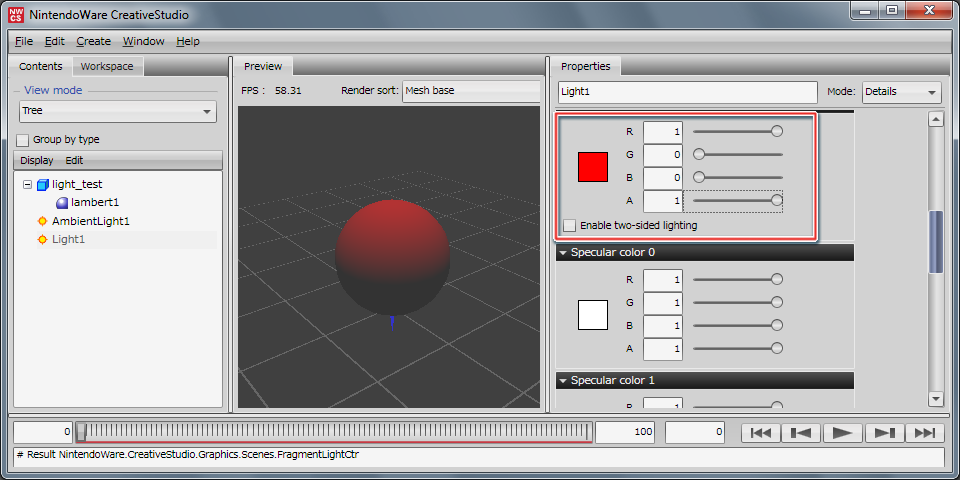
Here, we have swtiched the diffuse color of the fragment light to red.
Adjusting the Ambient Color
This section provides a simple explanation of how to adjust the ambient colors configured when creating ambient lights and fragment lights.
Adjusting the ambient color for all models
You can adjust the ambient color (shadow color) for all models in the scene by manipulating the color values of the global ambient (ambient light).
Adjust ambient color for individual models
If you want to change the ambient color (shadow color) for individual models in a scene, you can use the methods described below.
- Change the value for ambient color in the Material panel for the model.
When you use this method, the global ambient color value is multiplied by the model's ambient color.
The global ambient (ambient light) is the sum of "the ambient light" plus "the fragment light's ambient (the number of fragment lights)".
Only one ambient light value can be set inside a scene.
Even if many values are set, the ambient light will take the value that was set last.
If 0 has been set for the RGB values of the ambient light or material ambient, values will remain zero and the Preview will not change no matter how much you try to change the RGB values of the fragment light ambient color.
- Change the value for the emissive in the Material panel for the model.
The emissive is the sum of "the global ambient" plus "the emissive" so you can alter the shadow color by entering a value here as well.
You need to remember that emissive does not brighten the scene's environment light, but rather the model's luminescence, so even if you alter the ambient light the model's shadow color itself will remain unchanged.
Thus, this method is not for all purposes, but it is one alternative when the ambient is difficult to configure.