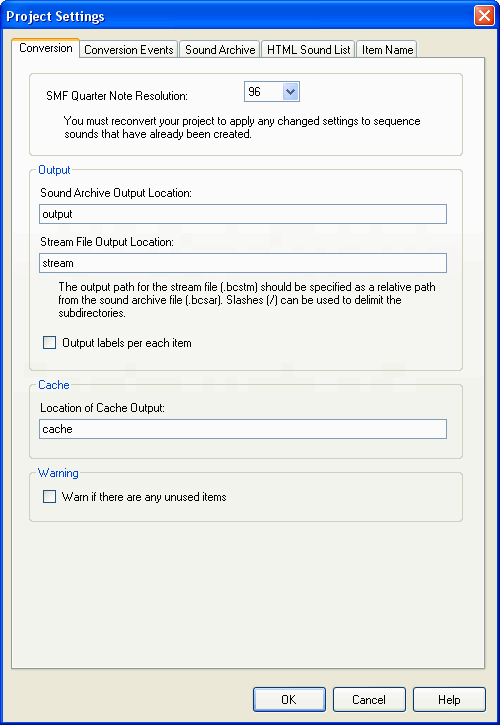
The Project Settings dialog box is used to set attributes at the Sound Project level for open Sound Projects.
Select Project and then Project Settings.
Tabs are located on the Project Settings dialog box. Select the category you want to make settings for using these tabs.
The settings for each category are described below.
Convert
Convert Event
Sound Archive
HTML Sound List
Item Names
Used to set attributes for conversion.
Use SMF quarter note resolution to select the quarter-note resolution when converting the standard MIDI file format (SMF).
Specify the output destination for the sound archive file in Sound Archive Output Target.
If this is left blank, it will be output to the same hierarchical level as the sound project.
Use Stream File Output Location to specify a relative path from the Sound Archive Output Location to the directory where the stream file will be output at conversion time.
If a nonexistent directory is specified, it will be created automatically at conversion time.
When the check box for Output Labels by Item is selected, in addition to exporting the .csid file which is the sound project collection of all item names (IDs), the item ID headers are also divided into files by type and output.
To read more about file output, see Generated Files.
Intermediate binary files will be output to the folder specified in the Location of Cache Output field.
However, the bank's include file (.cinl) will be output to the same location as the source file.
If Warn if there are any unused items is selected, the program will issue warnings in the Conversion Log window during conversion.
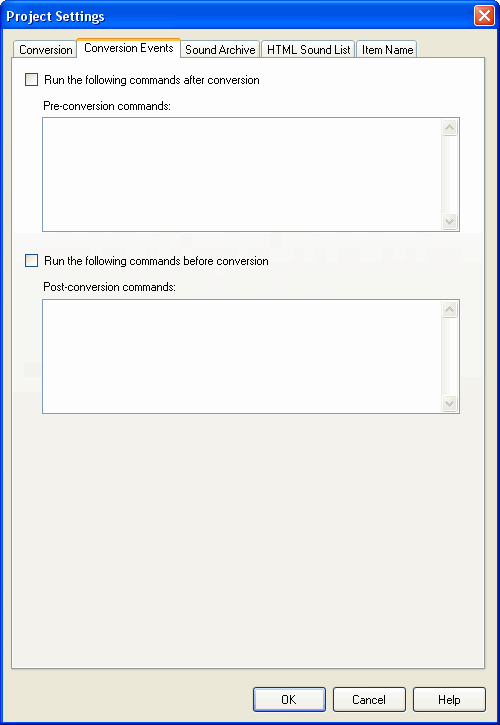
Command before Conversion and Command after Conversion are explained in the Other Features section Automatic processing before and after conversion.
Used to make settings for sound archive files created during the conversion process.
You can disable output of the string table in your sound archives by unselecting the Output the string table check box.
If you won't be using strings to make calls to the sounds or other sound-related data in your project, you can reduce the size of your sound archives by disabling output of the string table.
The numeric values in the "Sound Archive Player" area of the window represent the maximum number of sounds and channels that snd library will prepare when playing back sound archives created with this tool.
You can economize on the memory consumed by the snd library by setting the number of sounds that are not used to 0 and by using only the minimum required number of channels.
However, take care, for instance, when changing numeric values for settings like "Number of stream sounds" since it will be impossible to play more than that number of stream sounds simultaneously.

Supplemental Information
The values set here are related to the numbers of instances held internally by the
nw::snd::SoundArchivePlayerbound to the sound archive (bcsar).When these numbers are large, the SoundArchivePlayer can hold that many instances, but the functions
SoundArchivePlayer::GetRequiredMemSizeandSoundArchivePlayer::GetRequiredStreamBufferSizewill require more memory.Specifically, the
GetRequiredMemSizefunction will require more memory when there are large numbers of any of these:
- Number of sequence sounds
- Number of sequence tracks
- Number of stream sounds
- Number of wave sounds
And when there are are large number of stream channels, the
GetRequiredStreamBufferSizefunction will require more memory.It is the instances stored in SoundArchivePlayer which are used when the system acts to play the various sounds (stream sounds, sequence sounds and wave sounds), but only the numbers of sounds determined here can be played. If you try to play more sounds, the following warning message will display and the lowest-priority sound will be stopped.
snd_SoundInstanceManager.h:144 Warning:Sound (id:0xXXXXXXXX) is stopped for not enough seq sound instance.
By comparing with the player's Sound Limit you can take these as the values determining the maximum playback number for each sound type (stream sounds, sequence sounds and wave sounds).
To repeat, these values affect the required amount of memory, so you can control memory size by considering how many of each type of sound can be expected to be played at the same time in the application and setting the values accordingly as low as possible.
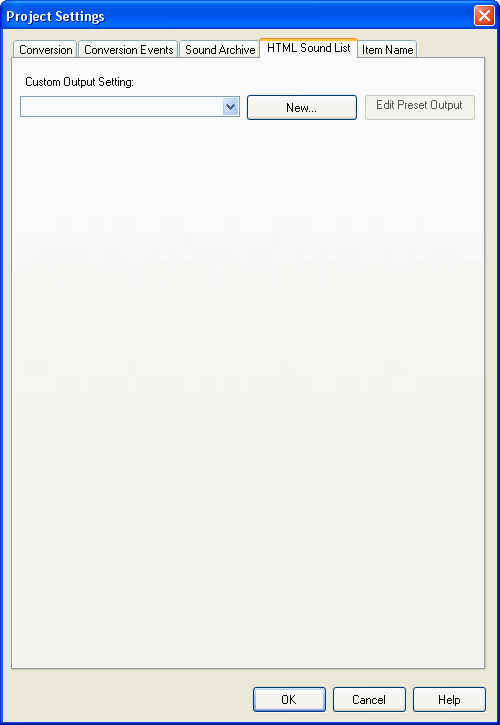
Configures the HTML sound list.
By configuring an HTML sound list ahead of time, you can have an HTML-formatted sound list output automatically when sound data is converted.
It is also now possible to list sound label names and comments in a table, and sort by item.
Note: Instrument lists can be also output as HTML-formatted files, but not while converting. See HTML Instrument List Output for more information on instrument lists.
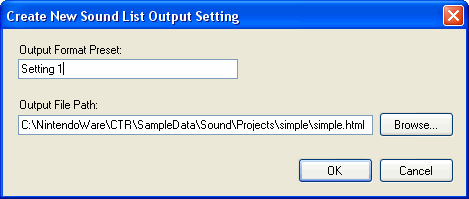
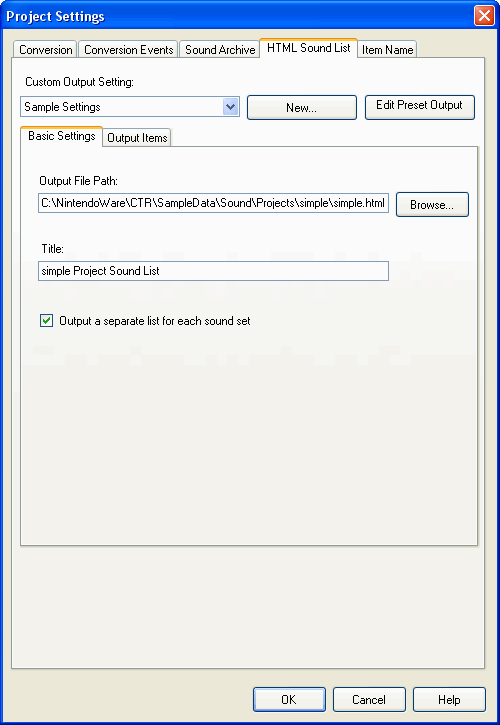
The Create New Sound List Output Settings dialog box appears when the Create New button is clicked. This dialog box is used to enter such information as the output settings name.
If more than one output settings name is set, the "General" and "Output" tabs will appear.
Toggling the Output List for Each Sound Set check box allows projects with multiple sound sets to output either one list for each sound set or one list for all sound sets.
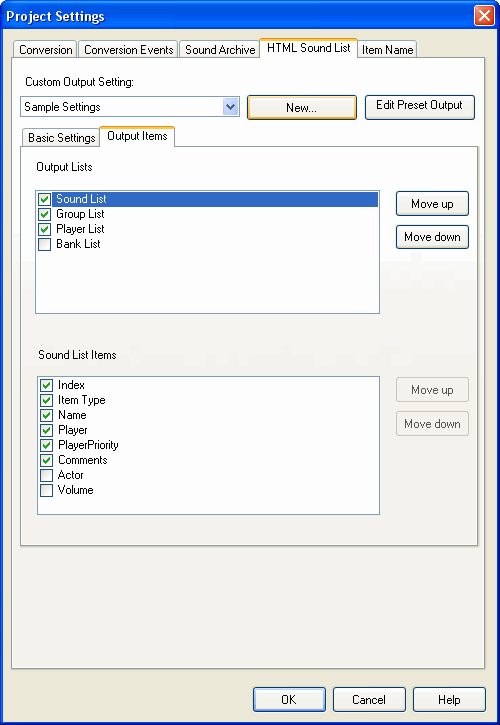
Select the items to be written to the sound list.
These items are written to the sound list in the order listed here. It is possible to re-arrange items selected on the list by pressing the "Move up" and "Move down" buttons.
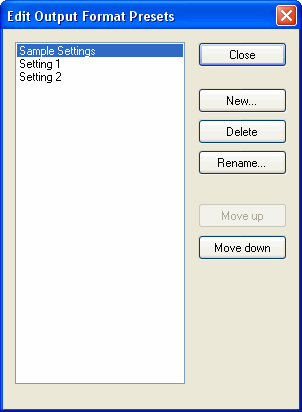
It is also possible to edit the settings list in the dialog box that appears when the Edit Settings List button is pressed.
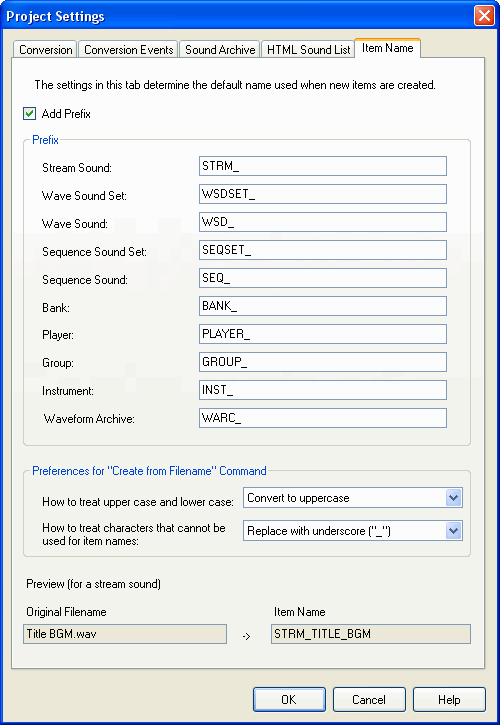
Item names take the default prefix settings.
The default prefix name for an item can be edited in the Create New dialog box.
However, this setting cannot be configured for sound sets.
The original filename is used for the default name.
Use the Create from filename area to configure the conversion of filenames to uppercase/lowercase and the treatment of characters that cannot be used for item names.
When you drag and drop a waveform file to create a new item, the item name is always created from the filename.
CONFIDENTIAL