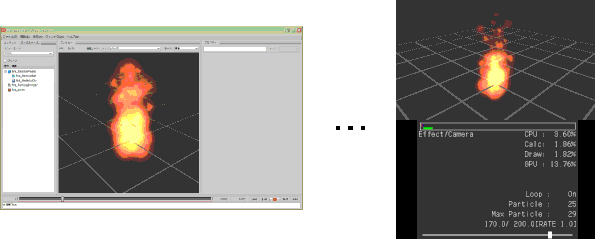
Currently, the following operations are possible through the combined use of Viewer and CreativeStudio.
By communicating with CreativeStudio you can preview effects that have been loaded to CreativeStudio.
In File Selection mode, specify and load a binary file( a bcmdl file).
To read how to save bcmdl files, see the CreativeStudio manual.
In Effect mode, you can check the content of effects loaded in Viewer and play back animations.
The Effect mode displays the following information.
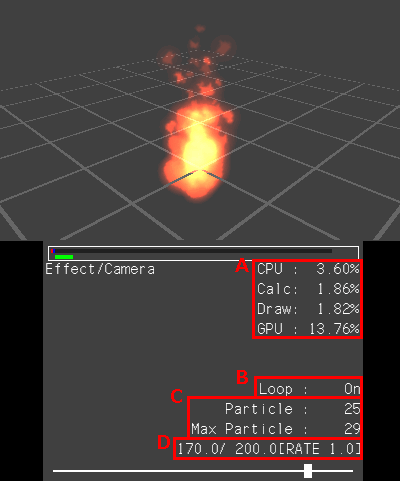
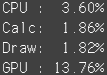
The CPU and GPU loads for processing of effects is displayed digitally.
The unit is percentage points. This is the equivalent of the values displayed in the Processing Meter.
CPU: Time required for animation processing and rendering processing to complete sending to the GPU.
Calc: Time spent for animating.
Draw: Time spent for rendering.
GPU: Time from start to finish of rendering.
Shows whether the feature has been enabled for looped playback of particles in certain frames.

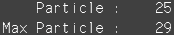
Particle indicates the number of particles. Max Particle indicates the maximum number of particles.
For details, see the documentation relating to effects.

The number on the right indicates the frames being looped. The number on the left indicates the current frame count.
The value in parenthesis indicates the rate at which the playback of frames advances in one step.
The following operations can be performed in Effect Mode:
Camera / Other Operations
Camera/other operations are the same as the operations in 3D Mode, so see this document.
Animation Operations
| Key Operations | Description |
| A Button | Starts/stops playback of all displayed model/scene animations. |
| B Button | Stops all model or scene animations being displayed and resets to frame 0. |
| R Button + +Control Pad |
Forwards the animation frame (right) Accelerates/decelerates the animation playback rate (up/down). |
Particle Operations
| Key Operations | Description |
| R Button + +Control Pad left | Switches on/off the loop setting for particle playback. |
| R Button & X/Y Button | Increases/decreases the frames of looped particle playback. Each press of button increases/decreases number by 10 frames. |
Camera / Other Operations
Camera/other operations are the same as the operations in 3D Mode, so see this document.
Animation Operations
| Key Operations | Description |
| A Button | Starts/stops playback of all displayed model/scene animations. |
| B Button | Stops all model or scene animations being displayed and resets to frame 0. |
| ZR Button + +Control Pad |
Forwards the animation frame (right) Accelerates/decelerates the animation playback rate (up/down). |
Particle Operations
| Key Operations | Description |
| ZR Button + +Control Pad left | Switches on/off the loop setting for particle playback. |
| ZR Button & X/Y Button | Increases/decreases the frames of looped particle playback. Each press of button increases/decreases number by 10 frames. |
There are no specific limitations in this version.
CONFIDENTIAL