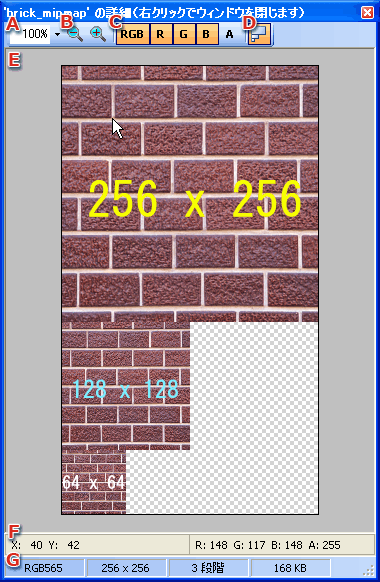
This window is used to display the details of a texture or palette image.
For textures that include mipmaps, it is also possible to display an image of the mipmap portion.
Displays the image.
For textures that include mipmaps, images in the mipmap portion are lined up at bottom left (only when mipmap display is enabled).
If only displaying the A component, a grayscale results where white parts are an opaque color and and black parts are transparent.
When displaying any of the RGB components at the same time, a semi-transparent image where red corresponds to the alpha value is super-imposed on the RGB components.
In the case of a texture, the following four pieces of information will be displayed in order starting from the left.
In the case of a palette, the following three pieces of information will be displayed in order starting from the left.
Within the image area, there are the following four types of operational modes, which correspond to the status of the key being pressed.
Regardless of the operational mode, right-clicking within the image area will close the window.
| Key Status | Mouse Cursor | How to Use |
| None. |  |
If you point at an image, the corresponding pixel position and color will be displayed in the bottom part of the window. |
| Space |  |
Dragging with the left button will scroll the display area. Only enabled when the entire image does not fit inside the area. |
| Ctrl+Space |  |
Clicking with the left button will zoom in, centering on the point that was clicked. If an area outside the image is clicked, the display will zoom in on the center of the image. |
| Alt+Space |  |
Clicking with the left button will zoom out, centering on the point that was clicked. If an area outside the image is clicked, the display will zoom out on the center of the image. |
The shortcut keys are as follows:
These operations are enabled only when this window is active.
| Key | Operation |
| Ctrl+Num - | Reduces the display magnification. |
| Ctrl+Num + | Reduces the display magnification. |
| Ctrl+1 | Displays only the RGB components of an image. |
| Ctrl+2 | Displays only the R component of an image. |
| Ctrl+3 | Displays only the G component of an image. |
| Ctrl+4 | Displays only the B component of an image. |
| Ctrl+5 | Displays only the A component of an image. |
| Ctrl+M | Toggles the display of the image of the mipmap portion. |
CONFIDENTIAL