Scale Animations

You can set detailed information for varying the scale of particles.

This page describes the following features.
Initialization
Key Animation on the initial value(s)
Key Animations
Additive Animations
Key Animations

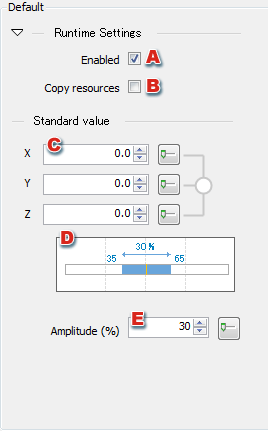
Default

Scale Initial Values

  1. This panel appears when Default has been selected in the Animation combo box.


  2. Sets whether to enable settings made on this panel.
  3. Sets whether to copy resources.
  4. Sets the standard value. Revision to one location can be applied to the remaining two locations by selecting the link radio buttons to the right to enable simultaneous editing.
  5. Sets the amplitude value using the mouse.
  6. Sets the amplitude value.

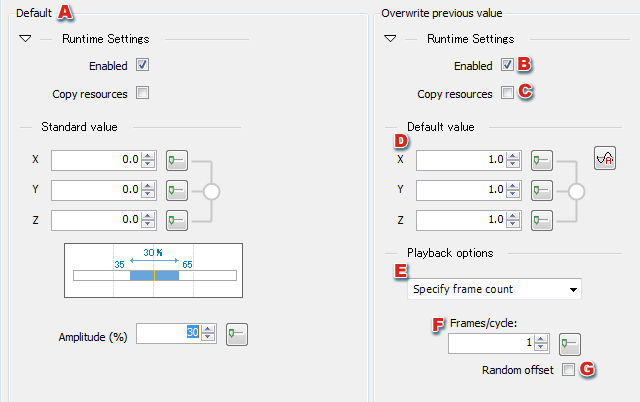
Key animation on the initial values

Key animation on the initial values

    This panel appears when Key animation on the initial value(s) has been selected in the Animation combo box.
  1. This panel is the same as the Default panel described above.
  2. Sets whether to enable settings made on this panel.
  3. Sets whether to copy resources.
  4. Sets defaults.
    Revision to one location can be applied to the remaining two locations by selecting the link radio buttons to the right to enable simultaneous editing.

  5. Sets the sync type for playback options.
  6. Sets the number of frames per loop cycle when Specify frame count is selected for Playback Options.
  7. Sets whether to use a random offset when Specify frame count is selected for Playback Options.
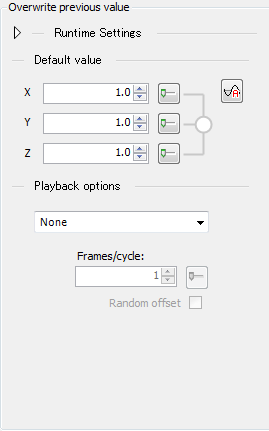
Key Animations

Key animation on the initial values

    This panel appears when Key Animation has been selected in the Animation combo box. This panel is the same as the Overwrite previous value panel described above.

Additive Animation

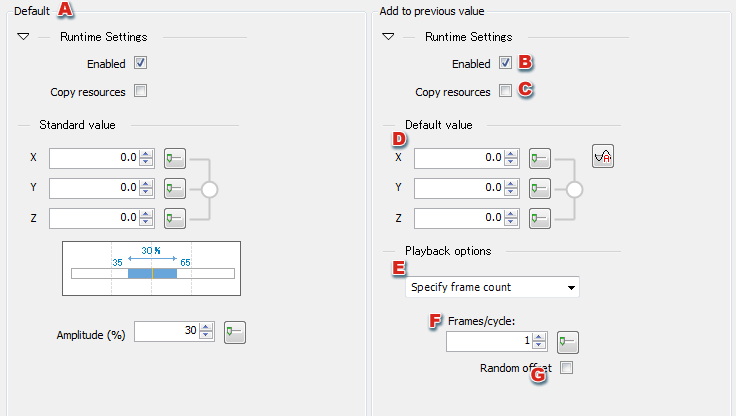
Scale Additive Animation

    This panel appears when Additive Animation has been selected in the Animation combo box.
  1. This panel is the same as the Default panel described above.
  2. Sets whether to enable settings made on this panel.
  3. Sets whether to copy resources.
  4. Sets defaults.
    Revision to one location can be applied to the remaining two locations by selecting the link radio buttons to the right to enable simultaneous editing.

  5. Sets the sync type for playback options.

  6. Sets the number of frames per loop cycle when Specify frame count is selected for Playback Options.
  7. Sets whether to use a random offset when Specify frame count is selected for Playback Options.

In/Out Animation

Key animation on the initial values

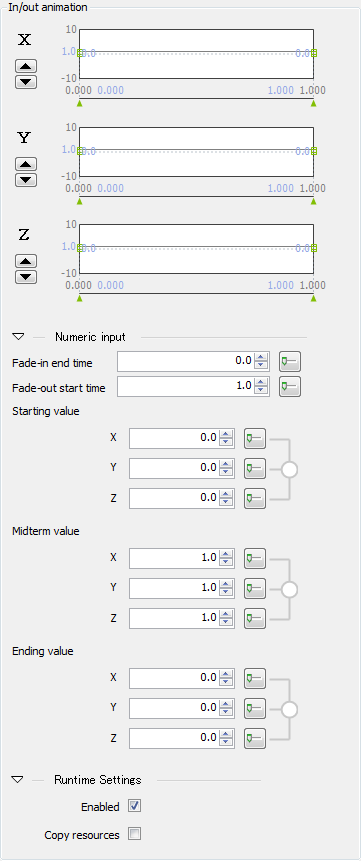
    This panel appears when In/out animation has been selected in the Animation combo box. This panel is the same as the In/out animation panel described above.

CONFIDENTIAL