
This page shows how to use Curve Editor in detail.
This page describes the following features.
Key Control
Slope Control
Snap Control
Copying and Pasting Curves
Copying and Pasting Curve Nodes
Paste Option
Accurately determine the location to place a key by numeric value.
Sets the number of frames (horizontal) and aspect ratio (vertical).
Determines whether clicking on the screen adds a key or selects keys and curves.
When depressed, keys can be added, when restored to original status, keys can be selected.
Convert key to hermite.
Draws the curve is in a smooth shape.
Convert key to linear.
Draws the curve by connecting each key with straight lines.
Convert key to step.
Draws the curve by connecting each key with steps.
Convert key to flat.

Adjust the left and right slopes using precise values for both.
Making this setting causes items not possessed by the curve to no lonber be displayed on the item tree.
Links slopes.
Takes the broken slope and flattens it.
Splits into connected slopes.
Splits into left and right slopes which can each be independently adjusted.


Pastes the copied curve. Press the button to the side, opens the Paste Options dialog box.
Opens the Paste Options dialog box.
The copied curve can be pasted to another curve node.
Select a curve node and copy it by pressing Ctrl+C.
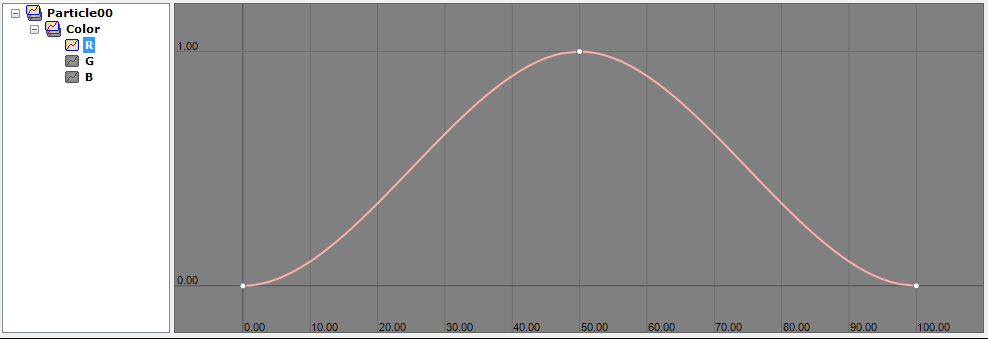
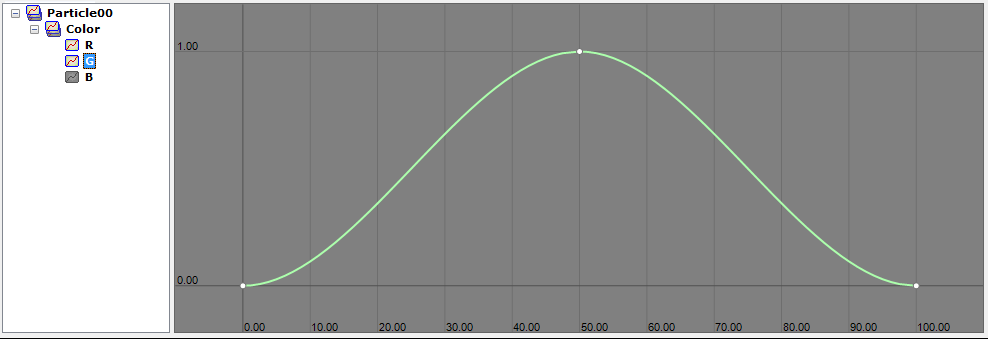
Select a curve node and paste to it by pressing Ctrl+V.
If there is already a curve present, it will be overwritten by the pasted curve.
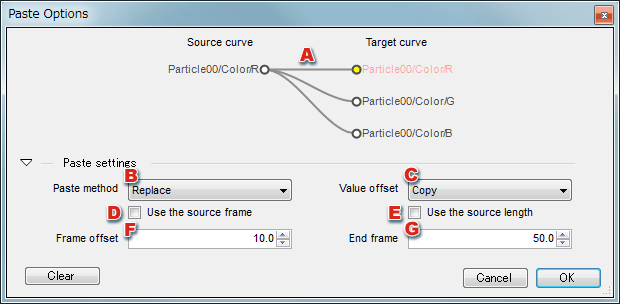
Specifies the paste method.
There are three paste methods: Insert, Replace, and Merge.
Sets the value's offset.
There are two types of offset: Target curve and Copy.
Sets the frame offset.
This input is activated when Use the source frame is unselected.
Sets the end frame.
This input is activated when Use the source length is unselected.
CONFIDENTIAL