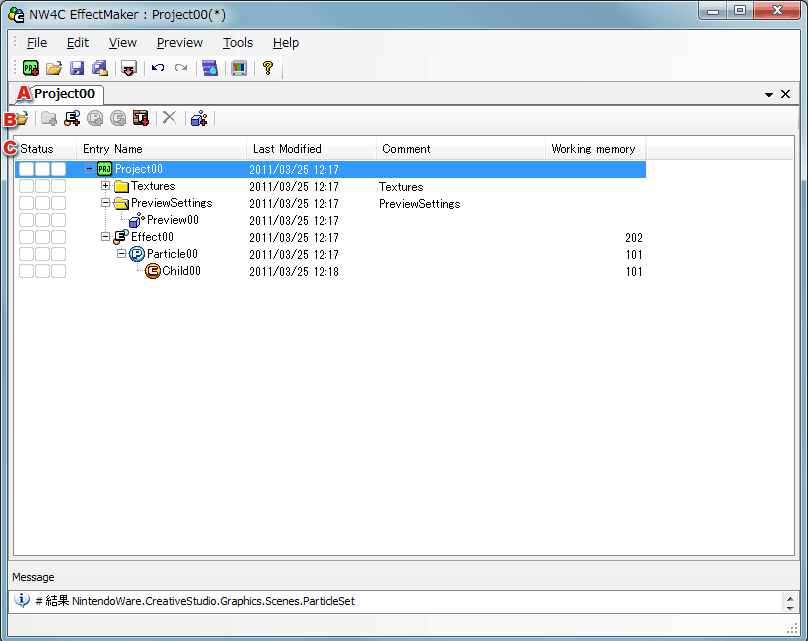
This page describes the Project Window.
Project Window
Copying and Pasting Effects
| Icon | Name | Description |
 |
Open | Opens effect or texture files. |
 |
Add folder | Not supported. |
 |
Add effect | Adds a new effect. |
 |
Add particle | Adds a particle to an effect. |
 |
Add child particle | Adds a child particle to a particle. |
 |
Add texture | Adds a new texture. |
 |
Delete | Deletes selected nodes. |
 |
Add 3D link node | Adds nodes for previewing using 3D link. |
| Name | Description |
| Status | Unsupported: Uses icons to indicate various content references, binary conversion, and lock status. |
| Entry Name | Various content included in the project is displayed in a tree structure. |
| Last Updated By | Displays the person who updated various content. |
| Last Modified | Displays the date/time when various content was modified. |
| Comments | Displays comments. |
| Work memory | Displays the required work memory size. |
Copying Effects
Pasting Effects
Copying Particle Sets
Pasting Particle Sets
Copying Child Particles
Pasting Child Particles
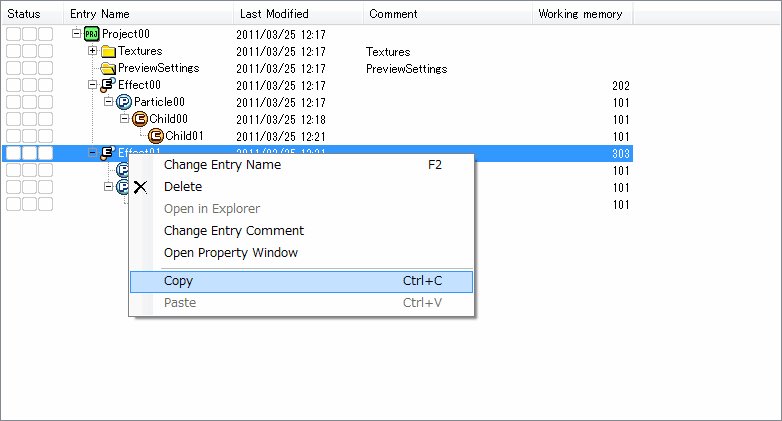
You can copy and past effect nodes on the Project Window.
Here, we copy on top of an effect node.
You can copy by selecting Copy from the context menu displayed by right clicking or by using Ctrl+C.
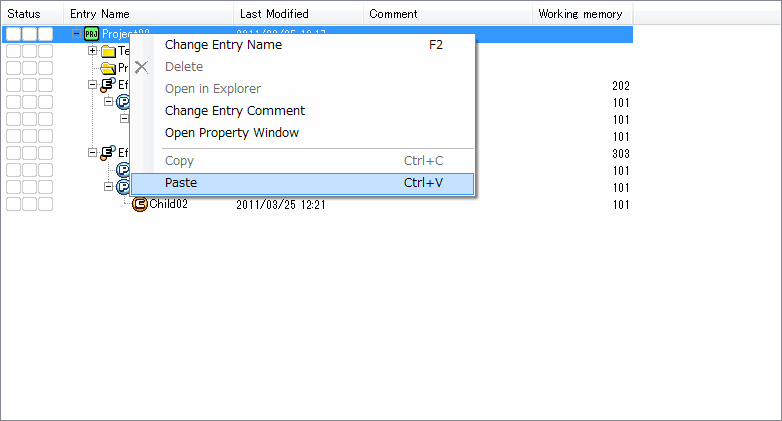
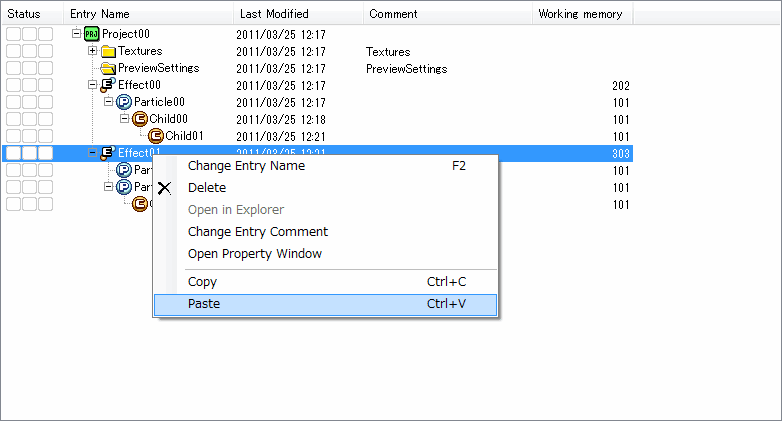
Here, we paste the effect onto a project node.
Effects can be pasted to effect nodes or particle set nodes. Child nodes cannot be pasted. You can paste a copied effect by selecting Paste from the context menu displayed by right clicking or by using CTRL+V.
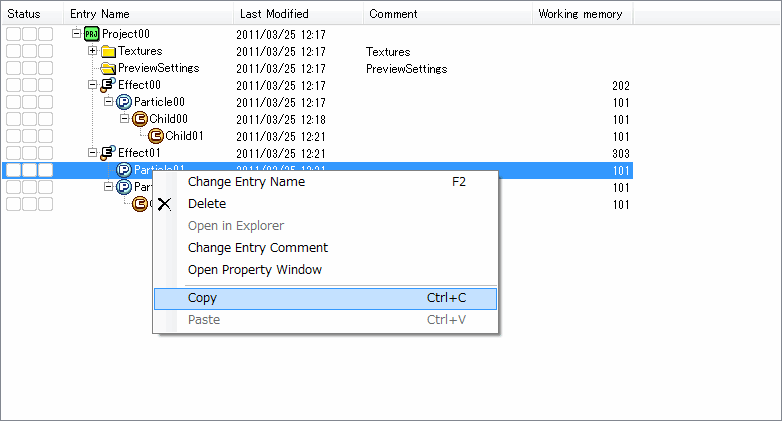
Here, we copy a particle set node.
You can copy by selecting Copy from the context menu displayed by right clicking or by using Ctrl+C.
Here, we paste the particle set onto an effect node.
Particle set nodes are the target. Child nodes cannot be pasted. You can paste a copied effect by selecting Paste from the context menu displayed by right clicking or by using CTRL+V.
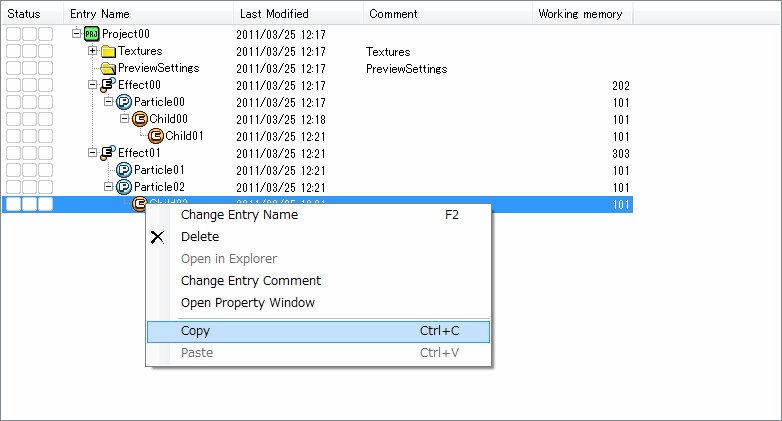
Here, we copy a child particle. Only a single child particle is the target.
You can copy by selecting Copy from the context menu displayed by right clicking or by using Ctrl+C.
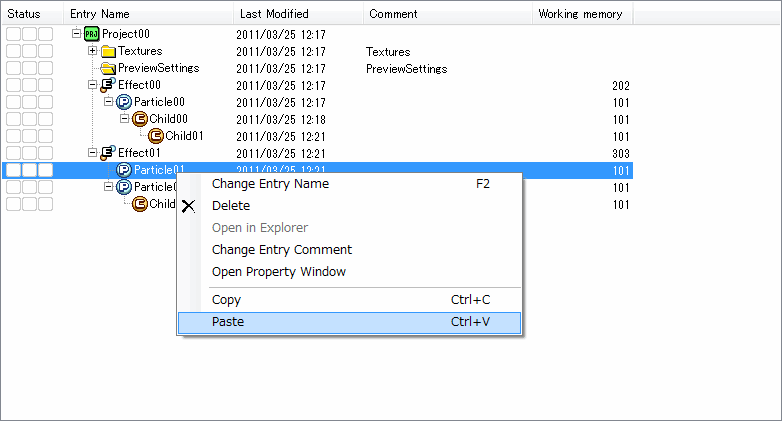
Here we paste onto a child particle node or a particle set node.
Only one child node is pasted. Children are not pasted.
You can paste a copied effect by selecting Paste from the context menu displayed by right clicking or by using CTRL+V.
CONFIDENTIAL