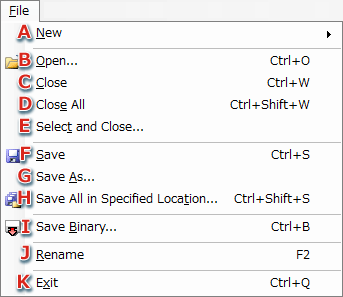
The file menu is used to perform file I/O and general application operations.
-
Displays the Create New submenu.
-
Opens files (intermediate files) compatible with NW4C EffectMaker.
For details on loading files, see the section About Loading Files.
-
Closes the selected file.
When a model file (RMDL) is closed, all animation files, texture files, and palette files referenced by that model are closed at the same time.
When a texture pattern animation file (RTPA) is closed, all texture files and palette files referenced by that animation are closed at the same time.
-
Closes all files.
-
Closes one or more selected files.
The shortcut menu displayed depends upon the type of file selected in the File View pane.
-
Saves, overwriting the selected file.
If saving for the first time, you will be prompted to specify a save location and filename.
-
Enter a name for the selected file and save it.
A dialog box for specifying the save location and filename will appear.
-
Saves all files to the specified folder.
The dialog box for saving to a specified location is displayed.
-
All files are converted to binary format for use by the NintendoWare 3D library and then saved.
The Save Binary File dialog box is displayed.
-
The name of the selected file is changed.
Alphanumeric characters, underscores (_), hyphens (-) and periods (.) can be used in file names. If the file extension is omitted, one is appended automatically.
-
Exiting EffectMaker
This submenu is used to perform operations related to creating new files.

-
Creates a new project.
The newly created project only possesses basic elements.
About Loading Files
Loading Files with Same Names
You can choose to open new model (RMDL) and animation (RCHA, RVIA, RCLA, RTPA, RTSA, RSHA) files in place of any files with the same name that have already been loaded. For texture (RTEX, TGA) and palette (RPLT) files, it is possible to overwrite only the data portion. You cannot open a scene (RSCA) file with the same name as one that is already loaded.
Opening Files Using Drag and Drop
You can also open files by dragging and dropping files or folders into the main window. If a folder is dragged and dropped, all files inside that folder are recursively searched and all readable files are loaded.
Opening a File from an Older Version
An older-version file is automatically converted to the new version and loaded.
Searching Texture and Palette Files
When model (RMDL) or texture pattern animation (RTPA) files are opened, the referenced texture files (RTEX) and palette files (RPLT) are loaded at the same time. The priority for searching for files when opening texture and palette files is as follows:
- rtex and rplt files in the textures folder within the folder for the referencing file.
- RTEX or RPLT files in the same folder as the referencing file
- TGA files in the
textures folder within the folder for the referencing file
- TGA files in the same folder as the referencing file
Auto-Updating Texture Files and Palette Files
3DEditor monitors for updates to all texture files (RTEX) and palette files (RPLT) already loaded on the PC. When file contents are updated outside of 3DEditor, the file is reloaded automatically and transferred to Viewer. This feature is useful for making fine adjustments to textures with programs such as Photoshop and repeatedly previewing results with Viewer.
Opening TGA Files
The TGA files must contain additional information for NintendoWare. For details on creating TGA files with additional information, see the NintendoWare Photoshop Plug-in manual.
The Specify Save Location Dialog Box
This dialog box is used to specify which file to save and where to save it.

-
Specifies the folder to save to. The save folder can also be selected from a history of folders saved to in the past.
-
Accesses the folder using the folder specification dialog.
-
Displays a list of files to be saved. Only those files that have been checked are saved.
If a file has the same name as a file in the save folder, the update time and date of files to be overwritten are displayed. Files that have been checked (that will be overwritten) are displayed in red.
-
Selects a file type to check all corresponding files.
-
Selects a file type to remove the check from all corresponding files.
-
Displays the number of files to be saved and the number of checked files for each file type.
-
Saves the texture file and palette file under
<save_folder>/textures.
-
Cptl files are saved in the Effects folder.
-
A confirmation dialog box appears when files are overwritten.
The Binary Save Dialog Box
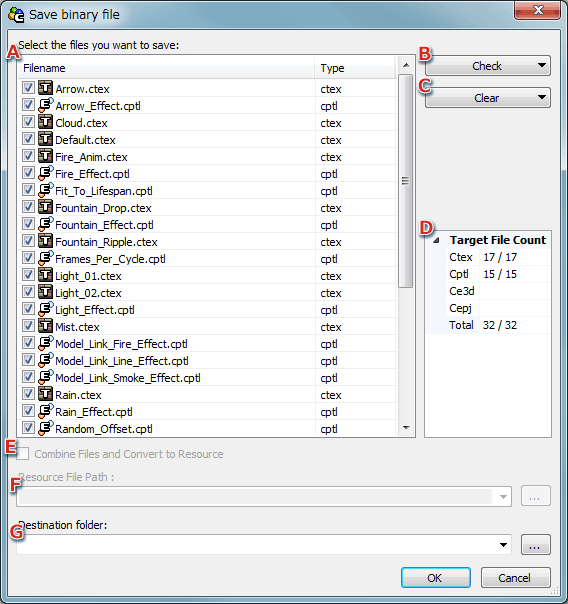
This dialog box is used to specify where files are to be saved and the output format to be used.
-
Displays a list of files to be saved. Only those files that have been checked are saved.
-
Selects a file type to check all corresponding files.
-
Selects a file type to remove the check from all corresponding files.
-
Displays the number of files to be saved and the number of checked files for each file type.
-
Selects whether to gather multiple binary files and to make a single binary resource file (BRRES).
-
Specifies the resource file path when saving data as a single binary resource (BRRES).
Click the Browse button on the right to specify a file with the Save As dialog box.
-
Specifies folder to save in when saving files as a binary resource.
Click the Browse button on the right to specify a folder in the Save As dialog box.
CONFIDENTIAL