In this tutorial, we will describe how to control particles and the emitters that emit them using follow effect settings.
Then, we will describe how to remove the influence of parents for child particles generated fro particles set to follow an effect.
The basic procedure is given below.
The effect file used in this tutorial is located in the folder given below.
" SampleData/Effect/Intermediate/ManualResource/Fire_Effect/Fire_Effect.cptl "
" SampleData/Effect/Intermediate/ManualResource/Star_Effect/Star_Effect.cptl.cptl "
On the main menu, select File > New > Project to open a dialog box for creating new projects.
Without changing the project name, just press OK.
On the main menu, select File > Open, and load the file Rain_Effect.cptl located in the folder Rain_Effect.
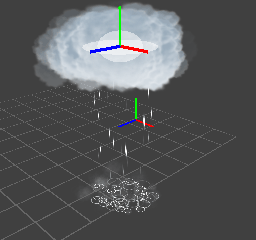
Rain consists of two particles and two child particles.
The effect is easier to understand if you put comments such as given below in the comment field for each entry.
On the main menu, select File > Open, and load the file Star_Effect.cptl located in the folder Star_Effect.
Star_Effect consists of particles and child particles.
The following are comments for each entry.
Here, we will use the Rain effect.
You can control particles and the emitters that emit the clouds and rain by moving the effect.
Open Property windows for both Cloud_Particle and Rain_Particle, and set Follow Effect under Emitter to ON.
This setting allows the Cloud_Particle and Rain_Particle emitters and particles used by the Rain effect to all be controlled together.
Select the Rain effect and press F5 to transfer data to the Viewer.
Open the Rain effect Property window, and check the display on Viewer while moving the slider for the Translate X value for Location under Effect.
The cloud and rain particles will now track the motion of the effect.
Particles can be left to remain in place by moving the emitter that emits the cloud and rain particles.
Restore the follow settings for Cloud_Particle and Rain_Particle to original status.
Open Property windows for both Cloud_Particle and Rain_Particle, and set Follow Effect under Emitter to OFF.
This can reduce the processing load by the amount required to follow the effect.
Select the Rain effect and press F5 to transfer data to the Viewer.
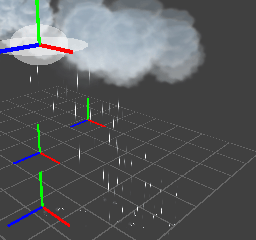
Open the Property windows for Cloud_Particle and Rain_Effect, and check the display on Viewer while moving the slider for the Translate X value for Location under Effect.
The rain cloud and rain particles can be left behind.
Here, we use the Star_Effect effect.
You can control follow and non-follow using Place in the world coordinate system for child particles.
Select Star_Effect and press F5 to transfer data to the Viewer.
Open the Property window for Star_Effect, and check the display on Viewer while moving the slider for the Translate Y value for Location under Effect.
You can check Star_Particle particles that follow the Star_Effect effect and Star_Child_Particle child particles influenced by them.
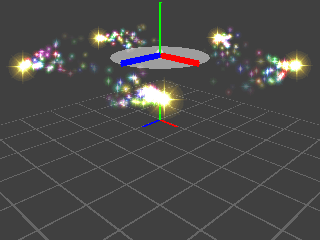
Open a Property window for Star_Child_particle and set Place in the world coordinate system under Particle to on.
This setting causes child particles to no longer be influenced to follow the parent particle that emitted them.
Select Star_Effect and press F5 to transfer data to the Viewer.
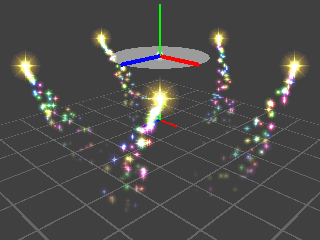
Open the Property window for Star_Effect, and check the display on Viewer while moving the slider for the Translate Y value for Location under Effect.
You can check Star_Child_Particle child particles left behind by Star_Particle particles that follow the Star_Effect effect.
CONFIDENTIAL