Vertex Shader
You can configure the vertex shader used by a material here.

- Lighting
Enables/disables vertex lighting and hemispherical lighting using the checkboxes.
If hemispherical lighting is used, a checkbox for the vertex color alpha value is also provided.
- The vertex color scale can be changed by entering numeric values directly or using the slider window.
- Shader management
Select which shader to use from the pull-down menu.
- If there is more than one shader parameter, you can move up and down the selected shader parameters in the list.
- Add
Adds a new shader parameter.
Press Add opens a shader parameter input dialog, where you can set the parameter type to be added and set the vector based on the selected type.
- Delete
Deletes the selected shader parameter.
- Edit
Allows you to edit the selected shader parameter.
Pressing Edit opens the shader parameter input dialog, where you can edit shader parameters.
- This window displays a list of user-defined shader parameters that have been added.
Shader Parameter Input Dialog
This dialog opens if you press the Edit button or Add button for adding user-defined shader parameters.
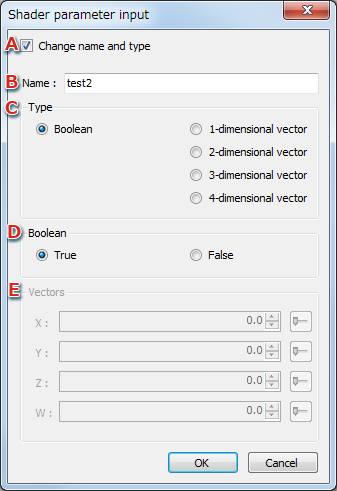
- Change name and type
This item is displayed only when Edit has been pressed. This allows you to edit the name and type of shader parameters already added.
- Enter the name of the user-defined shader parameter.
- Select the shader parameter type using the radio buttons.
- Boolean
This item can only be set when boolean has been selected as the shader parameter type used by the material.
Select true or false.
- Vectors for each dimension can be set under shader parameters if a type other than boolean is set.
If boolean has been set, this item is grayed out and cannot be selected.
CONFIDENTIAL