General
You can configure general light settings here.
Setting items available vary depending on the type of light.
Ambient Light Settings
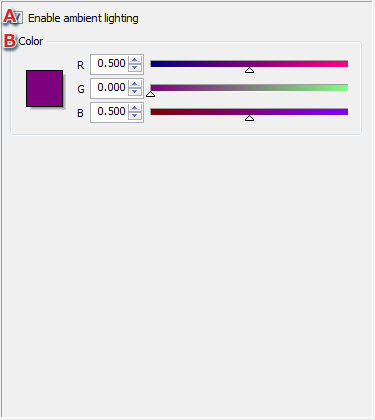
- Enables/disables ambient lighting using the checkbox.
- Color
Sets the ambient light color.
Clicking the color thumbnail opens a Color Picker dialog that allows you to change the color.
Hemispherical Light Settings
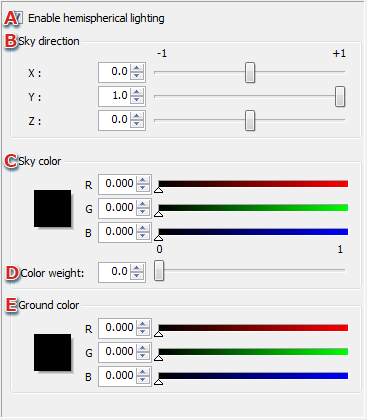
- Enables/disables hemispherical lighting using the checkbox.
- Sky direction
Sets the sky direction for the hemispherical light.
- Sky color
Sets the sky color for the hemispherical light.
Clicking the color thumbnail opens a Color Picker dialog that allows you to change the color.
- Color weight
Changes the weight of the sky color.
Setting the weight closer to 1 makes the sky color stronger, and setting the weight closer to 0 makes the ground color stronger.
- Ground color
Sets the ground color for the hemispherical light.
Clicking the color thumbnail opens a Color Picker dialog that allows you to change the color.
Ambient Light Settings
Sets three types of lights that can be configured for fragment lighting.
Directional Light Settings
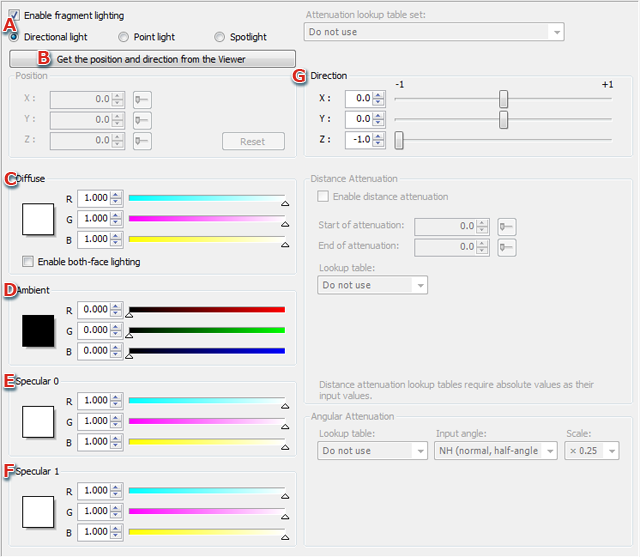
- Enables/disables fragment lighting using the checkbox.
The type of fragment light to use can be selected using radio buttons.
- Get the position and direction from the Viewer
Gets the light position and direction from the Viewer.
Only enabled when connected to the Viewer.
- Diffuse
Sets the diffuse color.
Clicking the color thumbnail opens a Color Picker dialog that allows you to change the color.
Enables/disables both-face lighting using the checkbox.
- Ambient
Sets the ambient color.
Clicking the color thumbnail opens a Color Picker dialog that allows you to change the color.
- Specular 0
Sets the color for Specular 0.
Clicking the color thumbnail opens a Color Picker dialog that allows you to change the color.
- Specular 1
Sets the color for Specular 1.
Clicking the color thumbnail opens a Color Picker dialog that allows you to change the color.
- Direction
Set the direction of the directional light in terms of X, Y and Z.
Point Light Settings

- Enables/disables fragment lighting using the checkbox.
The type of fragment light to use can be selected using radio buttons.
- Get the position and direction from the Viewer
Gets the light position and direction from the Viewer.
Only enabled when connected to the Viewer.
- Position
Sets the position of the point light in terms of X, Y and Z.
- Diffuse
Sets the diffuse color.
Clicking the color thumbnail opens a Color Picker dialog that allows you to change the color.
Enables/disables both-face lighting using the checkbox.
- Ambient
Sets the ambient color.
Clicking the color thumbnail opens a Color Picker dialog that allows you to change the color.
- Specular 0
Sets the color for Specular 0.
Clicking the color thumbnail opens a Color Picker dialog that allows you to change the color.
- Specular 1
Sets the color for Specular 1.
Clicking the color thumbnail opens a Color Picker dialog that allows you to change the color.
- Lookup table set for attenuation
You can select the lookup table set to use for point light attenuation from a pull-down menu.
- Distance Attenuation
Settings can be made by selecting the checkbox that enables distance attenuation.
You can set the start and end of attenuation as well as make settings for distance attenuation using a lookup table.
Lookup table names that have not been created using absolute values are displayed in red.
Spot Light
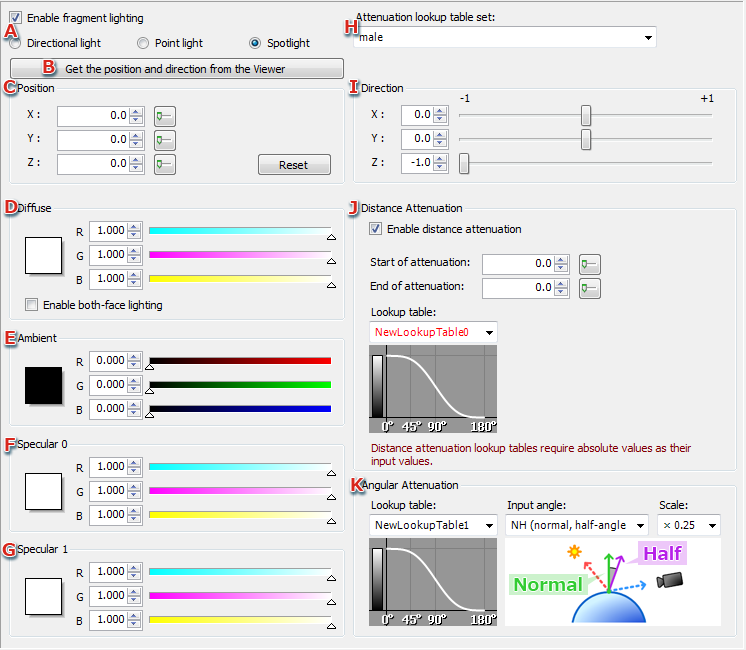
- Enables/disables fragment lighting using the checkbox.
The type of fragment light to use can be selected using radio buttons.
- Get the position and direction from the Viewer
Gets the light position and direction from the Viewer.
Only enabled when connected to the Viewer.
- Position
Sets the position of the spot light in terms of X, Y and Z.
- Diffuse
Sets the diffuse color.
Clicking the color thumbnail opens a Color Picker dialog that allows you to change the color.
Enables/disables both-face lighting using the checkbox.
- Ambient
Sets the ambient color.
Clicking the color thumbnail opens a Color Picker dialog that allows you to change the color.
- Specular 0
Sets the color for Specular 0.
Clicking the color thumbnail opens a Color Picker dialog that allows you to change the color.
- Specular 1
Sets the color for Specular 1.
Clicking the color thumbnail opens a Color Picker dialog that allows you to change the color.
- Lookup table set for attenuation
You can select the lookup table set to use for spot light attenuation from a pull-down menu.
- Direction
Sets the direction of the spot light in terms of X, Y and Z.
- Distance Attenuation
Settings can be made by selecting the checkbox that enables distance attenuation.
You can set the start and end of attenuation as well as make settings for distance attenuation using a lookup table.
Lookup table names that have not been created using absolute values are displayed in red.
- Angular Attenuation
Sets a spotlight's angular attenuation.
Vertex Light Settings
Sets three types of lights that can be configured for vertex lighting.
Directional Light Settings
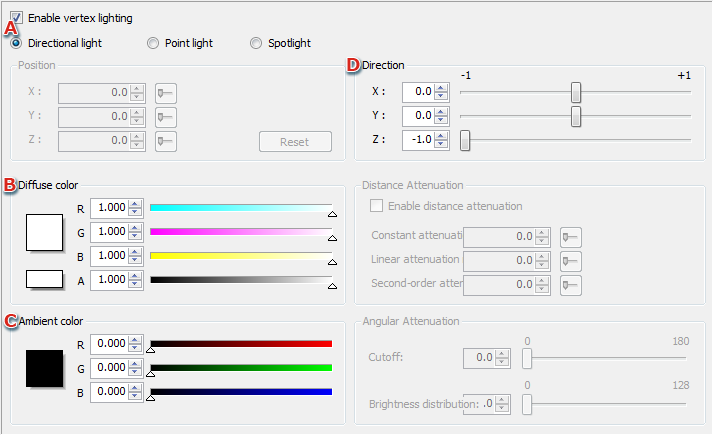
- Enables/disables vertex lighting using the checkbox.
The type of vertex light to use can be selected using radio buttons.
- Diffuse color
Sets the diffuse color.
Clicking the color thumbnail opens a Color Picker dialog that allows you to change the color.
Alpha settings can also be made.
- Ambient color
Sets the ambient color.
Clicking the color thumbnail opens a Color Picker dialog that allows you to change the color.
- Direction
Set the direction of the directional light in terms of X, Y and Z.
Point Light Settings

- Enables/disables vertex lighting using the checkbox.
The type of vertex light to use can be selected using radio buttons.
- Position
Sets the position of the point light in terms of X, Y and Z.
- Diffuse color
Sets the diffuse color.
Clicking the color thumbnail opens a Color Picker dialog that allows you to change the color.
Alpha settings can also be made.
- Ambient color
Sets the ambient color.
Clicking the color thumbnail opens a Color Picker dialog that allows you to change the color.
- Distance Attenuation
Settings can be made by selecting the checkbox that enables distance attenuation.
Set Constant Attenuation, Linear Attenuation and Quadratic Attenuation.
Spot Light Settings

- Enables/disables vertex lighting using the checkbox.
The type of vertex light to use can be selected using radio buttons.
- Position
Sets the position of the spot light in terms of X, Y and Z.
- Diffuse color
Sets the diffuse color.
Clicking the color thumbnail opens a Color Picker dialog that allows you to change the color.
Alpha settings can also be made.
- Ambient color
Sets the ambient color.
Clicking the color thumbnail opens a Color Picker dialog that allows you to change the color.
- Direction
Sets the direction of the spot light in terms of X, Y and Z.
- Distance Attenuation
Settings can be made by selecting the checkbox that enables distance attenuation.
Set Constant Attenuation, Linear Attenuation and Quadratic Attenuation.
- Angular Attenuation
Sets a spotlight's Angular Attenuation, Cutoff, and Brightness Distribution.
CONFIDENTIAL