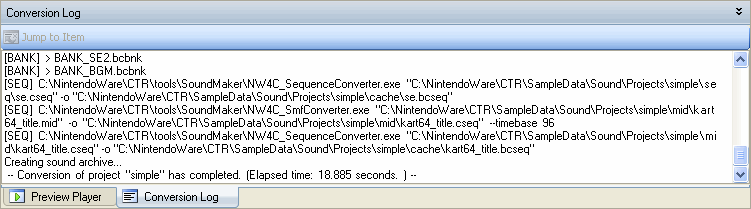
The Convert Log window can be opened (made active) by selecting View and then Convert Log.
You can also use the CTRL+SHIFT+9 shortcut for this operation.
The Convert Log window displays a log of conversion activity.
Successful as well as failed conversion processes are kept in this log, so you can use this window to check on the latest status of registered items.
The Convert Log window appears as a docking window in the lower pane of the main window.
You can make the Convert Log window float, dock, or hide by selecting Floating, Docking, or Hide in the Convert Log tab at the bottom of the window or from the title bar's shortcut menu.
You can also toggle between Floating and Docking by double-clicking the title bar.
When displaying as a docking window, you can minimize its display by clicking the Minimize icon on the right side of the title bar or by double-clicking the splitter.
When an error occurs during conversion, you can select the error item in the Convert Log window and click Move to Target Item to select and display the warning or error in the Sound Set tab.
To perform the same operation, you can double-click an error item or right-click and select Move to Target Item from the shortcut menu.
Warnings are displayed in the following cases.
The warning feature can be enabled/disabled using the Project Settings Dialog.
You can right-click an item selected in the Convert Log and run Copy from the shortcut menu during normal operation or when an error occurs.
CONFIDENTIAL