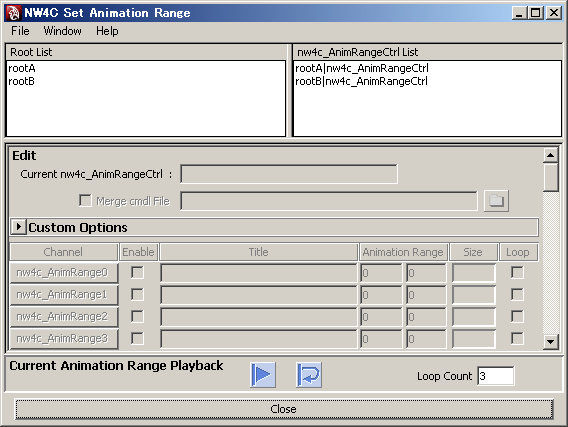
Sets animation ranges to the root node in Maya.
Animation Range is a feature for setting animation sequences in scenes for export.
The ranges specified by this feature can also be played back in Maya.
Setting an animation range adds a node directly below the root node for saving the animation range settings.
The node used to save the animation range settings is called the nnw4c_AnimRangeCtrl node.
The following items are saved in the nnw4c_AnimRangeCtrl node as custom attributes.
For every root node you can use up to 50 animation ranges.
Each separate set of animation range settings is called a channel.
Select NW4C > NW4C Set Animation Range... to display the window.
The Root List field shows a list of the root nodes to which animation ranges can be set. Double click on an item to select the root node in Maya. Scene animation objects (camera, light) are not displayed because animation ranges cannot be set for them. The nw4c_AnimRangeCtrl List field shows a list of all nw4c_AnimRangeCtrl nodes in a given scene. Double click on an item to select the nw4c_AnimRangeCtrl node in Maya.
If animation ranges have been set for a given root node, selecting that root node in the Root List field will automatically select the associated items in the nw4c_AnimRangeCtrl List field.
Conversely, selecting an item in the nw4c_AnimRangeCtrl List field will select the corresponding item in Root List.
The Edit field shows the current settings of the nw4c_AnimRangeCtrl nodes selected in nw4c_AnimRangeCtrl List and is where those settings can be edited.
The Current Animation Range Playback field shows the UI for continuous playback of enabled animation ranges in Maya.
The File menu includes a menu for importing/exporting animation range channel settings as files.
The Window menu includes a menu for opening the Graph Editor and the Dope Sheet.
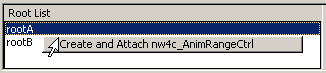
Select the root node from Root List to which you want to set a new animation range and execute Create and Attach nw4c_AnimRangeCtrl from the right-click menu.
Select the nw4c_AnimRangeCtrl node that you want to edit from the nw4c_AnimRangeCtrl List field and edit the node inside the Edit field.
The name of the nw4c_AnimRangeCtrl node is shown in Current nw4c_AnimRangeCtrl. The name can also be changed.
If you want to set the CMDL file for merging for each individual model, select the Merge cmdl File check box and specify the path to the CMDL file to merge. If Merge cmdl File is cleared, the Export option setting will be applied.
Optimization options can be set for each model in the Custom Options field. (Details given below.)
Channel shows the channel names. Left-clicking on a channel name will select the keys in the animation range for all animations under the root node. You can re-arrange the animation ranges shown here by using the middle button to drag & drop channel names. To copy the content of a channel range, drag & drop the channel name with the middle button while holding down the Ctrl key.
Enable is used to enable/disable animation ranges. Only the animation ranges that are enabled this way are targets for export. If the Enable check box is is cleared for all animation ranges, then animation is exported in the range specified by the Export option Start/End Frame, as if no animation ranges have been configured. Right clicking on the label part of Enable invokes the Enable All and Disable All commands.

Title is the name of the animation range. The same name cannot be applied more than once.
Animation Range represents the start/end frames of the animation range. Animation ranges can overlap in terms of their ranges of frames. If you have created a new nw4c_AnimRangeCtrl node and selected the Enable check box, the animation range will be enabled at the moment you enter values to Animation Range.
Size displays the number of frames in the animation range.
Loop is the loop setting for the animation range. If this is check box is selected, the animation range is exported as looped playback data. If this check box is cleared , the animation range is exported as one-time playback data
The following operations are possible from the menu displayed by right clicking on an item in the list. ("#" symbol represents a numeric value from 0 to 49.)
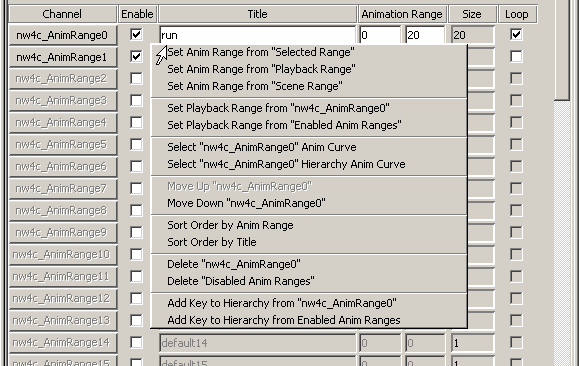
Set Anim Range Range from "Selected Range" : Sets the animation range to the range selected on the timeline (red).
Set Anim Range Range from "Playback Range" : Sets the animation range to the playback range.
Set Anim Range Range from "Scene Range" : Sets the animation range to the scene's animation range.
Set Playback Range from "nw4c_AnimRange#" : Sets the the playback range to the animation range below the mouse pointer.
Set Playback Range from "Enabled Anim Ranges" : Sets the the playback range to the maximum range of the enabled animation ranges.
Select "nw4c_AnimRange#" Anim Curve : Selects the keys of the saved custom attributes for the animation range below the mouse pointer.
Select "nw4c_AnimRange#" Hierarchy Anim Curve : Selects the keys for all animations under the root node for the animation range below the mouse pointer. The Scale Tool is enabled at this time to make editing easier in the Dope Sheet.
Move Up "nw4c_AnimRange#" : Moves the animation range below the mouse pointer one step higher in the list.
Move Down "nw4c_AnimRange#" : Moves the animation range below the mouse pointer one step lower in the list.
Sort Order by Anim Range : Sorts the list according to the values of the animation range start/end frames.
Sort Order by Title: Sorts the list according to the animation range names.
Delete "nw4c_AnimRange#" : Deletes the animation range below the mouse pointer.
Delete "Disabled Anim Ranges" : Deletes disabled animation ranges.
Add Key to Hierarchy from "nw4c_AnimRange#" : Sets anchor keys for all animations under the root node for the animation range below the mouse pointer. The Scale Tool is enabled at this time to make editing easier in the Dope Sheet.
Add Key to Hierarchy from Enabled Anim Ranges : Sets anchor keys for all animations under the root node for the maximum range of enabled animation ranges. The Scale Tool is enabled at this time to make editing easier in the Dope Sheet.
(Anchor keys are keys used to set the Start frame and End frame in the animation range for all channels for which keys have been set. Sometimes they are applied so the animation range is not influenced by animation ranges to the left and right.)
The following operations are possible from the menu that displays when you right-click on the nw4c_AnimRangeCtrl List field:
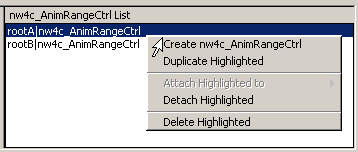
Create nw4c_AnimRangeCtrl : Creates an nw4c_AnimRangeCtrl node that is not associated with any root node.
Duplicate Highlighted: Creates a duplicate of the highlighted nw4c_AnimRangeCtrl node.
Attach Highlighted to: Connects the highlighted nw4c_AnimRangeCtrl node to a root node for which no animation range is set. Connection destinations are listed in the menu. This command is disabled if there are no connectable root nodes.
Detach Highlighted: Detaches the highlighted nw4c_AnimRangeCtrl node from the root node to which it is connected. This command is disabled for nw4c_AnimRangeCtrl nodes that are not connected to root nodes.
Delete Highlighted: Deletes the highlighted nw4c_AnimRangeCtrl node. If there is a hierarchy below the nw4c_AnimRangeCtrl node, that lower hierarchy also will be deleted.
The nw4c_AnimRangeCtrl node is a transform node.Although you can connect multiple nw4c_AnimRangeCtrl nodes as children of a single root node using Hypergraph, only the first node in terms of DAG evaluation order is enabled. Furthermore, nw4c_AnimRangeCtrl nodes that are not immediately below the root node are disabled. nw4c_AnimRangeCtrl nodes are not output to the intermediate file. |
Enabled animation ranges can be continuously played in Maya by using the UI in the Current Animation Range Playback field.
This is an effective way to check the linkages between animation ranges because during playback you can skip over frames for which animation ranges are not set and the places where animation ranges have been disabled.
Clicking the  button (the Animation Range Playback button) will play through the enabled animation ranges one time from the top. Playback will always stop at the last frame of the animation range, provided the process is not ended during playback.
Clicking the  button (the Animation Range Loop Playback button) will play a loop of the enabled animation ranges from the top.
During playback, both the Animation Range Playback button and the Animation Range Loop Playback button both switch to show the button (the Stop Animation Range Playback button). Clicking this button stops animation range playback.
Loop Count specifies how many times the looped animation range will be played. After looping this specified number of times specified, the process switches to the next animation range. If a given animation range has not been set for looping, it will play once and then the process switches to the next animation range.
When you are playing back animation ranges using either the Animation Range Playback button or the Animation Range Loop Playback button, neither the Stop button in the Maya main window nor the ESC key can be used to stop playback. If you want to stop playback, use the Stop Animation Range Playback button.
Animation range playback will stop even if the NW4C Set Animation Range window is closed.
| In scenes and drawing modes with high processing overhead, the places where animations connect can stand out. Utilize this animation range playback feature in Maya if for no other reason than to check whether this is the case. |
You can import/export animation range channel settings (i.e., the contents in the Edit field) as MEL files by using commands from the File menu.
Before importing or exporting you must first select the target nw4c_AnimRangeCtrl in the nw4c_AnimRangeCtrl List field.
Import Animation Range Channels : This imports the animation range channel settings from a file. Executing this opens a window for selecting a file. Select the file you want to import and click Import. Next, an Import Option window will appear.
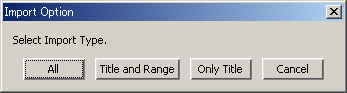
If you want to import all channel settings (Enable, Title, Animation Range, and Loop), click All. If you only want to import Title and Animation Range, click Title and Range. And if you only want to import Title, click Only Title.
Export Animation Range Channels : This exports the animation range channel settings to a file. Executing this opens a window for selecting a file. Specify the export file here and click Export.
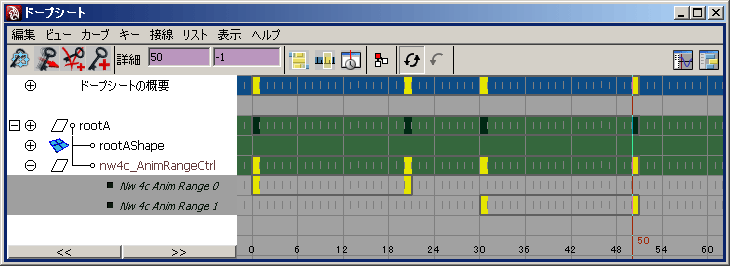
Keys are set to nw4c_AnimRange# custom attributes (where # represents a number from 0 to 49) for the Start/End frames of the animation range, and these can be checked and edited using the Graph Editor and the Dope Sheet. The only values applied to the Start/End frames are the Time values of the first and last keys, and all keys in between are ignored.
The key Value is set simply to avoid the overlapping of animation curves on the Graph Editor, and changing it has no effect on data being exported.
If all of the nw4c_AnimRange# keys are deleted, that animation range is not exported.
You can set optimization options for each model by expanding the Custom Options field and selecting the Enable Custom Options check box.
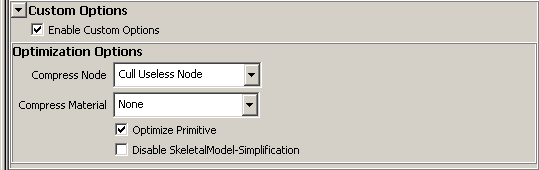
The settings items are the same as the optimization options of the Export plug-in. The optimization options which are set here take priority over optimization options specified by the Export plug-in. (If Enable Custom Options check box is cleared, the optimization options specified by the Export plug-in are applied.) When batch exporting, the optimization options set here take priority over the optimization options specified in the C3ES file.
CONFIDENTIAL