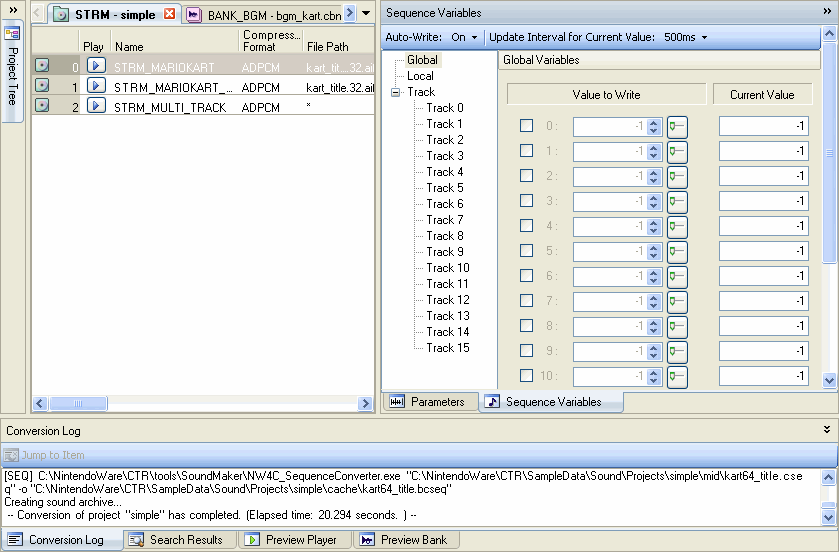
A sub-window is a general name for windows with supplementary features in windows such as the Preview Player window, the Parameters window, and the Search Results window.
There are different kinds of sub-windows as listed below.
You can open a sub-window from the View menu in the main window or from a button on the toolbar.
There are two ways to display sub-windows: docked to the main frame inside the main window or floating outside the main frame.
When docked, Preview Player, Preview Bank, Conversion Log, and Search Results appear at the bottom of the main window, and Sequence Variables and Parameters appear to the right of the Sound Set and Bank tabs.
You can make a sub-window float, dock, or hide by selecting Floating , Docking, or Hide from the sub-window's title bar or from the tab portion's shortcut menu.
You can also toggle between floating and docking by double-clicking the title bar or tab.
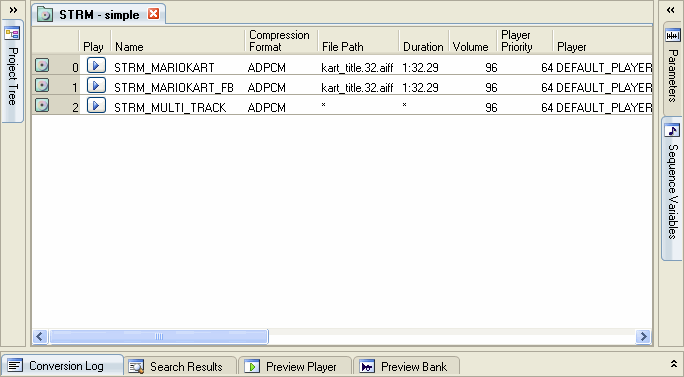
To minimize a docked item so that only the tab is displayed, click a button on the right side of the title bar or double-click the border.
Double-clicking the tab portion while the display is minimized does not switch between floating and docking displays, but restores the original window size display.
CONFIDENTIAL