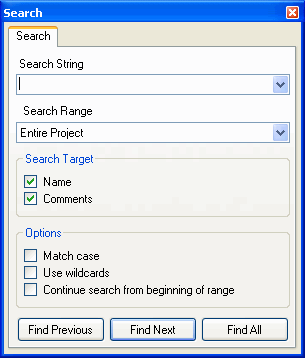
Use the Search window to find items in a Sound Project based on characters and special conditions. You can also search for references from a list.
From the View menu, select Search to open a Search window.
You can also use the shortcut keys CTRL+F for this operation.
Select the range to search from a drop-down list.
The entire project is subject to the search.
If a sound set is active, you can select to search the Current Sound Set. If a bank is active, you can select to search Current Bank.
This item is not shown if there is no active tab.
The list displaying in the active tab is the subject of the search.
This item is not shown if there is no active tab.
The target of the search is the string specified in Search String, with the check box selected for either items contained in names or items contained in comments.
「You can use the asterisk (*) as a wildcard by selecting the check box for Use wildcard in Search String.
- When not checked:
The asterisk symbol (*) is treated as a character for partial match queries.
- When checked:
The asterisk symbol (*) is treated as a wildcard for perfect matching.
From the selected position in the active tab, a search is made for the next (or previous) item that matches the conditions, and the position of the found item is displayed selected in the Sound Set tab or the Bank tab.
Selecting this button will not close the Search window.
The search results are displayed as a list in the Search Result window.
The Search window closes when this button is pressed.
When you select Find All in the Search window, a list of items that matched the search conditions is shown in the Search Result window.
To open the Search Result window, on the View menu, click Search Result, or click the Show Search Result button on the toolbar.
You can also use the shortcut keys CTRL+SHIFT+0 for this operation.
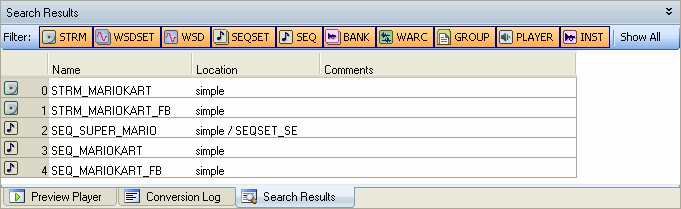
By double-clicking on an index cell in the search-result list, the item location is highlighted in the Sound Set tab or Bank tab.
There are several buttons at the top of the Search Result window that you can use to filter the search results into categories.
Click Show All to select them all.
The Search Result window appears as a docking window in the lower pane of the main window.
To make the Search Result window float, dock, or hide, select Floating, Docking, or Hide in the Search Result tab at the bottom of the window or from the title bar's shortcut menu.
You can also toggle between Floating and Docking by double-clicking the title bar.
When displaying as a docking window, you can minimize its display by clicking the Minimize icon on the right side of the title bar or by double-clicking the splitter.
To search for items that are using Players (banks), select and run Find All References from the shortcut menu of the Player list (bank list).
The entire project is searched for items referencing the target item and the results are displayed as a list in the Search Result window.
Warning messages are displayed in the Convert Log window for unreferenced items during conversion.
CONFIDENTIAL