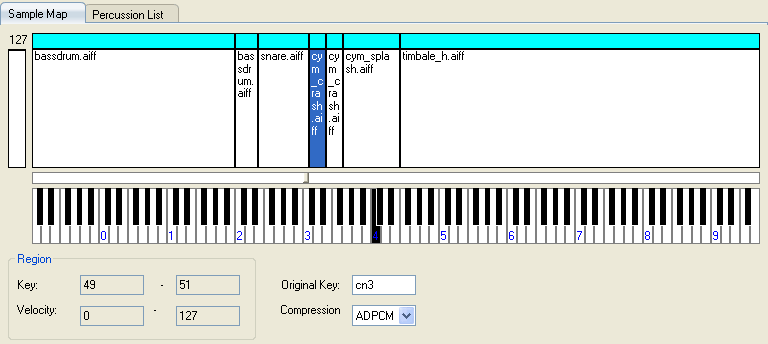
The Bank tab is divided into upper and lower sections for display. The upper part is the Instrument List. Tabs for the Sample Map and Percussion List appear in the lower part. The Sample Map is displayed in the lower part when the Sample Map tab is selected.
The Sample Map is a special editor for editing instruments. It edits instruments selected on the Instrument List.
The Sample Map is an instrument editor that utilizes an orthodox style where a keyboard is displayed and the region above it is visually indicated using blocks. The Sample Map is primarily suited for the creation of multi-region instruments.
This section describes the operations possible on the Sample Map.
A light blue bar is displayed above the area where the region is displayed. This bar is called a "region header."
Click this region header to use it for all velocity regions at once.
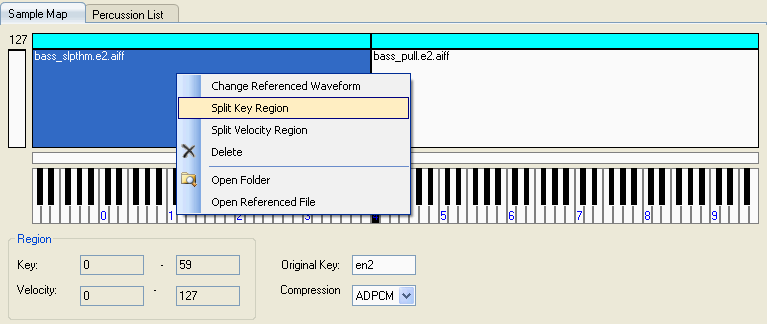
Key and velocity regions can be divided using the shortcut menu, which is opened by right-clicking a region (including the region header).
New key regions can be created by double clicking on blank (empty) regions that arise due to the deletion and movement of existing key regions.
The velocity region is treated as part of the key region; thus, you cannot just create a velocity region in a location where there is no key region.
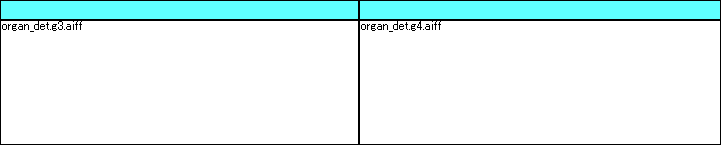
You cannot divide a velocity region by clicking the region header when multiple velocity regions are selected. Nor can you divide a key region when several velocity regions have been divided within the same key region and not all velocity regions are selected.
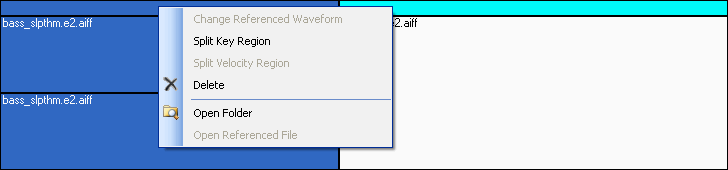
The reference wave file for a region can be specified by double-clicking the region's area or by selecting Change referenced waveform in the shortcut menu.
Right-click to open the shortcut menu and select either Open Folder or Open Reference File to perform various operations on the specific files.
It is possible to swap the contents of a key region with another key region by dragging and dropping the region header. At this time, if a velocity region exists in the key region that is being swapped, that information is also swapped.
It is possible to copy the content of a key region to another key region by dragging and dropping the region header while holding down the CTRL key. As with swapping, if the key region that is being copied happens to contain a velocity region, that information is also copied.
If you drag any region other than the region header (the velocity region itself) with the mouse, it is treated as an operation on the velocity region.
Operations are the same as those used for the region header: Move or replace using normal drag-and-drop operations or copy by pressing CTRL while dragging.
When the boundary of the velocity region is dragged, the value is shown in ToolTips.
The compression method for the waveform file that is referenced by the region is specified as the Compression Format in the space below the keyboard.
The original key of a region is edited using the bar located between the region display area and the keyboard.
When the position is a keyboard with a bar, the waveform file for the selected region is played at original pitch.
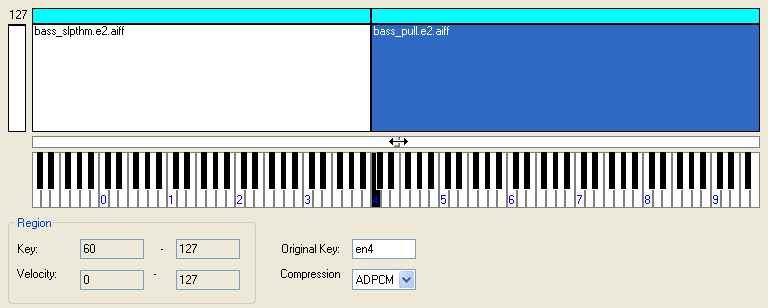
The velocity for playback using a keyboard can be specified with the slider on the left side of the area used to display the region.
CONFIDENTIAL