Texture combiners
This section describes texture combiners.
Texture Combiner and Process Flow
This document describes the process flow of the texture combiner.
The texture combiner is the fragment shader process by which the results of the vertex shader, fragment lighting and texel operations serve as the input values that get blended to output the final color and alpha values. The input values used by the texture combiner are called input sources.
The figure below depicts the process flow from the input of the fragment lighting result, texture color, vertex color and constant color serving as input sources, to the result of blending by the texture combiner that will be passed to the blending process.

Texture Combiner Structure
This section describes the texture combiner structure based on each element making up the texture combiner.
The following figure represents a conceptual image of the texture combiner structure.
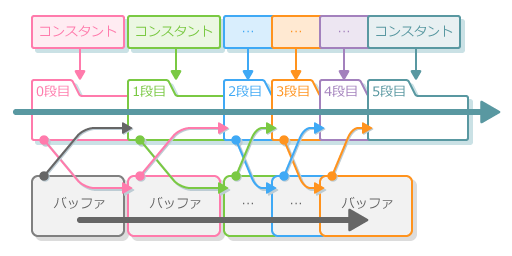
Texture Combiner's Number of Steps
The texture combiner's number of steps refers to the number of times computations are performed to blend the input source. The texture combiner always uses up to six steps.
Constant color
Constant color refers to the fixed color and alpha values that can be used for the combiner computational expressions of the texture combiner. Up to six Constant Colors can be set (constant 0 to constant 5), and one can be selected as the input source for each step in the texture combiner. You can also animate these using animation curves.
The Blend Color used in the Blend process is set separately.
Texture Combiner's Buffer
A buffer is a memory region where information can be temporarily stored and retrieved while processing is taking place.
Since different kinds of information are handled by different buffers, the buffers are named to reflect which kind of information they handle.
The texture combiner buffer is the memory region for temporary storage of the value output from each step by the texture combiner. Values output from steps that use the buffer can be used as input sources for subsequent steps.
The buffer cannot be used for the last step by the texture combiner.
Texture Combiner Settings
This section describes settings of the texture combiner.
Input Sources
The texture combiner uses three input sources when performing blending.
The table below lists ten types of input sources used by the texture combiner.
| Source Types | Description |
|---|---|
| Texture 0 | The color and alpha of the texture image set for Texture 0. |
| Texture 1 | The color and alpha of the texture image set for Texture 1. |
| Texture 2 | The color and alpha of the texture image set for Texture 2. |
| Texture 3 | The color and alpha of the texture image set for Texture 3. |
| Constant color | The color or alpha that can be set as selected for each step of the texture combiner. |
| Result output by vertex shader | The color or alpha output from the vertex shader. |
| Result output by previous stage | The color or alpha output from the previous step. This cannot be used in the first step. |
| Buffer from previous stage | The color or alpha output to the buffer from the previous step. This cannot be used in the first step. |
| Primary color | The output result of fragment lighting. |
| Secondary color | The output result of fragment lighting. |
Of the input sources used in Step 2 and beyond, at least one must be specified as Constant color, Result output by previous stage, or Buffer from previous stage.
Operands
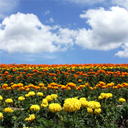
Operands are a feature of the texture combiner used to specify the components for the blend of RGBA input sources from the various channels. In the default setting, RGB is applied to the color and A to the alpha.
This is a description of the operand using the texture image below.
| Color channel. | Alpha Channel |
|---|---|
 |
 |
Operands for the color in the texture combiner
The table below lists the types of operands that can be selected for the color of the texture combiner.
| Item | Result | Description |
|---|---|---|
| RGB |  |
Applies the color channel to the R, G or B channel. |
| 1 - RGB |  |
Inverts the color channel and applies it to the R, G or B channel. |
| A | |
Applies the alpha channel to the R, G or B channel. |
| 1 - A |  |
Inverts the alpha channel and applies it to the R, G or B channel. |
| R | 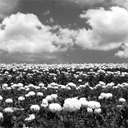 |
Applies the R channel to the R, G or B channel. |
G |
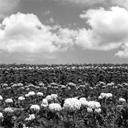 |
Applies the G channel to the R, G or B channel. |
| B | 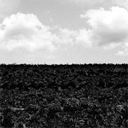 |
Applies the B channel to the R, G or B channel. |
| 1 - R |  |
Applies the color B channel to the R, G or B channel. |
| 1 - G |  |
Applies the color G channel to the R, G or B channel. |
| 1 - B |  |
Applies the color B channel to the R, G or B channel. |
Operands for the alpha in the texture combiner
The table below lists the types of operands that can be selected for the color of the texture combiner.
| Item | Result | Description |
|---|---|---|
| A | |
Applies the alpha channel to the A channel |
| 1 - A | |
Inverts the alpha channel and applies it to the R, G or B channel. |
| R | |
Applies the color R channel to the A channel. |
G |
|
Applies the color G channel to the A channel. |
| B | |
Applies the color B channel to the A channel. |
| 1 - R | |
Inverts the color B channel and applies it to the A channel. |
| 1 - G | |
Inverts the color G channel and applies it to the A channel. |
| 1 - B | |
Inverts the color B channel and applies it to the A channel. |
Texture Combiner's Computation Expressions
Texture Combiner Computational Expressions are the expressions used for blending the color and alpha components as determined by the input source operand settings. The color and alpha can each be selected from among 10 different expressions.
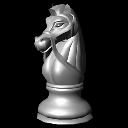
The following texture images, A, B and C, represent the results for input sources 0, 1 and 2 after application of the operand.
The description of the blending performed using the texture combiner function is based on this image.
| A | B | C |
|---|---|---|
|
 |
 |
The table below lists the texture combiner functions that can be selected when using CreativeStudio.
| Item | Function Name | Result | Description |
|---|---|---|---|
| A | REPLACE | |
Outputs A as-is. |
| A × B | MODULATE | 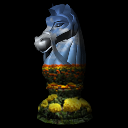 |
Multiplies A and B. |
| A + B | ADD | 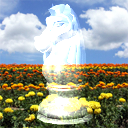 |
Adds A and B. |
| A + B - 0.5 | ADD_SIGNED | 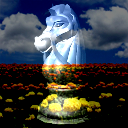 |
Adds A and B and subtracts 0.5. |
| A × C + B × ( 1 - C ) | INTERPOLATE | 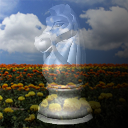 |
Blends A and B in the proportion given by C. For example, a change from A to B can be made smoothly by animating the color of C. |
| A - B | SUBTRACT | 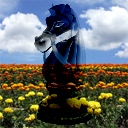 |
Subtracts B from A. |
| RGB ← Dot ( A , B ) | DOT3_RGB | 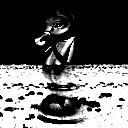 |
By treating the RGB values of A and B as vectors, this algorithm is used to blend color channels separately when a normal mapped texture is specified for the type of resource. The output result is gray because the same value is inserted for each channel component. |
| RGBA ← Dot ( A , B ) | DOT3_RGBA | |
Although the same function is used as with RGB ← Dot ( A , B ), the same value as used for color components is inserted for the alpha component. CreativeStudio settings must specify RGBA←Dot ( A , B ) for both color and alpha input sources. |
| ( A + B ) × C | ADD_MULT |  |
Adds A and B and then multiplies by C. During computation, the value resulting when A and B are added does not go above 1.0. |
| ( A × B ) + C | MULT_ADD |  |
Multiplies A and B and then adds C. |
Both of the functions RGB ← Dot ( A , B ) and RGBA ← Dot ( A , B ) take into account the fact that values will be converted to the range -1 to 1 when vectors are computed during the texel generation process for texture images stored in texture memory in the range 0 to 1. This function works as follows.
4 × ((Ar – 0.5) × (Br – 0.5) + (Ag – 0.5) × (Bg – 0.5) + (Ab – 0.5) × (Bb – 0.5))
Having both magnitude and direction, vectors are represented by arrow length and direction. With CreativeStudio, vectors are used in many different situations such as light calculations and particle speed control. They are also used when converting the color components of a texture image into X, Y and Z vector values.
Scaling calculation results
Texture combiner calculation results can be multipled by a scale setting. A scale can be set for each color and alpha being blended. There are three scale settings to select from: x1, x2 and x4.