Animation Curves
This section describes the types of animation curves you can configure in CreativeStudio's Curve Editor panel.
About Animation Curves
An animation curve is a curve that controls animations. To read details about animation curves, see here.
Key Frames
This section describes key frames.
The table below lists the types of information that can be stored in animation curve keys.
| Information Type | Description |
|---|---|
| Frame | Time specifying a key. Specifies the number of frames. |
| Value | The key's value. The value to specify differs depending on the animation elements. |
| Slope | The key's slope. Specifies the vertical length for a horizontal length of 1. |
You can select from among four animation-curve formats to fit your purpose of using animation.
The table below describes the animation curves you can work with in CreativeStudio.
| Type | Description |
|---|---|
| Constant | The value between keyframes is always constant. |
| Step | The value between keyframes changes at irregular intervals. |
| Linear | The value between keyframes changes linearly. |
| Hermite | The value between keyframes changes smoothly. By moving the slope for both keyframes, you can adjust the key slope. |
Constant Format
Constant format only saves a single value for each key. It doesn't perform any special calculation.
The figure below shows constant format. The horizontal axis is time (frames) and the vertical axis is the value.

Step Format
Step format saves a set of key information consisting of a frame and a value. The value at a given frame is looked up based on the value at the previous frame.
The figure below shows step format.

Linear Format
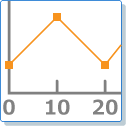
Linear format saves a set of key information consisting of a frame and a value. The value at a given frame is calculated by linearly interpolating between the values of the two neighboring keys.
The figure below shows linear format.
Hermite Format
Hermite format saves a set of key information consisting of a frame, a value, and slope. The value at a given frame is calculated by using the Hermite formula to interpolate between the values of the two neighboring keys.
The figure below shows Hermite format.

When specifying a key, specify one of four keyframe formats depending on the intended use of the animation to reduce the amount of data that must be stored in each key and the amount of calculation that must be done to interpolate between keys.
Creating an Animation Curve
This section explains how to create an animation curve.
Adjusting Slope
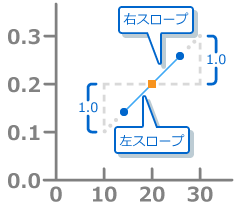
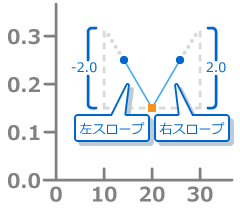
When a keyframe is in Hermite format, you can create a smooth animation by adjusting the slope. To read details about slopes, see here.
The figure below shows an example where the left-side slope value is set to 1.0 and the right-side slope value is set to 1.0.
The figure below shows an example where the left-side slope value is set to -2.0 and the right-side slope value is set to 2.0.
Creating Animations for Specific Uses
You can create Hermite format and linear format animation curves depending on the intended use of the animation.
One-time Animation
This is an animation with different starting and ending frame states. Create an animation curve for an animation that will be played through once.
The figure below shows a sample animation curve for a one-time animation, created in CreativeStudio from frame 0 through frame 4.

If you play only integer frames, the five frames 0, 1, 2, 3, and 4 are displayed. If you play in slow motion in CreativeStudio, frames 0.0 through 4.0 are displayed, and from frame 4.0 to 4.99, the displayed image is static.
Loop Animation
A loop animation is an animation in which the ending frame transitions smoothly into the starting frame. To create one, create an animation curve that will transition smoothly when looped.
Create an animation curve using a 3DCG tool so that the start frame and end frame are in the same state.
The figure below shows a sample animation curve for a loop animation, created in CreativeStudio from frame 0 through frame 4.

If you play only integer frames, the four frames 0, 1, 2, and 3 are displayed. If you play in slow motion in CreativeStudio, frames 0.0 through 3.99 are displayed. When playback reaches frame 4.0, the display loops back to frame 0.0.
Outputting an Animation Curve
This section explains the process of baking that is done when the animation curve is output.
Animation Curve Baking
Animation curve baking is an optimization process performed when outputting an animation created with a 3DCG tool as game data.
When an animation curve is created using methods such as Hermite curve interpolation, the calculations required to interpolate between two neighboring keys requires some processing overhead. By "baking" the animation curves, programmers and artists can keep this calculation overhead in check.