Material Animation Properties Panel
This panel is used to edit materials animation settings.
Currently, only texture pattern animation settings can be edited.
Material Animation Properties Panel Settings and Features
This page describes material animation Properties panel settings and features.
-
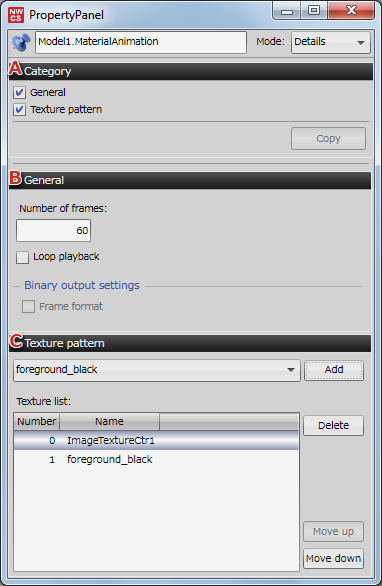
Category
Settings on the material animation Properties panel can be copied.
-
General
You can set the number of frames and loop playback.
You can also set whether to make into frames using binary output settings.
If you change the number of frames, be sure to also change the setting on the CreativeStudio timeline Properties panel. -
Texture pattern
You can add/delete textures used for a texture pattern animation.
General
Always be sure to set the number of frames when creating new material animations with CreativeStudio and outputting to real hardware (TS board).
If this is not set, a default value of 0 will be used, and the material animation cannot be played back on an actual console (TS board).
Texture pattern
You can add/delete textures loaded into CreativeStudio to/from the texture list.
Add/delete
Add
Textures loaded into CreativeStudio are displayed in the texture pattern pull-down menu. To add a texture, select it and press the Add button.

Pressing the Add button causes the texture to be added to the texture list.

Delete
You can delete a registered texture by selecting the texture you want to delete from the texture list and pressing the Delete button.
Opening the Material Animation Properties Panel
Currently, the method of opening the material animation Properties panel is slightly special.
This method is provisional and scheduled to be changed.
You can open the material animation Properties panel using the following procedure.
Open CurveEditor for a Material
Select material content loaded into CreativeStudio. On the CreativeStudio menu, select Window > CurveEditor.

Create a curve for the animation in the graph tree view of the CurveEditor panel.
- Vertical axis The number of the texture to use (the number of a texture added to the texture list on the material animation Properties panel).
- Horizontal axis: Number of frames (number of frames to animate the texture)

Creating a curve for an animation on the CurveEditor panel will create a material animation on the CreativeStudio Contents panel.
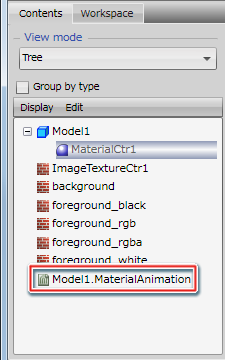
The material animation Properties panel can be opened by clicking on the contents of the created material animation.