Linking Particles and Models
This page uses sample data to describe basic settings for linking particles.
What is Particle Link?
Particle link is a linking feature for generating particle effects and making them track any node of a 3D model.
Sample Configuration
This section describes how to actually set particle link using the sample data Toy_Mobile.
Particle link is set on the particle link Properties panel of CreativeStudio.
Loading Sample Data
Use CreativeStudio to load the Toy_Mobile sample data prepared in the following folder.
Toy_Mobile is loaded slightly differently from ordinary samples because particle link has already been set for it.
- Loading Models and Effects
Load the sample data by selecting File > Open > Intermediate file on the CreativeStudio menu
Rocket and stars model
" %NW4C_ROOT%/SampleData/Graphics/Intermediate/Tutorial/toy_mobile/Toy_Mobile.cres "
Fire and smoke effects
" %NW4C_ROOT%/SampleData/Graphics/Intermediate/Tutorial/toy_mobile/Toy_MobileEffect.cres "
- Loading particle links
Loading by selecting File > Open > Particle link on the CreativeStudio menu
Particle link data
" %NW4C_ROOT%/SampleData/Graphics/Intermediate/Tutorial/toy_mobile/Toy_MobileAction.cact "
When the intermediate files are loaded as described above, a particle link that causes a smoke effect to track a 3D model with applied skeletal animation and a flame effect are displayed.
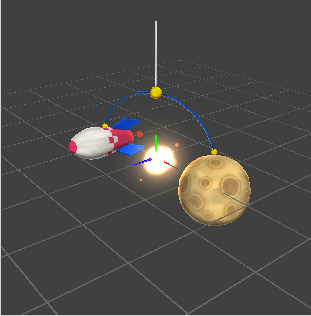
Since Toy_Mobile uses a 200-frame animation, change the playback time on the timeline panel to 200.

Animations have been created for the 3D model and effects (fire/smoke) of Toy_Mobile.
Using particle link makes it possible to link each separate model and effect to express a single scene.
Particle Link Settings
This section describes settings for making the fire effect track the rocket by actually using the particle link Properties panel.
Checking Settings on the Particle Link Properties Panel
Select Action1 displayed in the Contents panel to open the particle link Properties panel.
For details on the particle link Properties panel, click Here.
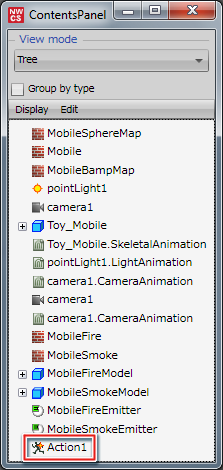
A particle link for the smoke effect has been set for Toy_Mobile.
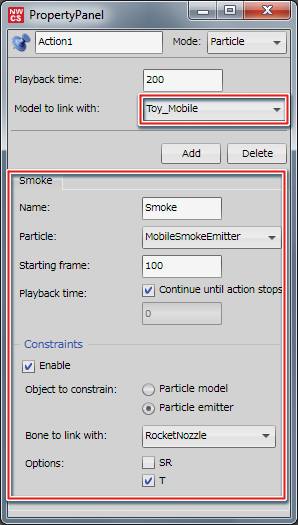
The model to be linked with is Toy_Mobile and settings on the Smoke tab represent link settings for the smoke effect.
The above settings cause the smoke effect to track Toy_Mobile when it is animated.
Creating a New Particle Link
Here, we will create a new particle link that casues the fire effect to track Toy_Mobile.
Press the Add button on the particle link Properties panel.
Pressing the Add button displays a Track0 tab for setting a new particle link.
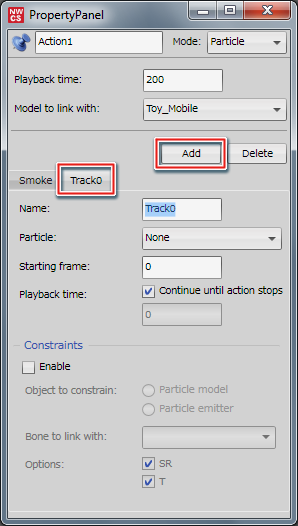
The Track0 tab name can be changed freely.
Here, the tab name is changed to Fire.
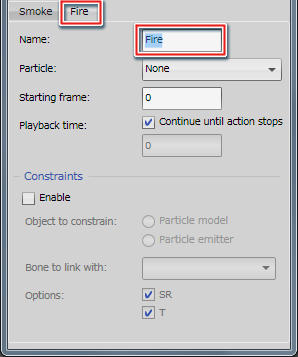
When the name is changed, the tab name also changes automatically.
You can link the fire effect to Toy_Mobile using this Fire tab.
Settings for the particle to be linked
The playback time and model to be linked with are set on the created Fire tab.
Playback time given here is the playback time of the particle link used to link the effect with the model.
In this case, use 200 frames to match the number of frames of the skeletal animation applied to the Toy_Mobile 3D model.
The model to be linked with remains Toy_Mobile.
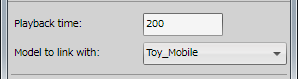
Select the model to be linked with from the pull-down menu when there is more than one linkable model.
Under Particles, select the particle to be made to track Toy_Mobile.
Open the pull-down menu to display particles that can be linked to the model.
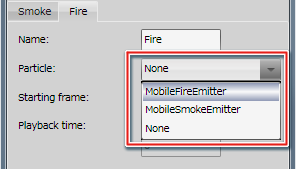
SmokeEmitter (the smoke effect) has already been linked, so select MobileFireEmitter.
Set the frame at which to start playback of the tracking particle.
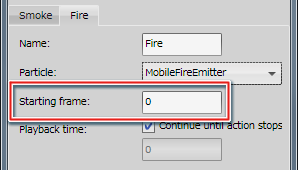
Set Frame 0 here, because the particle should start tracking the model at the same time that Toy_Mobile animation starts.
The effect is not displayed if a start frame occurring after the playback time of the particle link is set.
Select the Continue until action stops checkbox.
The Playback time set here is different from the particle link playback time because it represents the time that a particle is played back.
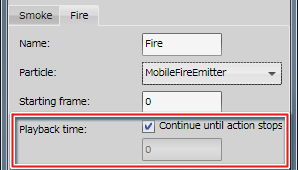
This setting sets continuous effect tracking until the particle link playback time is reached.
Sample Setting: You can create a particle link where the effect tracks the model for only 100 frames starting from the start frame by setting the playback time to 100 frames.
Contraints settings
Under Constraints, you can set the tracking method and type of particle to be linked using particle link.
Select the Enable checkbox when setting Constraints.
For Toy_Mobile, select the radio button for the particle emitter, because a particle emitter is being linked.
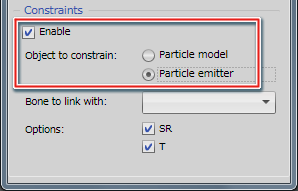
For details on particle model and particle emitter tracking, click Here.
Set Bone to link with and Options.
Select the node of the model that particles are to track for the bone to link with.
Open the pull-down window to display all nodes of the model for which particles can be set.
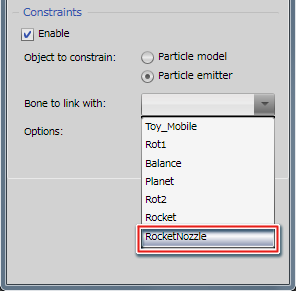
Here, the link is made to the RocketNozzle node.
Under Options, you can set whether the particle should track the scale and rotate (SR) or the translate (T) motion of the model.
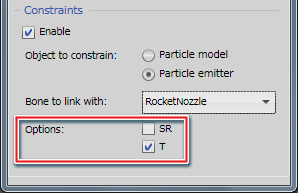
Select the T checkbox for Toy_Mobile.
You can confirm that the fire effect tracks the rocket by playing the animation on the CreativeStudio Control panel.
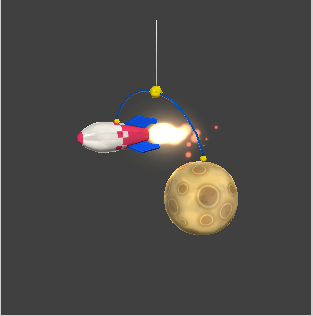
Using particle link allows you to create and confirm links between models and effects under CreativeStudio.