sss_chess
sss_chess is modeling using a skin representation.
NV is used effectively for the calculation of skin transparency.
When looking at this sample, be sure to confirm that there are fragment lights in the scene.
Be sure to create fragment lights if there are none.
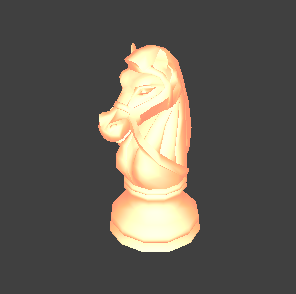
sss_chess Settings
This section describes settings for the sss_chess material sample.
Material Settings
This section describes material settings for sss_chess.
Click on sss_mat displayed on the CreativeStudio Contents panel to open the material Properties panel.
General
Check the entire material Properties panel.

The Render setting is set to Enable fragment lighting.
This indicates that fragment lights are rendered using a lookup table for sss_chess.
Rendering settings must be changed to match the light being used.
Color
Check the colors on the material Properties panel.

Specular 0 is set to gray for sss_chess.
This is set to adjust the specular configured for Distribution 0.
Fragment shaders
Check the fragment shaders options on the material Properties panel.

The layer configuration of the fragment shader for sss_chess is Configuration type 4.
This setting enables the lookup tables Reflection (R), Reflection (G), Reflection (B), Distribution 0, and Distribution 1.
For details on layer configurations, click here.
Lookup tables
Check the lookup tables on the material Properties panel.
Lookup table set
LookupTableSetContentCtr0 is selected for the lookup table set.

The lookup table set manages created lookup tables as a set.
Clicking on LookupTableSetContentCtr0 displayed on the CreativeStudio Contents panel displays the lookup table Properties panel, where you can check the lookup tables being managed.
Comp.
Next, check the lookup table list.
sss_chess uses the following lookup tables: reflectance_r, reflectance_g, reflectanceb, distribution0 and distribution1.

| Comp. | Lookup tables |
|---|---|
| Reflection (R) | sss_reflectance_r |
| Reflection (G) | sss_reflectance_g |
| Reflection (B) | sss_reflectance_b |
| Distribution 0 | sss_distribution0 |
| Distribution 1 | sss_distribution1 |
The lookup tables sss_reflectance_r, sss_reflectance_g and sss_reflectance_b represent changes in the skin color due to light shadows.
The lookup tables sss_distribution0 and sss_distribution1 adjust the distribution of strong light.
Input angle
Next, check the input angle, in the Lookup tables section of the materials Properties panel.
Each lookup table for sss_chess uses the input angles given below.

Lookup tables Reflection (R), Reflection (G) and Reflection (B) use input angle LN.
Input angle LN is a diffuse expression.
This expresses the effect of the model being bathed in light.
With sss_chess, the skin color changes as you go from where strong light strikes it to where light does not strike it.
Lookup table Distribution 0 uses input angle NH.
Distribution 0 distributes the color of Specular 0 using the input angle NH.
A weak specular for the skin can be expressed by adjusting the flat curve of the sample.
Lookup table Distribution 1 uses input angle NV.
Checking the reflection factor for Distribution 1 adjusts the color distribution of Reflection (R), Reflection (G) and Reflection (B), not that of Specular 1.
NV creates a flow of light from the camera front to the edge of the model.
Fragment lighting
Check the fragment lighting on the material Properties panel.
With sss_chess, checks have been entered for Apply the factor for distribution 0's tab, Apply the factor for distribution 1's tab and Apply the factor for the reflection table.

This enables the setting for Reflection (R), Reflection (G), Reflection (B) and Distribution (0), Distribution (1).
Texture combiners
Check the texture combiners on the material Properties panel.
Combiner 0 is set to color for sss_chess.

| Setting | Settings |
|---|---|
| Formula | A |
| A: Source 0 | Secondary color |
This setting indicates that the secondary color will be used as-is.
The term "secondary color" indicates the specular color and lookup table.
The output result of the vertex shader is used for Source 1 and Source 2. However, there is no effect on the model because the result is not used by the calculation formula.
CurveEditor panel
Check the CurveEditor panel for the lookup tables actually used with sss_chess.
Select LookupTableSetContentCtr0 located on the Creative Studio Contents panel.
While in the state described, select Window > Curve editor... from the menu bar to open the CurveEditor panel.

- Horizontal axis: results in a change from 0 to 1 (from 90 degress to 0 degrees) using the angle created by input angle elements.
- Vertical axis represents color (light) intensity.
sss_reflectance_r / g / b settings
Select sss_reflectance_r/g/b displayed on the CurveEditor panel to check their curves.

This expresses changes in skin color to match changes in shading.
sss_distribution0
Select sss_distribution0 displayed on the CurveEditor panel to check its curve.

This is used to make weak specular expressions for the skin.
sss_distribution1
Select sss_distribution1 displayed on the CurveEditor panel to check its curve.

The transparency of the skin as seen from the viewpoint is expressed by adjusting Relection (R), Reflection (G) and Reflection (B).
Hint
This curve sets an expression where the far edge darkens.
Because the front side is transparent and the far edge is not transparent, the center appears brighter as a result.
If further adjustment to the curve is made to make the far edge of the model brighter, an expression where light leaks out from the far edge of the semi-transparent skin is possible.