NWC24Editor is a tool for referencing and editing the data managed by the NWC24 library in the Wii system memory. The following can be edited and referenced.
(To send and receive messages, you need to configure network settings separately.))
Change to the $REVOLUTION_EXT_ROOT/RVL/bin/tools directory and run the ndrun script with the NWC24Editor.elf file as an argument.
By creating the directories described below (/template, /misc) directly under DVDROOT and placing the appropriate files, you can reference them at execution time.
When running with .elf, note that NWC24Editor creates files and directories in the Wii system memory's home directory. Specifically, the following files and directories are created.
Always created at startup time.
    /title/00010000/30303030/data/hst           Directory
    /title/00010000/30303030/data/hst/app.hst   File
    /title/00010000/30303030/data/hst/grp.hst   File
    /title/00010000/30303030/data/hst/hex.hst   File
    /title/00010000/30303030/data/hst/num.hst   File
    /title/00010000/30303030/data/hst/txt.hst   File

Created when saving to Home at the Data View screen.
    /title/00010000/30303030/data/misc          Directory
    /title/00010000/30303030/data/misc/A_*.bin  File ('*' is a number)
Convert into a .wad file with makeWad.exe, then import and run in Nmenu.elf. When converting data to a .wad file with makeWad.exe, place the archived files that include the appropriate files as content2 in the directories described below (/template, /misc) to reference the data at execution time.
For details on how to handle .wad files and content, see NADK.
A save banner is created in the home directory when NWC24Editor is run as a NAND application.
The tool is operated using either the Wii Remote or a USB keyboard.
| Button | Operation |
|---|---|
| DPD | DPD Cursor Movement. |
| A Button | Decide / Select |
| HOME | The same effect as the "close" and "CANCEL" buttons on each screen. |
| B Button drag | Scrolls the screen (up and down only) |
The NWC24Editor screen has white text on a black background, but there are regions with grey border and background. These regions can be manipulated by pointing at them with the Wii Remote's DPD and then pressing the A Button. There are a number of varieties: a button, a character and number input box, a value selection box, and others.
| Button | Operation |
|---|---|
| +Control Pad Up/Down | Changes the character at the position of the character input cursor. |
| +Control Pad Left/Right | Moves the character input cursor. |
| - Button | Deletes the character before the position of the character input cursor. |
| + Button | Inserts a space. |
| Button | Operation |
|---|---|
| Arrow keys | Moves between items; moves the character input cursor. |
| Enter | Decide / Select |
| Shift+Enter | Inserts a linefeed in text input. |
| ESC | The same effect as the "close" and "CANCEL" buttons on each screen. |
| Page Up | Scrolls up by half a screen. |
| Page Down | Scrolls down by half a screen. |
| CapsLock | Switch between the uppercase and lowercase alphabet. |
| Half-width / Full-width key | Switch between alphanumeric input and the Japanese kana letter input. |
| Katakana-Hiragana key | Switch between katakana and hiragana in the Japanese kana letter input. |
You can input ASCII characters and the following full-width items: numbers, hiragana, and katakana. You cannot perform kanji conversion.
There is a template feature to save time and effort for repeated input.
Create a /template directory directly below either DVDROOT, SD card, or the content2 root directory for a .wad file. By placing in this directory the files that have the names listed below, you can select and input the file's content in the corresponding input item.
| File Name | Corresponding Items |
|---|---|
| txt.txt | Character String Input Items |
| num.txt | Decimal Number Input Items |
| hex.txt | Hexadecimal Input Items |
| app.txt | Application ID Input Items |
| grp.txt | Group ID Input Items |
Except for txt.txt, the files follow a common format: one line describes one item in ASCII. Each line is recognized through the following conditions.
0x.
The txt.txt text file format is encoded in UTF16BE; lines that include only the '-' character are treated as delimiters between items.
100
256
0x20
0x1000
0x1234
123
RSPJ
RHAJ
0x5253504A
Message Subject Template
-
https://wc24.nintendo.co.jp/rspj/hoge.zip
-
Since delimiting is done on hyphens,
messages that include linefeeds
can be also used.
Each of these files is loaded when NWC24Editor starts up. They can also be reloaded by selecting Tool from the top menu, then NWC24Editor, and finally Reload Template.
There is one more feature to save time and effort for repeated input: the history feature.
Up to six input values are automatically saved for each input item type, and by choosing between these values you can save time for later input.
The history is saved in the Wii console NAND memory's home directory, and it persists across restart. To delete the history, select Tool from the top menu, then NWC24Editor, and finally Clear History.
When NWC24Editor is run on the NDEV, debugging output is performed from the NDEV's serial port. Debugging output is stored internally. When the API returns an error for a reason such as a mistake in the input values, the console is shown on the bottom half of the screen for a fixed period of time, using orange characters.
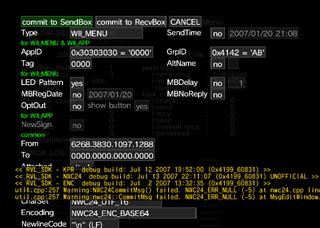
The most recent five lines of debugging output are shown in the console.
You can check the console at any time on the NWC24Editor Information screen where the console is always displayed.
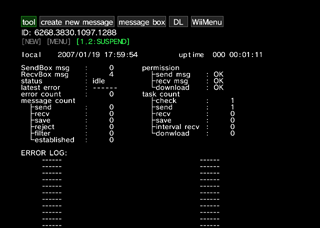
This is the screen immediately after NWC24 is started. The operational status of the WiiConnect24 system is displayed.
| Button | Operation |
|---|---|
| B Button and - Button | Immediately sends a message. |
| B Button and + Button | Immediately receives a message. |
| Button | Description | ||||||||||||||||||||||||||||
|---|---|---|---|---|---|---|---|---|---|---|---|---|---|---|---|---|---|---|---|---|---|---|---|---|---|---|---|---|---|
| tool | Opens a menu. The contents of the menu follow.
| ||||||||||||||||||||||||||||
| create new message | Opens the Message Creation screen. This lets you create a new message. | ||||||||||||||||||||||||||||
| message box | Opens the Message Box screen. You can access a message in the message box and create a new message based on the existing message. | ||||||||||||||||||||||||||||
| DL | Opens the Download Task List screen. Download tasks can be referenced and edited. | ||||||||||||||||||||||||||||
| WiiMenu | OSReturnToMenu is called. Returns to the Wii Menu if it is installed. If it is not installed, the NWC24Editor is restarted.
| ||||||||||||||||||||||||||||
| View | Description |
|---|---|
| ID | Displays the local Wii number. |
| [NEW] | Displayed in green when there are new messages and in gray otherwise. |
| [MENU] | Displayed in green when there are new messages on the Wii Message Board, and in gray otherwise. |
| [1,2:SUSPEND] | Displayed in green when the scheduler is suspended, and in gray otherwise. |
| local | Displays the current time set for Wii. |
| uptime | Displays the amount of time that has passed since NWC24Editor was started. |
| SendBox msg | Displays the number of messages in the outbox. |
| RecvBox msg | Displays the number of messages in the inbox. |
| status | The operational status of the WiiConnect24 system is displayed. |
| latest error | Displays the error code of the last error that occurred in the WiiConnect24 system's automatic processing since NWC24Editor was started. |
| error count | Displays the number of errors that occurred in the WiiConnect24 system's automatic processing since NWC24Editor was started. |
| message count | Displays the message count for each of the following since NWC24Editor was started. |
| |--send | The number of sent messages. |
| |--recv | The number of received messages. |
| |--save | The number of messages that have been analyzed. |
| |--reject | The number of deleted messages. |
| |--filter | The number of messages that have been filtered by the Friend Roster. This indicates messages from someone with whom a friend relationship has not been established. |
| |--established | The number of friends with whom new friend relationships have been established. |
| permission | Displays the usage permission status of NWC24 features. |
| |--send msg | Displays whether sending of messages is permitted. |
| |--recv msg | Displays whether receiving of messages is permitted. |
| |--download | Displays whether download task operation is permitted. |
| task count | Displays the number of the following automatic processing operations for the WiiConnect24 system since NWC24Editor was started. |
| |--check | Check process count for new messages. |
| |--send | Send process count. |
| |--recv | Receive process count. |
| |--save | Analysis process count. |
| |--interval recv | Interval receive process count. |
| |--download | Download task process count. |
| ERROR LOG | Displays up to 32 recent items from the error codes that have occurred in the WiiConnect24 system's automatic processing. |
Displays a list of registered friends.
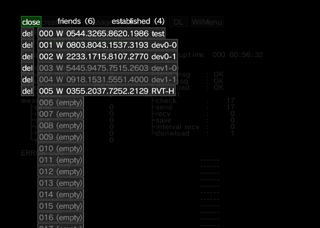
The "close" button, "friends", and "established" are displayed on the first line. A single friend is displayed on each line thereafter in index order.
The number of registered friends is shown by "friends". The number of registered friends for whom a friend relationship has been established is shown by "established". The "close" button closes this screen.
For all lines starting with the second, if a friend relationship has been established, the line will be displayed in a brighter font; otherwise, the line will be displayed in a darker font. In addition, the "del" button will be displayed at the beginning of the lines for which a friend relationship has been registered. If this button is pressed, the friend will be unregistered. In the index with a registered Friend, if it is a Wii Friend, "W", nickname, and a Wii number are displayed after the index number. If it is a Public Friend, "P", nickname, and e-mail address are displayed. Indices that do not have a registered friend will display "(empty)" appended to the index number.
The button displayed by each line's index number will open the Edit Friend screen, whether or not a friend has been registered for that index. Also, the button can be grabbed and moved by pressing the A Button and B Button together above it; this allows you to change the ordering of friends.
A friend's details can be displayed and edited.
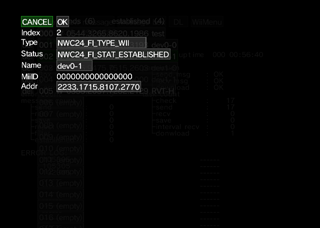
| View | Description | ||||||
|---|---|---|---|---|---|---|---|
| Index | Shows a friend's index number. | ||||||
| Type | Shows a friend's type.
| ||||||
| Status | Shows the establishment status of a friend relationship.
| ||||||
| Name | Shows friend's nickname. | ||||||
| MiiID | Shows ID of the Mii associated with friend. Mii ID cannot be edited in NWC24Editor. | ||||||
| Addr | Shows a friend's address. This specifies a Wii number if "Type" is NWC24_FI_TYPE_WII and an e-mail address if "Type" is NWC24_FI_TYPE_PUBLIC.
|
The OK button sets the edited value in Friend Roster and closes the screen.
The CANCEL button discards the edited values and closes the screen without changing Friend Roster.
Displays information related to NWC24Editor's execution environment. The console is always shown on this screen.
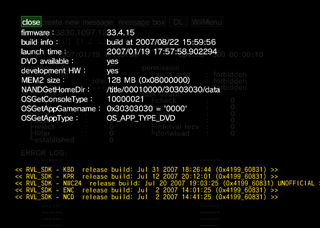
| View | Description |
|---|---|
| firmware | Displays firmware version used by NWC24Editor. |
| build info | Displays NWC24Editor's build time. |
| launch time | Displays NWC24Editor's startup time. |
| DVD available | Displays whether or not DVD can be used in NWC24Editor. |
| development HW | Displays whether or not the console is a development console. This is "yes" for NDEV and "no" for RVT-R and RVT-H. |
| MEM2 size | Displays the MEM2 size. |
| NANDGetHomeDir | Displays the value that could be obtained by NANDGetHomeDir.
|
| OSGetConsoleType | Displays the value that could be obtained by OSGetConsoleType.
|
| OSGetAppGamename | Displays the value that could be obtained by OSGetAppGamename.
|
| OSGetAppType | Displays the value that could be obtained by the OSGetAppType function.
|
A new message can be created.
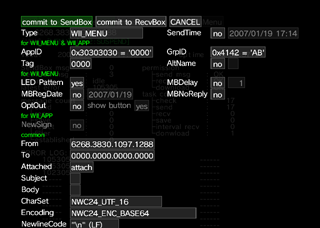
The Commit to SendBox button stores messages in the outbox.
The Commit to RecvBox button stores messages in the inbox.
The CANCEL button closes this screen without doing anything.
| Item | Relevant NWC24 Functions | Description |
|---|---|---|
| Type | NWC24InitMsgObj | Specifies message type. |
| SendTime | NWC24SetMsgDesignatedTime | [Ver.3] Specifies the time to send the message. Actual transmission will be delayed because it occurs at the first automatic transmission process after the specified time. |
| for WII_MENU & WII_APP | ||
| AppID | ((automatically set by NWC24InitMsgObj) | Specifies the message's application ID. This cannot be specified in the application; it is automatically set to one's own application ID. |
| GrpID | (automatically set by NWC24InitMsgObj) | Specifies the message's group ID. This cannot be specified in the application; it is automatically set to one's own group ID. |
| Tag | NWC24SetMsgTag | When set to anything other than 0000, if a message that has the same values in AppID, From, and Tag already exists in the inbox, the message already stored is deleted.
|
| AltName | NWC24SetMsgAltName | Specifies the sender's name to be displayed on the envelope on Wii Message Board. |
| for WII_MENU | ||
| LED Pattern | NWC24SetMsgLedPattern | Turns on the slot illumination when a message is received. |
| MBDelay | NWC24SetMsgMBDelay | Delays display to Wii Message Board by the specified period of time. The number is specified in hours. |
| MBRegDate | NWC24SetMsgMBRegDate | Specifies the calendar date when the message is posted on Wii Message Board. This does not mean that it will not be displayed on Wii Message Board until the specified date. |
| MBNoReply | NWC24SetMsgMBNoReply | Makes it impossible to reply to this message on Wii Message Board. |
| OptOut | - | [Ver.3] Displays the Stop Delivery button on Wii Message Board. |
| for WII_APP | ||
| NewSign | NWC24SetMsgIconNewSign | [Ver.3] Specifies the display of 'New' in icons and banners in the Wii Menu. |
| common | ||
| From | (automatically set by NWC24InitMsgObj) | Specifies the address of the message's sender. This cannot be specified in the application; it is automatically set to one's own Wii number. |
| To | NWC24SetMsgToId NWC24SetMsgToAddr | Specifies addresses to which the message will be sent. A maximum of 8 addresses can be specified. |
| Attached | NWC24SetMsgAttached | Specifies attached files. To open the File Selection screen, click on the attach button. When an attached file is specified, click the replace button to change the attached file, view button to view that file, and delete button to remove the attachment. A maximum of 2 files can be attached. |
| Subject | NWC24SetMsgSubjectNWC24SetMsgSubjectPublic | Specifies the subject of the message. |
| Body | NWC24SetMsgText NWC24SetMsgTextPublic | Specifies the body text of the message. |
(Items with [Ver.3] are features that require Wii Menu Version 3 or later)
On this screen, you can select files to attach to a message.
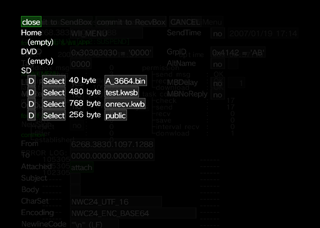
Files directly under the /misc directory for all media are displayed in a list. A single line corresponds to a single file. The following items are displayed left to right on each line: the D button, Select button, file size, and a button that shows the file name. If files do not exist for a media, "(empty)" is displayed.
D button only deletes files on media that allow deletions.
Select button selects a file and closes the screen.
The button that shows file name will display the file in the Data View screen.
The content of items, such as attached files, can be viewed.
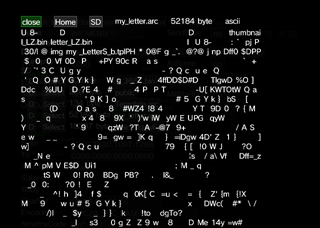
The close button, Home button, SD button, file name, file size, and display mode are all displayed on the first line, in that order.
The close button closes the screen.
The Home and SD buttons save the currently displayed data to the home directory in the Wii console NAND memory and the misc directory on the SD card, respectively.
If the target data is determined to be UTF16-BE text, "UTF16BE" is shown in the display mode; otherwise, "ascii" is shown.
Beginning at the second line, up to 10KB of the data's content is displayed as text. It will be displayed as UTF16-BE if the display mode is "UTF16BE", and as ASCII if the display mode is "ascii". Wrapping is done as appropriate.
Displays a list of messages stored in the message box.
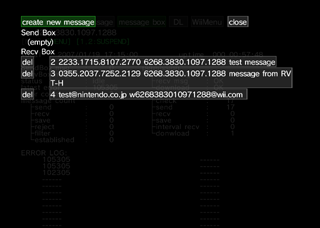
The create new message button and close button are displayed on the first line. From the second line on, messages in the outbox are displayed first, and then messages in the inbox are displayed.
Click on the create new message button to open the Message Create screen.
The close button closes the screen.
Beginning at the second line, a single message is displayed for each line. For each message box, "(empty)" is displayed if there is not even a single message. The del button is displayed at the beginning of each line, followed by the button displaying the message ID, sender's address, receiver's address, and subject.
The del button deletes the corresponding message. The button that includes the message ID displays the Message View screen for the corresponding message.
Displays message details.
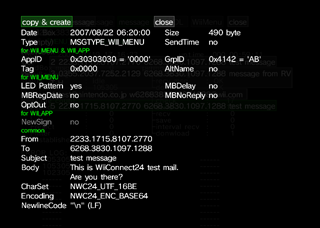
The copy & create button opens the Message Create screen, with the same contents as the currently displayed message already input.
The close button closes this screen.
For details on the Message Create screen and the common display items, see the Message Create screen description. Parts that differ from the Message Create screen are described here.
| Item | Relevant NWC24 Functions | Description |
|---|---|---|
| Date | NWC24GetMsgDate | Displays the date that the message was sent. |
| Size | NWC24GetMsgSize | Displays the message size. |
Detailed parameters are not displayed for items that are set as "no". For example, when "MBDelay" is "no", the value of delay time parameter is not displayed.
Displays a list of registered download tasks.
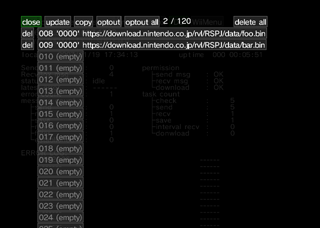
The eight tasks for IDs 0-7 are reserved by the system and therefore not displayed.
Each of the following buttons are placed on the first line.
| Button | Description |
|---|---|
| close | Closes this screen. |
| update | Updates the download task list. |
| copy | Opens the Download Task Copy screen. |
| optout | Performs opt-out processing for self in Wii Menu. |
| optout all | Performs opt-out processing for all applications in the Wii Menu. |
| delete all | Deletes all download tasks. Note that if Wii Menu is installed, system download tasks set by Wii Menu will be deleted as well. |
Numbers to the right of the optout all button show the number of tasks that have already been registered and the number of tasks that can be registered, respectively. The task count shown here includes system-reserved tasks. The number of tasks that can be registered is 32 (24 excluding system-reserved tasks) for version 2 of Wii Menu, and 120 (112 excluding system-reserved tasks) for version 3 of Wii Menu.
Beginning on the second line, the registration status for a single task is displayed on each line in the order of task ID. Each line is a button whose contents change depending on whether or not the task is registered. If a task is not registered, "empty" is displayed following the task ID. If a task is registered, the task ID, ID of the application that registered the task, and URL of the task are displayed, respectively. Additionally, the del button is displayed to the left of buttons that display a task ID.
A button that displays a task ID opens the Edit Download Task screen for that download task.
Click on the del button to delete the task.
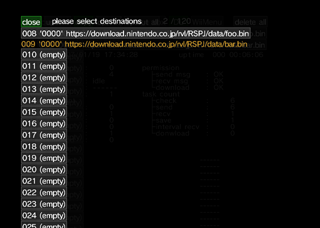
Download tasks can be copied.
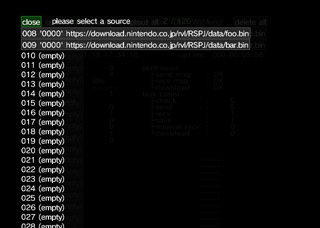
First, select the copy source. Only the task ID with a registered task is displayed as a button. Select the task ID of the copy source and click on the button.
The task that has been selected as the copy source will turn into orange text, and all other tasks will turn into buttons. To copy a task from the copy source, click on the button for task ID of the copy destination. If you press the A Button anywhere other than on a button, you will return to the copy source selection.
The close button closes the screen.
Details of a download task can be edited.
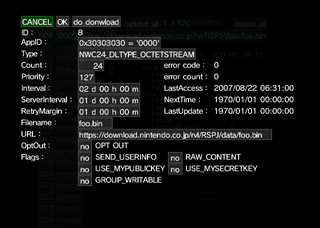
The CANCEL button discards edited values and closes the screen without changing the download task.
The OK button sets the edited value in the download task and closes the screen.
The do download button actually executes the download task.
| Item | Description |
|---|---|
| error code | Displays the error code of the last error that occurred. |
| error count | Displays the number of times an error has occurred. |
| LastAccess | Displays the last time a download was performed. |
| NextTime | Displays the next time a download task will run. |
| LastUpdate | Displays the last time contents were updated. |
| Item | Relevant NWC24 Functions | Description |
|---|---|---|
| AppID | (automatically set by NWC24InitDlTask) | Specifies ID of the task owner application. |
| Type | NWC24InitDlTask | Specifies the type of download process. |
| Count | NWC24SetDlCount | Specifies the number of times download is performed. |
| Priority | NWC24SetDlPriority | Specifies task priority. |
| Interval | NWC24SetDlInterval | Specifies download interval. |
| ServerInterval | NWC24SetDlServerInterval | Specifies the server-side content update interval. |
| RetryMargin | NWC24SetDlRetryMargin | Specifies the allowable delay from the original download time. |
| Filename | NWC24SetDlFilename | Specifies the name of the file in which downloaded content will be stored. |
| URL | NWC24SetDlUrl | Specifies URL for download. |
| OptOut | NWC24SetDlOptOutFlags | [Ver.3] Indicates that this is an opt-out target. |
| Flags | NWC24SetDlFlags | Specifies task flags. |
(Items with [Ver.3] are features that require Wii Menu Version 3 or later)
2007/09/03 Added the previously missing text about SD and controller operation.
2007/08/27 Initial version.
CONFIDENTIAL