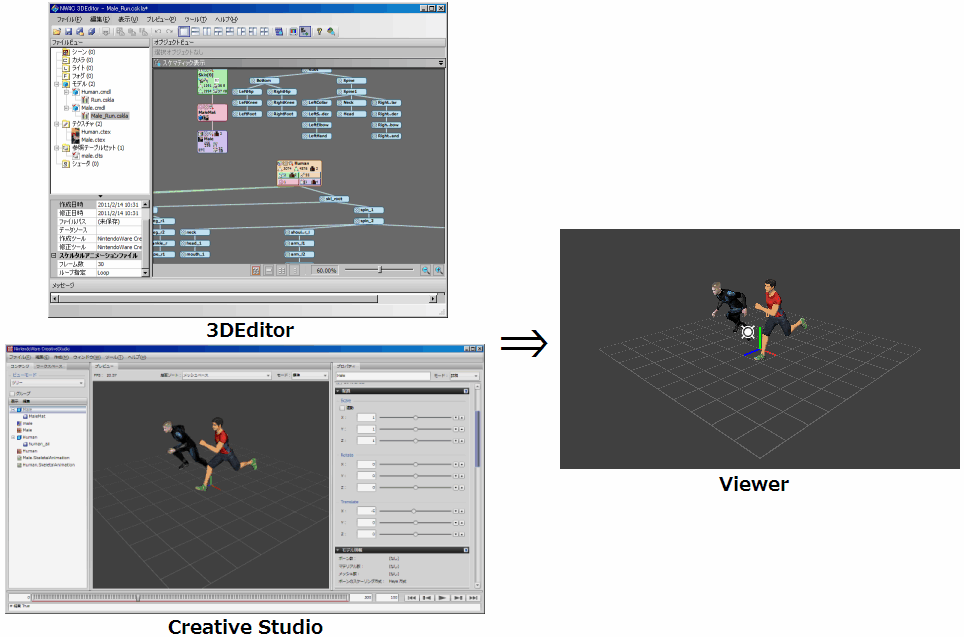
Currently, the following operations are possible through the combined use of Viewer and CreativeStudio.
By communicating with 3DEditor and Creative Studio you can preview 3D models loaded into 3DEditor and Creative Studio.
If multiple 3D models have been loaded into 3DEditor or Creative Studio, they will be previewed at the same time.
If animations have been attached to the 3D model, those animation can be played.
Camera, light, and fog animations can be played.
The playing, pausing, and frame stepping of animation is controlled using a controller for the unit or a debugging pad.
Binary files (bcres, bcmdl) can be loaded using file reload operations.
Note: Older versions of binary files cannot be loaded.
To read how to save binary files, see the 3DEditor and Creative Studio manuals.
In 3D mode, you can review the contents of 3D models loaded in the Viewer and play back animations.
The 3D mode screen displays the following information:
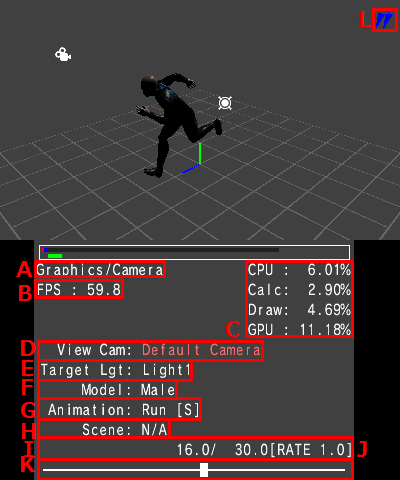

Shows the currently selected main mode and sub-mode.

Shows the number of frames that are refreshed in 1 second.
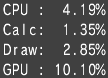
Digital display of the loads on the CPU and GPU for processing of 3D models.
The unit is percentage points. This is the equivalent of the value displayed in the Processing Meter.
CPU: The relative amount of time spent for animating and rendering, up through the completed sending of data to the GPU.
Calc: Time spent for animating.
Draw: Time spent for rendering.
GPU: Time from start to finish of rendering.

The name of the camera that is the currently selected view target.

The name of the camera/light that is the currently selected target of operations.

The type and name of the model/scene that is the currently selected target of animation operations.
The model/scene type switches in the order of Model > Camera > Light > Fog when the switch model/scene operation is performed.

This is the animation that is bound to the currently selected model/scene. [S] is for scale animation, [M] is for material animation and [V] is for visibility animation.

This name of the currently selected scene environment.

The number on the right indicates the frames being looped. The number on the left indicates the current frame count.
If the looped playback feature is set for a one-time animation, the letter L is displayed on the left.

Shows the rate at which the playback of frames advances in one step.

Depiction on a bar of the current animation frame and all animation frames.

Indicates whether the currently selected operating light is a directional light, a spotlight or a hemispherical light.
The following operations can be performed in 3D mode.
Camera Operations
| Key Operations | Description |
| Slide pad | The camera rotates around the viewpoint. |
| +Control Pad Up/Down | Slides along the world y-axis. |
| +Control Pad Left/Right | Slides along the camera x-axis. |
| Lower screen (right side 4/5)(Touch panel) |
Slides along the camera XY directions. |
| Lower screen (left side 1/5)(Touch panel)(up/down) |
Slides along the world y-axis. |
| X Button or Y Button |
Moves toward the look-at point (X Button). Moves away from the look-at point (Y Button). |
| L Button + Slide pad | Slides in a plane parallel to the world XZ plane. |
| L Button + Lower screen (right side 4/5)(Touch panel) | Tilts the camera. |
| L Button + Lower screen (left side 1/5)(Touch panel)(up/down) | Slides along the world y-axis. |
| L Button + X/Y Button |
Moves toward the look-at point (the look-at point also moves at the same time) (X Button) Moves away from the look-at point (the look-at point also moves at the same time) (Y Button) |
| L Button + START/SELECT Button | Resets the camera position to its initial state. |
| R Button + A Button | Switches the View camera. When the View camera is switched, the operating cameras and lights also switch. |
| R Button + X Button | Switches the operating cameras and lights. |
Animation Operations
Animation operations can be performed if a model/scene and animation are loaded.
| Key Operations | Description | ||||||||
| A Button | Starts/stops playback of all displayed model/scene animations. | ||||||||
| B Button | Stops all model or scene animations being displayed and resets to frame 0. | ||||||||
| R Button + Y Button |
Switches the selected model/scene. |
||||||||
| L Button + R Button + X Button |
Switches the animation of the currently selected model/scene. |
||||||||
| L Button + R Button + A Button |
Starts/stops playback of the currently selected model/scene animation. |
||||||||
| L Button + R Button + B Button |
Stops the currently selected model/scene animation and resets the frame to 0. |
||||||||
| R Button + +Control Pad (Up/Down) |
Moves the operation cursor location. Toggles in the order: resource name > animation name > animation frame > playback rate. |
||||||||
| R Button + +Control Pad (Left/Right) |
Increases or decreases the value of the item where the operation cursor is located.
|
||||||||
| L Button + R Button + +Control Pad (Left/Right) |
Increases/decreases the value of the cursor-selected item for just the currently selected model/scene.
|
||||||||
| R Button + START/SELECT Button |
Toggles the looped playback feature on/off for one-time animations. |
||||||||
| Lower Screen (Lower part)(Touch panel) |
Operates the animation slider bar. |
Other
This section describes operations other than camera animation operations.
| Key Operations | Description |
| L Button + R Button + X Button |
Switches the selected scene environment . |
| A Button (only for Log mode) | Outputs the log to log.txt in the Viewer folder. |
| B Button (only for Log mode) | Deletes the log. |
Camera Operations
| Key Operations | Description |
| Control Stick (Left) | The camera rotates around the viewpoint. |
| Control Stick (Right) |
The camera slides along the world y-axis. (up/down) Slides the camera in the X direction. (left/right) |
| +Control Pad Up/Down | Slides along the world y-axis. |
| +Control Pad Left/Right | Slides along the camera x-axis. |
| X Button or Y Button |
Moves toward the look-at point (X Button). Moves away from the look-at point (Y Button). |
| ZL Trigger Button + Control Stick (Left) | Slides in a plane parallel to the world XZ plane. |
| ZL Trigger Button + Control Stick (Right) | Tilts the camera. |
| ZL Trigger Button + X/Y Button |
Moves toward the look-at point (the look-at point also moves at the same time) (X Button). Moves away from the look-at point (the look-at point also moves at the same time) (Y Button) |
| ZL Trigger Button + PLUS/MINUS Button | Resets the camera position to its initial state. |
| ZR Trigger Button + A Button | Switches the View camera. When the View camera is switched, the operating cameras and lights also switch. |
| ZR Trigger Button + X Button | Switches the operating cameras and lights. |
Animation Operations
Animation operations can be performed if a model/scene and animation are loaded.
| Key Operations | Description | ||||||||
| A Button | Starts/stops playback of all displayed model/scene animations. | ||||||||
| B Button | Stops all model or scene animations being displayed and resets to frame 0. | ||||||||
| ZR Trigger Button + Y Button |
Switches the selected model/scene. |
||||||||
| ZL Trigger Button + ZR Trigger Button + Y Button |
Switches the animation of the currently selected model/scene. |
||||||||
| ZL Trigger Button + ZR Trigger Button + A Button |
Starts/stops playback of the currently selected model/scene animation. |
||||||||
| ZL Trigger Button + ZR Trigger Button + B Button |
Stops the currently selected model/scene animation and resets the frame to 0. |
||||||||
| ZL Trigger Button + ZR Trigger Button + +Control Pad |
Advances/reverses frames in the currently selected model/scene animation (Left/Right keys). Speeds/slows the playback rate of the currently selected model/scene animation (Up/Down). |
||||||||
| ZR Button + +Control Pad Up/Down |
Moves the operation cursor location. Toggles in the order: resource name > animation name > animation frame > playback rate. |
||||||||
| ZR Button + +Control Pad Left/Right |
Increases or decreases the value of the item where the operation cursor is located.
|
||||||||
| ZL Button + ZR Button + +Control Pad (Left/Right) |
Increases/decreases the value of the cursor-selected item for just the currently selected model/scene.
|
||||||||
| ZR Button + PLUS/MINUS Button |
Toggles the looped playback feature on/off for one-time animations. |
Other
This section describes operations other than camera animation operations.
| Key Operations | Description |
| ZL Trigger Button + ZR Trigger Button + X Button |
Switches the selected scene environment . |
| A Button (only for Log mode) | Outputs the log to log.txt in the Viewer folder. |
| B Button (only for Log mode) | Deletes the log. |
| Description of Setting | Description |
| SortMode | Switch the render sorting order between AllMeshBaseSort and OpaqueMeshBaseAndTranslucentModelBaseSort. |
| FrameRate | Configures the animation frame rate. |
| DepthLevel |
Sets either the distance from the camera to the base plane for the application-priority camera, or the distance in virtual space from the player's two eyes to the base plane for the realism priority camera. Specifying 0.0 sets the value to "(the View camera's Near) + 5.0." |
| Factor | Sets the depth adjustment factor. |
| RealSwitch | Sets whether to enable realism priority camera matrix calculations. |
| GridScale | Sets the size of the grid scale when displaying coordinate axes/grids. |
| GridDivision | Sets the number of divisions in the grid scale when displaying coordinate axes/grids. |
| LowerScreenPreview | Switches the upper/lower screens. |
| TargetCameraAxis | Toggles between show/hide the camera's look-at point. |
CONFIDENTIAL