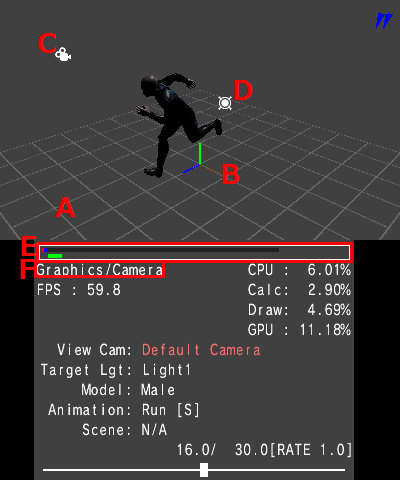
The common features of all screen contents used for viewing and operating in all modes is explained here.
The grid can be displayed in the global space to show the model, effect direction, and size more clearly.
The grid spacing and show/hide settings can be changed in the initial settings file (Viewer.ini) and on the Viewer.

Shows the current location of the view camera's look-at point.

An icon indicates the position of the camera.

An icon indicates the position of the light.

Meters are used to indicate the processing time spent for the main process in each mode.
The red meter shows the CPU processing time spent on animation and SRT calculations.
The blue meter shows the CPU processing time spent on drawing.
The green meter shows the processing time spent by the GPU.
The gray meter shows the processing time spent by the overall system. Processing will slow if this is far to the end.
Viewer in some cases will also show data that can be edited and rendering without optimization.

Shows the current main mode and sub-mode
Operations of Changing modes and opening menu screen are common controller operations regardless of the mode.
| Key Operations | Description |
| START/SELECT Button + Left/Right Button | Switches the main mode. |
| START/SELECT Button + Up/Down Button | Switches the sub-mode. |
| R Button & B Button | Shows/hides the grid, camera viewpoint, particle emitter shape and screen information. |
| Key Operations | Description |
| PLUS/MINUS Button + Left/Right Button | Switches the main mode. |
| PLUS/MINUS Button + Up/Down Button | Switches the sub-mode. |
| ZR Trigger Button + B Button | Shows/hides the grid, camera viewpoint, particle emitter shape and screen information. |
CONFIDENTIAL