The Preview feature provides windows and panes on SoundMaker for some of the same Controller-based operations to configure settings that are available in the various windows of Viewer. The configured settings are reflected in PC emulation playback and (by sending the settings to the Viewer) in playback on a system, and the settings can be saved.
There is currently no support for real-time transfer to Viewer of settings configured with the Preview feature, but there are plans to support this in the future.
After you have changed settings, transfer the converted sound archive to check the sound.
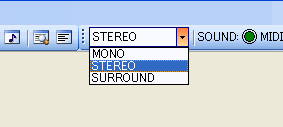
Included among the Preview items in the toolbar is the OutputMode drop-down list, which switches the OutputMode in the same way as the Viewer.
There are several ways to play sounds from SoundMaker, including using the options included in the main window's Preview menu, its toolbar buttons, and from the Preview Player window, as well as computer keyboard shortcut keys.
Note also that the playback operations differ slightly between the Sound Set tab and the Bank tab.
On the Sound Set tab, operations are performed on sounds selected from each list.
In the Bank tab, operations are performed on the active bank tab instruments.
After selecting a sound from each list, from the main window's Preview menu you can use the Play, Pause, and Stop options as well as the toolbar buttons.
Sounds can also be played back by double-clicking on a list, by clicking the "Play" button next to each item in the list, or by pressing the F9 key. Playback can be stopped by pressing the F10 key.
The shortcut keys and their operations are shown below
|
Input |
Operation |
| F9 | Play |
| F10 | Stop All |
| SPACE | Play |
| Clicking the "Play" button | Play |
Note: To learn about operations in the Bank tab, see GUI-based instrument playback.
CONFIDENTIAL