The view in the Sound Set tab can be split to display two sets of information.
This section explains the Split View features.
- View: The editing screen for the tab controls in the Sound Set tab and the Bank tab.
- Top view, Bottom view, Left view, Right view: Indicates each view when the view has been split.
- Active view: The view that is subject to operations. The last view having focus is the active view.
- Active tab: The tab selected inside the active view. When the view is split, there is one selected tab in each view (top/bottom or right/left).
The view can be split in half either horizontally (top/bottom) or vertically (left/right).
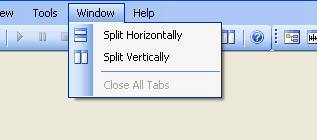
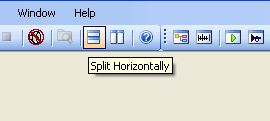
To split the view, select Window → Split Horizontally or Split Vertically, or from the toolbar, press the Split Horizontally button or the Split Vertically button.
After a single view is split, the active tab from the original view is also displayed in the newly opened view.
The two views in split view have the same specifications and operate independently.
Split Horizontally
Not split: The current view appears on the top, and the new view appears on the bottom.
Vertical split: The left-side view appears on the top, and the right-side view appears on the bottom.
Split Vertically
Not split: The current view appears on the left, and the new view appears on the right.
Horizontal split: The top view appears on the left, and the bottom view appears on the right.
To remove the split view, close all the tabs for all view you want to remove.
You can easily do this by selecting Close All Tabs from the shortcut menu on the tabs.
If multiple tabs are opened in the same view, you can use drag-and-drop operations to rearrange their display.
Note that you cannot move them to another view.
Right-clicking a tab brings up a shortcut menu that allows you to Close that tab, Close All Other Tabs in that view, or Close All Tabs in that view.
The Window → Close All Tabs operation from the main menu closes all tabs of the split view at the same time.
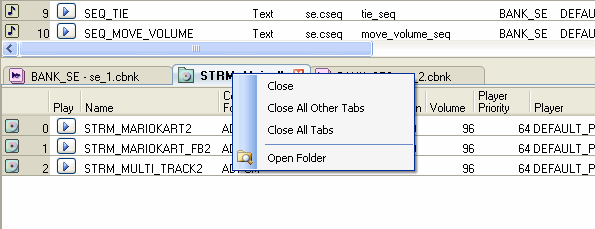
Pressing the center button of the mouse works the same as Close from the shortcut menu.
See the List of Tab Operation Shortcuts in "Common Operations: Lists of Operations."
When an operation to switch the tab display is carried out in places such as the project tree and the Search window, the target of the operation is the active view.
The split view can be minimized without being closed.
When the view is split, click the Minimize button that appears to the side of the tab-display area to minimize the view to displaying only the tab portion.
The Minimize button switches to the Restore button when the view is minimized, and clicking on this button is how you restore the display to the normal size.
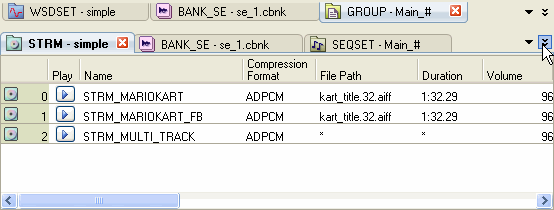
Here are other ways of switching between Minimize and Restore.
- Double-click the splitter that defines the border of the split view.
- When the view is split horizontally, click the Split Horizontally button.
- When the view is split vertically, click on the Split Vertically button.
The operation minimizes the view that is not the active view.
When a view is in the minimized state, it is restored to its original size when any of the following operations are performed:
- Double-clicking the tab of the minimized view.
- When the view is split horizontally, clicking the Split Vertically button.
- When the view is split vertically, clicking the Split Horizontally button.
CONFIDENTIAL