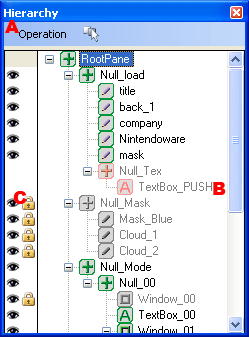
This window manages the parent-child relationships among panes.
This command menu applies to the Parent-Child Hierarchy Management window.
The parent-child relationship of panes is displayed in tree format. The types and states of panes are displayed using icons.
Panes below a given node can be selected by selecting that node. Parent-child relationships can be changed by dragging and dropping panes.
Selecting items while pressing SHIFT enables the range selection of multiple items.
When you select the start item and the end item of a range of items while pressing SHIFT, the items between these two items are also selected all at once.
In addition, selecting individual items while pressing CTRL enables additional selections.
Double-clicking a pane displays the Properties window.
Right-click an object to display a Command menu pop-up.
Other than the RootPane, the name of a pane can be changed by clicking and selecting the pane.
If you press the Shift key when opening/closing a node using the +/- buttons to the left of the icon, all nodes below that node will be opened/closed at the same time.
| Icon | Description | ||
| Normal | Locked | Hidden | |
 |
 |
 |
Null Panes |
 |
 |
 |
Picture Panes |
 |
 |
 |
Text box pane |
 |
 |
 |
Window pane |
 |
 |
 |
Boundary condition pane |
Parameter Adjustment Icon
Icon that adjusts a pane's parameters.
Display/Hide is set by the eye icon on the left.
Click the the lock icon on the right side of the frame to set the lock state.
The view mode that can be set using the eye icon is the mode that a designer can use to temporarily hide panes while editing with this tool.
The settings made with the eye icon are not reflected in the binary data; in other words, the settings are not reflected in the actual game.
During previewing, you can control the behavior by selecting Edit > Tool Environment Settings and selecting the check box next to Display hidden panes as null panes. The settings made with the lock icon are not applied to the binary data either.
CONFIDENTIAL