In this tutorial, we describe the procedure for creating a new project and saving edited data.
The basic procedure is given below.
Here, we create a Project and manage multiple effects.
The following methods are available for creating new projects.
A dialog will appear. Enter a project name and press OK to create the project.
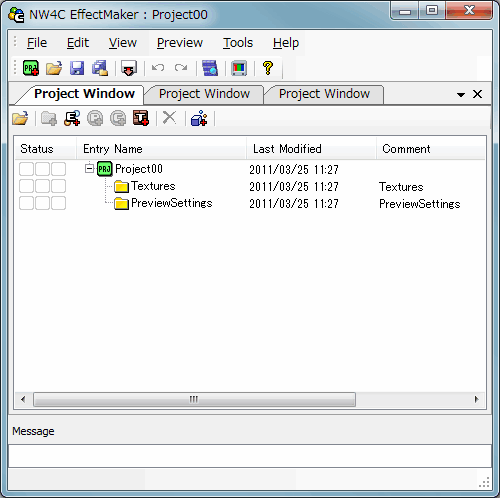
When using Effect, you can open more than one project in the main window.
The following image shows multiple projects open in the main window.
Creates Effects inside the created project window.
The following method is available for creating effects.
A dialog will appear. Enter an effect name and press OK to create the effect.
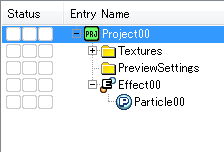
The effect including all particles and the particle underneath are created.
The image below shows an effect created inside the Project Window.
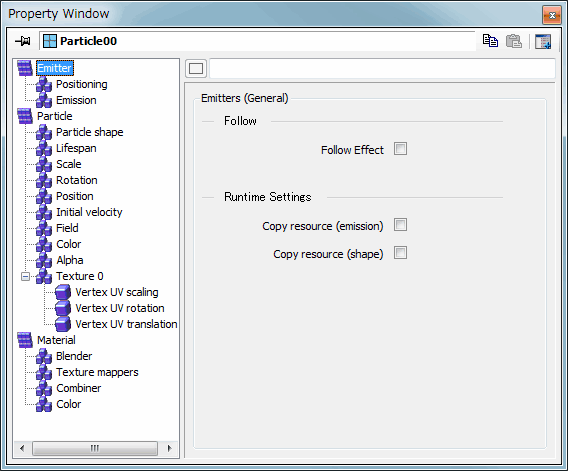
Here, we open the Property Window for the created effect and set associated parameters.
The following methods are available for displaying the Property Window.
The following image shows the Property Window for particles. Sets parameters freely.
Here, we wave the project file and edits made to effects.
The following methods are available for saving projects.
You can select from among several methods depending on the situation to complete tasks under EffectMaker.
In all cases, a Save File dialog is displayed if there are any remaining unsaved files.
Closes a single project for which tasks are complete. The edited project can be saved.
The following methods are available in this case.
All projects open in EffectMaker can be closed at one time. The edited project can be saved.
The following methods are available in this case.
Here, we close all open projects and exit EffectMaker. The edited project can be saved.
The following methods are available in this case.
CONFIDENTIAL