In this tutorial, we describe how to load material configuration files exported from NW4C CreativeStudio or 3DEditor.
We also describe how to load material animation files.
For details on how to export material configuration files and material animation files, see the manuals for each separate tool.
Here, we prepare the material configuration file and effect to be loaded.
The Effect file used in this tutorial is located in the folder given below.
" SampleData/Effect/Intermediate/ManualResource/Material_File/Material_File_Effect.cptl "
The NW4C CreativeStudio Material Settings file used in this tutorial is located in the folder given below.
" SampleData/Effect/Intermediate/ManualResource/Material_File/Material_File_Material.cmat "
The 3DEditor Material Settings file used in this tutorial is located in the folder given below.
" SampleData/Effect/Intermediate/ManualResource/Material_File/Material_File_Material.c3mt "
The sample files all use Constant Color 0 and Constant Color 1 and the materials settings are the same.
The Material Animation file used in this tutorial is located in the folder given below.
" SampleData/Effect/Intermediate/ManualResource/Material_File/Material_File.cmata "
This sample file animates the colors Constant Color 0 and Constant Color.
On the main menu, select File > New > Project to open a dialog box for creating new projects.
Without changing the project name, just press OK.
Select Material_File.cptl_Effect.cptl from the Material_File folder and drag & drop it inside the window for the created project.
Select the effect Material_File and press F5 to transfer it to the Viewer.
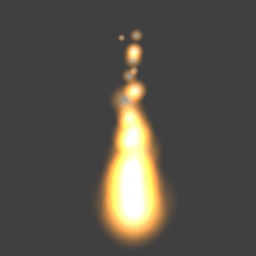
Confirm that a colorless, white ball of flame displays in the Viewer.
EffectMaker can use NW4C CreativeStudio material expressions as-is by loading the NW4C CreativeStudio cmat Material Settings file.
Open the Property Window for Material_File_Particle and select Material from the properties. The following methods are available for loading cmat files:
Below shows the state when Material_File_Material.cmat has been loaded.
To perform the next check, press Ctrl+Z to restore the settings to what they were before you imported the cmat file.
The work with EffectMaker can be made more efficient by selecting material settings that are frequently used for the creation of effects.
By loading the 3DEditor c3mt Material Settings file into EffectMaker, you can express the kinds of detailed material settings that you cannot configure with EffectMaker alone.
c3mt files are loaded the same ways as cmat files. If there are comments in the c3mt file, that information is shown in the Property Window.
Load Material_File_Material.c3mt and check it in the Viewer.
EffectMaker can load cmata Material Animation files that were created and exported from NW4C CreativeStudio and 3DEditor.
cmata files are loaded the same ways as cmat files.
Below shows the state when Material_File_Material.cmata has been loaded and the color has been animated and changed.

CONFIDENTIAL