This chapter describes procedures and precautions for creating animations using NintendoWare in Softimage.
Animation Overview
Character Animation
Visibility Animation
Color Animation
Texture Pattern Animation
Texture SRT Animation
Scene Animation
If the Export option Bake All Animation is ON or if the animation curve in Softimage cannot be output as-is, animation curve data will be automatically created from the data baked from all frames.
Animation data is always automatically created and output from baked data in the following cases.
The rotational value automatically generates animation curve data after adjusting the baked data so that it is continuous and has a small absolute value.
All values in the output range are output for baked animations.
All animations using extrapolation are also baked, but not reflected in the animation curve repeat type.
Plans call for providing support for the repeat type of baked animations.
If the Export option Bake All Animation is OFF, the animation curve extrapolation mode is referenced and repeat mode is output. Repeat is output and other cases are ignored only when the extrapolation mode is Cycle.
When Loop is set ON in the Export option, specify the End Frame so the conditions are the same as for the Start Frame. For instance, if animation is being looped under Softimage and frame 1 and frame 10 are the same, specify 1 for the start frame and 10 for the end frame.
Whether looping is set on or off, the FrameSize in the intermediate file is = (EndFrame - StartFrame).
If attributes are being animated, values for the start frame specified with the Export option are output to the CMDL file. Note, however, that bind pose values will be output for the translate, rotate and scale nodes, which are affected by skinning.
Note: Be aware that the values of the current frame in Softimage are not the values being output.
This type of animation controls the Visibility attribute of a node to make it displayed or hidden.
Visibility animation data is output to the intermediate file as an CMDLA file.
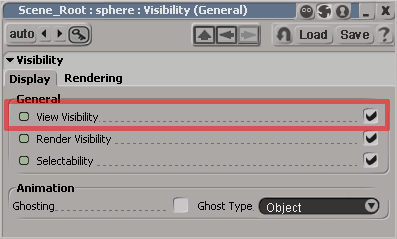
To configure a visibility animation, set the animation curve to View Visibility.
|
When the Export option Compress Node has been set to Cull Useless Node or Cull Uninfluential Node, make sure nodes which have visibility animations configured are not compressed, since visibility animation is set on a node basis. (You can set the compression disable flag using the NW4C Set No Compress Node Plug-in). When using shape animation, do not set the Compress Node Export option to Unite Compressible Node or Unite All Node. |
Color animations are set by animating the Color, Transparency (R value), Specular Color and Incandescence Color of material nodes.
When Enable is used to configure ON/OFF animations, in the OFF state these colors are output as black. Animation data is always automatically created and output from baked data in the following cases.
This configures animation for Transparency.
If Enable is turned OFF, the object is treated as opaque. If Enable is on and UseAlpha is also turned on, an animation configured for the Alpha values is output to the intermediate file as the diffuse alpha value.
If UseAlpha is OFF, an animation configured for the Red Color values is output to an intermediate file. (Green and Blue values are ignored.)
| If the Export option for material compression is enabled, even materials for which color animation is not set sometimes get animated as a result of material collecting. If this happens, use the NW4C Set Material Attribute plug-in to change settings so that materials for which color animation is set are not compressed. |
This type of animation swaps textures.
Texture pattern animation data can be output to the intermediate file as a material animation (.cmata file).
Texture pattern animation settings use either sequential textures or SCR files supported as standard by Softimage.
.scr.
Sequential textures are textures that have been given sequential numbers, such as p.1.tga, p.2.tga, and p.3.tga.
Whether you use SCR files or sequential textures, edits made using the Warp feature of Softimage (a feature for editing the correspondence between frames and textures using a graph) are not applied.
This type of animation varies the SRT of a texture by manipulating a texture matrix.
Texture SRT animation data can be output to the intermediate file as an CMATA file.
For texture animation, animation curve data is always automatically created and output from baked data.
Texture SRT animations are configured according to the procedure below.
Apply textures in Softimage,and open the Texture Projection property editor. Move to the frame you want to configure, and set animation keys for ScalingU, ScalingV, RotationW, Translation U, and Translation V.
| If the Export option for material compression is enabled, even materials for which texture SRT animation is not set are sometimes animated as a result of materials collecting. If this happens, use the NW4C Set Material Attribute plug-in to change the settings so materials are not compressed if texture SRT animation has been set for them. |
Scene animations are configured by animating the camera and light attributes.
Supported camera types are: Perspective, Telephoto, Wide Angle, and Orthographic.
A camera will not be output if its Visibility property View Visibility is OFF.
The aspect ratio is set by selecting Primitive > Pict. Ratio under Camera Properties, or Projection Plane > Film Aperture (Fixed Aspect Ratio OFF).
Angle of view is set by selecting Primitive > Field Of View > Angle under Camera Properties or Projection Plane > Film Aperture (Fix Aspect Ratio ON). Since vertical Field of View (Fovy) is output to the intermediate file, if Primitive > Field Of View is set to Horizontal, convert it to Vertical Field of View before exporting. The relationship between Horizontal Angle of View and Vertical Angle of View is determined by the Aspect Ratio.
The relationship between the Vertical Field of View (Fovy) and the Horizontal Field of View (Fovx) is given by the following formula:
Fovy = 2 * atan( tan( Fovx * 0.5 ) / aspect )
The following is a list of attributes that can be configured with animation:
Supported light types are: Infinite, Point, and Spot.
Render > Edit > Ambience converts light into ambient light. However, there can only be one ambient light.
A light is not output if the Visibility property View Visibility is not animated and is OFF.
Visibility property
A spotlight is not output if either its own Visibility or the Visibility of Spot_Root is OFF.
If the light property Light Contribution > Specular is ON, then the color value is output as specular color.
If it is OFF, then black is output to the specular color.
If the light property Light Contribution > Diffuse is ON, then the color value is output as diffuse color.
If it is OFF, then black is output to the diffuse color.
Black is always exported for the ambient color of Infinite, Point, and Spot light types.
The intermediate file can have two settings for specular color, but the same value is output for both from Softimage.
The following is a list of attributes that can be configured with animation:
Interest node (Global Coordinates).Currently shape animations (moprhing) cannot be used.
CONFIDENTIAL