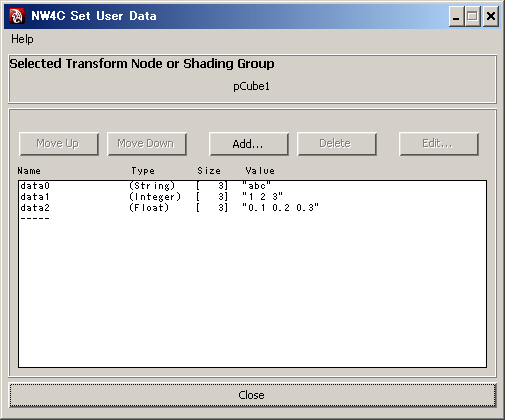
This plug-in sets user data for a transform node (joint node) or shading group.
From the NW4C menu, run NW4C Set User Data to display the window.
Setting Attributes
Selecting just one transform node (joint node) or shading group (shadingEngine node) displays the current setting for that node in the window. (If a material node is selected, the setting for the corresponding shadingEngine node is displayed.)
The lower part of the window displays a list of configured user data.
The name of the user data.
The type of the user data.
String is a character type, Integer is an integer type, and Float is a real number type.
The size of the buffer.
Indicates the number of characters when data is character type, or the number of values when the data is integer or real number type.
The value of user data.
If the display of data cannot fit on the screen, the undisplayed part will be omitted and displayed as "...".
New user data can be added by clicking the Add button. If an item in the list is selected, data is inserted in the selected location; if no item is selected, data is added to the end of the list. (The selection can be canceled by clicking "-----" at the bottom of the list.) The name and contents of existing user data can be changed by selecting an item in the list and clicking Edit or by double-clicking on the item.
Selected user data can be deleted by selecting an item in the list and clicking Delete.
The order of user data can be changed by selecting an item in the list and clicking Move Up or Move Down.
To set a different node, select it without closing the window.
A user data entry window can be displayed by clicking Add or Edit.

Enter the name of user data. Double-byte characters and half-space kana characters cannot be used. Symbols other than the hyphen (-), underscore (_), and period (.) cannot be used.
Specifies the type of user data. String is a character type, Integer is an integer type, and Float is a real number type.
If Type is String, enter the characters.「<」、「>」、「&」, single quotes, and double quotes cannot be used. If Type is Integer or Float, enter a numeric value.
More than one string or numeric value can be entered by delimiting with a carriage return. (Only one value per row can be entered.)
User data can be added or changed by clicking OK. If the name, character string, or numeric value is invalid, an error will be displayed on the command line and in the script editor .
CONFIDENTIAL