Main Window
This page describes the names and features of the main user interface in the CreativeStudio main window.
CreativeStudio Main Window Names and Features
This page describes the CreativeStudio main window settings and features.
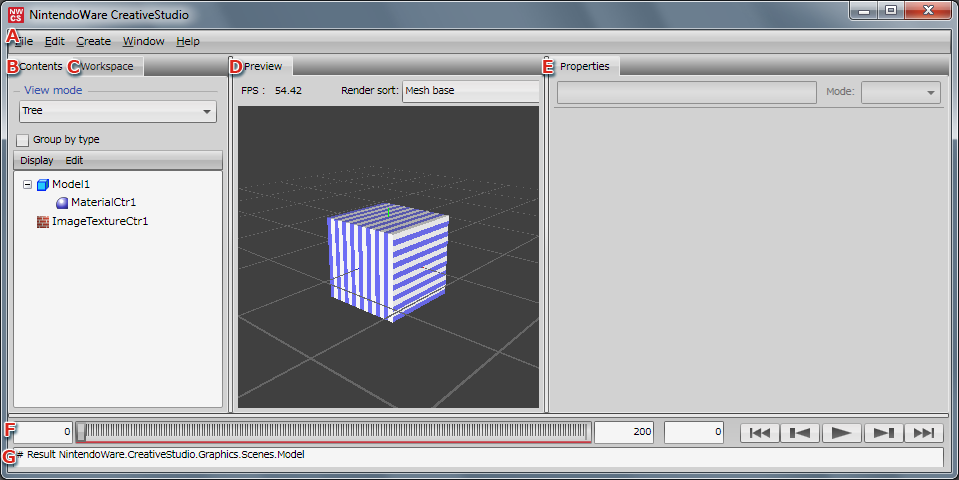
| A | Main Menu | This is the CreativeStudio command menu. |
|---|---|---|
| B | Contents panel | Here you can select various content used by CreativeStudio. The Contents panel can be opened in a window of its own separate from the main window. |
| C | Workspace | Not implemented. |
| D | Preview panel | Allows a preview of content edited using, or loaded into, CreativeStudio. For shortcut keys available in the Preview panel, click here. |
| E | Properties panel | Select a type of content to display the corresponding settings. The Properties panel can be opened in a window of its own separate from the main window. |
| F | Timeline | This panel can control animation such as playback and stop. |
| G | Console | This panel displays error information and the status of files loaded into CreativeStudio. Use this panel to check details about the status or error information. |
Properties panel
The Properties panel has been prepared for editing different kinds of content data loaded into CreativeStudio.
This panel can be opened in its own window separate from a display region in the main window.
Table 1. A List of the different Properties panels prepared in CreativeStudio.
| Panels | Content |
|---|---|
| Material Properties Panel | Allows you to perform various edits such as add textures, set combiners, and change material color. |
| Model Properties Panel | Allows you to confirm model structure and set visibility. |
| Texture Properties Panel | Displays information such as type and size of textures. |
| Fragment lighting Properties panel | Allows you to set and edit fragment lights. |
| Ambient lighting Properties panel | Allows you to set and edit ambient lights. |
| Vertex lighting Properties panel | Allows you to set and edit vertex lights. |
| Hemispherical lighting Properties panel | Allows you to set and edit hemispherical lights. |
| Camera Properties Panel | Allows you to make camera settings and set the type of camera. |
| Fog Properties Panel | Allows you to set the fog color and fog start position. |
| Animation Data Properties Panel | Allows you to configure settings for playback and for output to PARTNER-CTR Debugger for visibility animation, camera animation, light animation and fog animation. |
| Material Animation Properties Panel | Allows you to configure settings for material animation playback and output to PARTNER-CTR Debugger. |
| Skeletal animation Properties panel | Allows you to configure settings for skeletal animation playback and output to PARTNER-CTR Debugger. |
| Effect | Describes the panels used when creating effects. |
| Shader Properties Panel | Displays shader information being used. |
| Scene Environment Properties Panel | Allows you to set lights, cameras, and fogs for each of multiple models in a scene. |
Timeline
For defining the animation playback frame range and for starting/stopping animation playback.

| A | First Playback Frame | Sets the starting frame for animation playback. |
|---|---|---|
| B | Last Playback Frame | Sets the ending frame for animation playback. |
| C | Animation Control Buttons | For starting/stopping animation playback. |
Caution:
The playback frame range is not set automatically on the timeline.
To play an animation that you have created, you will need to to manually set the frame range.