File View
File View is for viewing and selecting from among the loaded 3D intermediate files.
The top portion of Filer View displays a list of files, while the bottom portion displays information about the selected file.
It is also for conducting operations on loaded files.
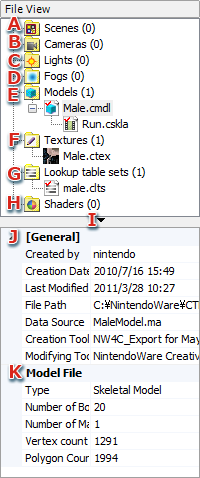
- Scene
Displays a list of Scene files (.cscn files).
If scenes have been created in a Scene file, they are displayed as child items.
If a scene is being used in the Viewer, the display of its file name is followed by [Preview].
- Camera
Displays a list of Camera files (.ccam files).
If cameras have been created in a Camera file, they are displayed as child items.
If animation has been configured, the animation is also displayed as a child item of the camera.
If scenes have been created, cameras not used in the scenes are shown in red.
- Light
Displays a list of Light files (.clgt files).
If lights have been created in a Light file, they are displayed as child items.
If animation has been configured, the animation is also displayed as a child item of the light.
If scenes have been created, lights not used in the scenes are shown in red.
- Fog
Displays a list of Fog files (.cfog files).
If fogs have been created in a Fog file, they are displayed as child items.
If animation has been configured, the animation is also displayed as a child item of the fog.
If scenes have been created, fogs not used in the scenes are shown in red.
- Model
Displays a list of Model files (.cmdl files).
If animation has been configured in a Model file, it is displayed as a child item.
- Texture
Displays a list of Texture files (.ctex files).
Textures that are not used in models are shown in red.
- Lookup Table Set
Displays a list of Lookup Table Set files (.clts files).
Lookup tables that are not used being are shown in red.
- Shader
Displays a list of the Shader files being used (.csdr files).
Shaders that are not used being are shown in red.
- Click the triangle symbol to show/hide the file information.
Drag the portion below the triangle to change the size of the display region for file Information.
- General
This region displays information that is common to all files.
- Model File
This region displays information that is unique to each kind of file.
File View Features
File View has the following features:
- Red checkmarks display on the icons of files being edited.
- When a file is selected, the file path is displayed in the main window title bar, and the file information is displayed in the lower part of File View.
- If you double-click on a selected property item, the Property window will open for that item.
If you double-click on the thumbnail for a texture, the Image Details window opens.
- Right-click a selected file (or file group) to display a corresponding menu.
- You can drag & drop content to move it around inside a file group (of Scene, Camera, Light and Fog).
You cannot move the content to a different group.
- Animation files can be moved to animation sets and different models by dragging & dropping.
File Context Menus
When you right-click on the different types of files in File View, the following context menus display.
Scene File Groups
- New Scene File
- Creates a new Scene file (a
.cscn file).
- Select this to open the Create Scene File dialog, then create the file using any name.
- Open Scene
- Select to load some existing Scene file from the Open dialog.
- Close All Scenes
- Close all loaded scenes.
- Select and Close Scenes
- Use this to close selected scenes.
Scene Files
- New Scene
- Creates a new scene.
- Select this to open the Create Scene dialog, then create the scene using any name.
- Close
- Use this to close selected scenes.
- If you have edited the Scene file, this opens the Save dialog and you can choose to save the scene.
- Save
- Overwrite-saves the selected scene.
- Save as
- Opens the Save As dialog so you can save the selected scene with a different name.
- Save Scene File and Reference Files
- Saves the Scene file as well as the files being referenced.
- When you select this, the Specify save location dialog opens and you can specify referenced files to save.
- Rename
- Use this to rename the selected Scene file.
Scenes
- Delete Scene
- Deletes the selected scene.
- Save
- Select to load some existing Scene file from the Open dialog.
- Save as
- Saves the selected scene using the specified name.
- Save Scene File and Reference Files
- Saves the Scene file as well as the files being referenced.
- When you select this, the Specify save location dialog opens and you can specify referenced files to save.
- Rename
- Use this to rename the selected scene.
- Use Scene in Viewer
- If a given scene is not being used for the Viewer, you can select that it be used.
- When a scene is selected, [ Preview ] displays after its name in File View.
- Do Not Use Scene in Viewer
- If a given scene is being used for the Viewer, you can select that it not be used.
- When the scene is selected, [ Preview ] no longer displays after its name in File View.
Camera File Groups
- New Camera File
- Creates a new Camera file (a
.ccam file).
Camera Files
- New Camera
- Creates a new camera.
- Select this to open the Create Camera dialog, then create it using any name.
- Close
- Use this to close selected Camera files.
- If you have edited the Camera file, this opens the Save dialog and you can choose to save it.
- Save
- Overwrite-saves the selected Camera file.
- Save as
- Opens the Save As dialog so you can save the selected Camera file with a different name.
- Rename
- Use this to rename the selected Camera file.
Camera
- New Camera Animation
- Use this to set a new animation to a camera.
- Select this to open the Create New Animation dialog, which you can use to create an animation using any name and the default settings.
- Delete Camera
- Deletes the selected camera.
- Close
- Closes the selected camera.
- Save
- Overwrite-saves the selected camera.
- Save as
- Saves the selected camera using the specified name.
- Rename
- Use this to rename the camera.
Camera animation
- Delete Camera Animation
- Deletes the selected camera animation.
- Rename
- Use this to rename the selected camera animation.
Light File Groups
- New Light File
- Creates a new Light file (a
.clgt file).
Light Files
- New Light
- Creates a new light.
- Select this to open the Create Light dialog to set the name and light type.
- Close
- Use this to close the selected Light file.
- If you have edited the Light file, this opens the Save dialog and you can choose to save it.
- Save
- Overwrite-saves the selected light.
- Save as
- Saves the selected light using the specified name.
- Rename
- Use this to rename the light.
Lights
- New Light Animation
- Use this to set a new animation to a light.
- Select this to open the Create New Animation dialog, which you can use to create an animation using any name and the default settings.
- Delete Light
- Deletes the selected light.
- Close
- Closes the selected light.
- Save
- Overwrite-saves the selected light.
- Save as
- Saves the selected light using the specified name.
- Rename
- Use this to rename the light.
Light animation
- Delete Light Animation
- Deletes the selected light animation.
- Rename
- Use this to rename the selected light animation.
Fog File Groups
- New Fog File
- Creates a new Fog file (a
.cfog file).
Fog Files
- New Fog
- Creates a new fog.
- Select this to open the Create Fog dialog to set the name and fog function.
- Close
- Use this to close selected Fog files.
- If you have edited the Fog file, this opens the Save dialog and you can choose to save it.
- Save
- Overwrite-saves the selected fog.
- Save as
- Saves the selected fog using the specified name.
- Rename
- Use this to rename the fog.
Fog
- New Fog Animation
- Use this to set a new animation to a fog.
- Select this to open the Create New Animation dialog, which you can use to create an animation using any name and the default settings.
- Delete Fog
- Deletes the selected fog.
- Close
- Closes the selected fog.
- Save
- Overwrite-saves the selected fog.
- Save as
- Saves the selected fog using the specified name.
- Rename
- Use this to rename the fog.
Fog animation
- Delete Fog Animation
- Deletes the selected fog animation.
- Rename
- Use this to rename the selected fog animation.
Model File Group
- Open Model
- Select to load some existing Model file (some
.cmdl file) from the Open dialog.
- Close All Models
- Close all loaded Model files.
- If there are any edited files, this opens the Save Changed File dialog and you can choose to save the changes.
- Select and Close Models
- This opens the Select files to close dialog, where you can choose which loaded files to close.
- Save All Models and Files
- This opens the Specify save location dialog, which shows all loaded Model files along with the files they are referencing, which you are free to save anywhere.
- Save All Models and Reference Files as Binary
- This opens the Save Binary File dialog, and you can choose which files to save as binary.
Model Files
- Open Animation
- Select to load some existing Animation file from the Open dialog.
- Close All Animations
- Closes all animation files set to the model.
- Select and Close Animations
- This opens the Select files to close dialog, where you can choose which animations to close.
- New Animation Set
- Select this to open the New Animation Set dialog and create an animation set using any name.
- New Animation
- You can create the following animations:
-
- New Color Animation
- New Texture Pattern Animation
- New Texture SRT Animation
- New Material Animation
- New Model Animation
- Select this to open the Create New Animation dialog, which you can use to create an animation using any name and the default settings.
- Close Model and Reference Files
- Closes the Model file and the files being referenced by the Model file.
- If a file being closed has been edited, a dialog opens so you can choose to save the changes.
- Close Model Only
- Closes only the selected Model file.
- If the Model file has been edited, a dialog opens so you can choose to save the changes.
- Save
- Overwrite-saves the selected model.
- Save as
- Saves the selected model using the specified name.
- Save Model and Reference Files
- This opens the Specify save location dialog, so the Model file along with the files being referenced can be saved anywhere.
- Save Models and Reference Files as Binary
- Outputs the Model file and the files being referenced as binary.
- Selecting this opens the Save Binary File dialog.
- Merge Model File
- Selecting this opens the Merge File Selection dialog, where you can select any Model file to be the merge target.
- Rename
- Use this to rename the selected Model file.
- Show on Viewer
- Choose whether or not to display the model on the Viewer.
Common to Animations
This is the context menu that displays when you right-click on a newly created animation.
- Close
- Closes the selected animation.
- Save
- Overwrite-saves the selected animation.
- Save as
- Saves the selected animation using the specified name.
- Rename
- Use this to rename the animation.
Material Animation
In addition to the common items, the context menu for Material animations also has these other items:
- Split up animations by type
- Selecting this opens the Split a material animation dialog.
- In this dialog you can split up the Color animation, Texture Pattern animation and Texture SRT animation that comprise the Material animation.
- Combine different types of animation
- Selecting this opens the Combine material animations dialog.
- Use this to combine Color animation, Texture Pattern animation and Texture SRT animation into a single animation.
- Overwrite with another material animation
- Selecting this opens the Combine from another material animation dialog.
- Use this to overwrite and combine the selected Material animation with a different Material animation.
Animation Sets
This is the context menu that appears when you right-click on an animation set created for a Model file.
- Rename
- Use this to rename the animation set.
- Use Animation Set in Viewer
- Switch between applying and not applying the selected animation set in the Viewer.
- Delete Animation Set
- Deletes the selected animation set.
Note: Unbind Animation has been added to the context menu for animations registered to animation sets.
But currently, when you select Unbind Animation the animation closes.
The closed animation will need to be reloaded to 3DEditor.
Texture File Groups
- Open Texture
- Select to load some existing Texture file from the Open dialog.
- Close All Textures
- Close all loaded Texture files.
- If there are any edited textures, this opens the Save Changed File dialog and you can choose to save the changes.
- Close all textures not being referenced
- This closes all Texture files not being referenced from the model.
Texture Files
- Close
- Use this to close the selected Texture file.
- Save
- Overwrite-saves the selected Texture file.
- Save as
- Saves the selected Texture file using the specified name.
- Rename
- Use this to rename the Texture file.
- View Image Details
- Selecting this opens the Image Details window.
Lookup Table Set File Groups
- New Lookup Table Set
- Creates a new lookup table set.
- Selecting this opens the New Lookup Table Set dialog for creating a new lookup table set using any name.
- Open Lookup Table Set
- Select to load some existing lookup table set from the Open dialog.
- Close All Lookup Table Sets
- This closes all loaded lookup table sets
- Close All Lookup Table Sets Not Referenced
- This closes all lookup table sets which are not being referenced.
Lookup table set
- Close
- Closes the selected lookup table set.
- Save
- Overwrite-saves the selected lookup table set.
- Save as
- Saves the selected lookup table set using the specified name.
- Rename
- Use this to rename a lookup table set.
Shader File Groups
- Open Shader
- Select to load any Shader file from the Open dialog.
- Close All Shaders
- Close all loaded Shader files.
- Close All Shader Files Not Referenced
- This closes all Shader files which are not being referenced.
Shader Files
- Close
- Use this to close the selected Shader file.
- Save
- Overwrite-saves the selected Shader file.
- Save as
- Saves the selected Shader file using the specified name.
- Rename
- Use this to rename the Shader file.
CONFIDENTIAL