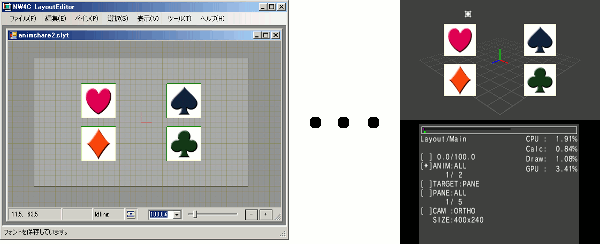
The following operations are possible through the combined use of Viewer and CreativeStudio.
Layouts loaded into LayoutEditor can be previewed by communicating with LayoutEditor.
If an animation is added to the layout, that animation can be played.
When animation section tags are set by LayoutEditor, the displayed animations can be switched at the animation section tag level.
Play, pause and frame-advance of animation is controlled with the system Controller.
In the Layout mode, you can check layout contents loaded in the Viewer and play back animations.
The Layout mode displays the following information.
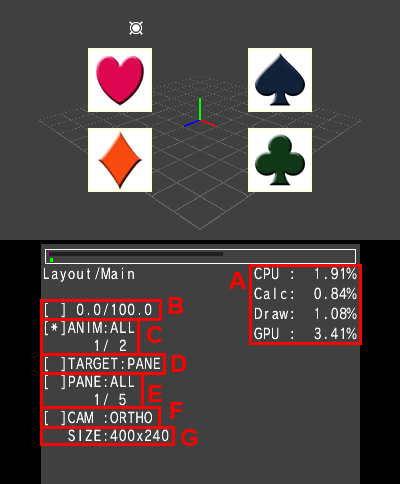
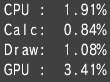
Digital display of the processing loads on the CPU and GPU for layouts.
The unit is percentage points. This is the equivalent of the value displayed in the Processing Meter.
CPU: The relative amount of time spent for animating and rendering, up through the completed sending of data to the GPU.
Calc: Time spent for animating.
Draw: Time spent for rendering.
GPU: Time from start to finish of rendering.

Displays the frame information for the animation currently operating.
The number at the left is the current frame; at right, the total number of frames.
The Animation Frame is not shown if there is no attached animation.
Left and Right on the +Control Pad on the controller can be used to change the current frame. Left on the +Control Pad will back up the layout animation by one frame. Right on the +Control Pad will advance the layout animation by one frame.
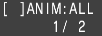
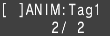
Displays information about the animation targeted for operations.
ANIM:ALL indicates that the entire animation is displayed or played.
If animation segment tags have been set, the range of frames specified by these tags can be shown or played.
What displays at this time is ANIM: animation segment tag name.
Below this, the serial number of the currently-displayed animation and the total number of animations are displayed.
Each time RIGHT is pressed on the controller's +Control Pad, the display will switch as follows:
[Entire animation] > [1st animation segment tag] > [2nd animation segment tag], and so on. Pressing LEFT on the +Control Pad will switch the display in reverse order.

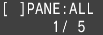
Shows the type of the animation that is targeted for operations.
Switch the type using Left/Right on the +Control Pad. For the type, you can select Pane or Group.
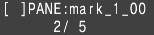
Shows the name of the pane or group that is the animation operation target.
Shown under this is the serial number of the current animation target the total number of animation targets.
Switch the target using the Left/Right on the +Control Pad.

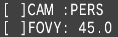
Displays the current camera mode.
You can switch camera modes using LEFT and RIGHT on the controller's +Control Pad.
CAM:ORTHO is for normal 2D display.
CAM:PERS is for 3D-like display. The smaller the pane's Z value, the smaller the size of display.
For CAM:PERS, FOVY appears below. LEFT and RIGHT on the controller's +Control Pad can be used to change the FOVY value.

Indicates the width and height (in pixels) of the displayed layout.
The width and height of a layout are set in the LayoutEditor using Layout Environment Settings under the File menu.
The following operations can be performed in Layout Mode.
Layout Mode Operations
Animation operations are valid when an animation has been loaded.
Operations are basically the same on the system Controller and the debug pad.
| Key Operations | Description | |
| A Button | Starts or stops the playback of a layout animation. | |
| B Button | Resets the layout's animation frame to 0. | |
| +Control Pad Up/Down | Switches the selection. | |
| +Control Pad Left/Right | Animation Frame | Left: Moves the layout animation one frame backward. Right: Advances the layout animation by one frame forward. |
| ANIM | If animation segment tags have been set for the loaded animation, this switches the range of the animation to play. | |
| TARGET | Switches the type of the target of animation operations. | |
| PANE, GROUP | Switches between Pane and Group as the target of animation operations. | |
| CAM | Switches the camera mode. | |
| FOVY (Only displayed when the camera is in the PERS mode.)) |
Changes the FOVY value. | |
Layout-related parameter settings can be dynamically changed from the opened Menu Screen.
These setting items can also be changed from an initial settings file.
For details on each parameter item that can be set from the menu, see Initial Settings File
With the current version of Viewer, you cannot load Layout binary files from Viewer for display.
CONFIDENTIAL