-
Sets the vertex color for the four corners of the pane (upper left, upper right, lower left, and lower right).
Click the character portion of each vertex or each side to display the Color Picker and set the Vertex Color elements.
When you select a side you can set the two vertices for both sides at the same time.
If you select ALL in the center you can set all four vertices at the same time.Apply color information to the Color Sample Window using drag-and-drop operations.
-
Enter the number of texture coordinates.
When using more than one texture, enter a value according to the number of textures having different texture coordinates.
-
Selects the texture coordinates to be edited.
The contents of the selected texture coordinates are set to the coordinate input controls below.
-
Enter the texture coordinates for the four corners (upper left, upper right, lower left, and lower right).
Texture coordinates entered can be manipulated using the three buttons below the texture coordinates.
- Reverse horizontally
- Change the current texture coordinate values to values reversed horizontally (reversed right-to-left).
- Reverse vertically
- Change the current texture coordinate values to values reversed vertically (reversed top-to-bottom).
- Rotate 90 degrees clockwise
- Change the current texture coordinate values to values rotated 90 degrees clockwise.
-
Texture coordinates are entered as pixel values.
Coordinates are entered as pixel values in the same way fractional values are entered for the upper coordinates.
When you enter fractional values and pixel values they become mutually linked.
-
Sets whether to perform detailed material settings.
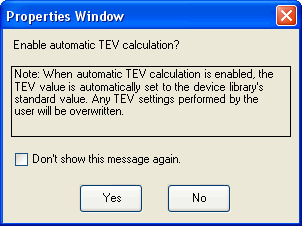
When making detailed material settings, a dialog box for confirming whether to enable automatic TEV calculations is displayed.