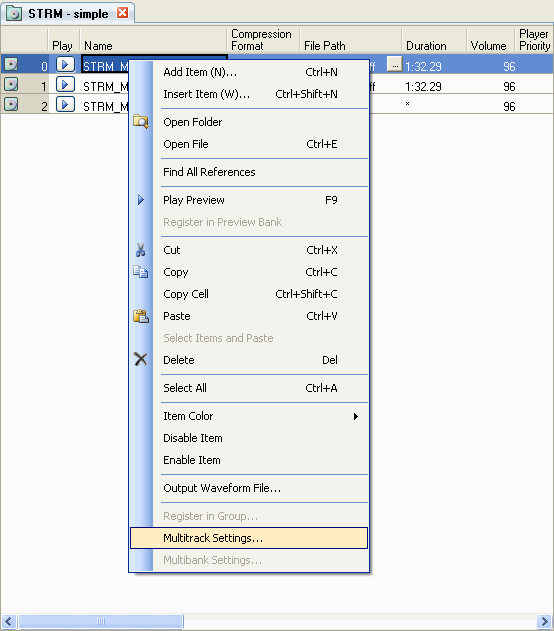
Select the Stream Sound node in the project tree to show the stream sounds in the Sound Set tab.
The list displayed here is called the Stream Sound List.
To create or add a Stream Sound, select the list region in the Sound Set tab and then select Project → Add Item → Stream Sounds.
You can also create or add a stream sound by right-clicking the Stream Sound List and using the shortcut menu that appears.
Stream sounds are edited from the Stream Sound List.
The columns in the Stream Sound List show the defined elements that are essential to the stream sound. These correspond to the elements that are essential for the stream sound data in the Sound archive.
This section explains the meanings of the various defined elements in the Stream Sound List.
Clicking this button will register the selected sound in the Preview Player window, and will trigger playback of stream sound.
Specifies the name of the stream sound. Programs use this name to play the stream sound through the snd library from the sound archive that is ultimately created.
There are restrictions on the characters that can be used in a name. The following characters can be used.
- The first character must be a single-byte letter or an underscore. [a-zA-Z_]
- Other characters must be single-byte alphanumeric or an underscore. [a-zA-Z0-9_]
Specifies the compression method to use when the converter converts reference wave files.
Specifies the wave file to be referenced when creating a stream sound.
There are restrictions on the characters that can be used in a file name or path name. The following characters can be used.
- The first character of a file name must be a single-byte letter or an underscore. [a-zA-Z_]
- Other characters in a file name must be single-byte alphanumeric or an underscore. [a-zA-Z0-9_]
Displays the playback time for sounds (the length of the waveform data expressed as time).
The units are displayed in the "m:s.ms" format. The milliseconds are rounded up to the nearest two decimal places.
Specifies the volume (from 0 to 255) to use when the snd library plays the stream sound.
If sound data volume is set to 127, playback is made at an equal volume (x1) as source data.
However, volume can be set in various ways (data or program).
The result after all setting values are applied is clamped between 0.0x and 2.0x versus the source volume.
For more details, see the chapter Operating Sound Parameter Controls in the Sound System Manual.
Specifies the player priority of the stream sound as a value from 0 through 127. The higher the value, the higher the priority.
Player Priority selects which sounds to play (or stop) when the Player attempts to play more than its sound limit, or more than the maximum number of sounds and tracks as configured in the system settings.
For details, see the Sound System Manual.
Specifies the player to use when voicing a stream sound.
The values 0 through 3 represent the four types of actor players to be played.
Because actor players correspond to a real-world sound source or, specifically, the vocal chords of a certain voice, it is possible to limit the number of sounds that can be played at the same time for each actor player.
Just as with a player, if the set number of sounds is exceeded, the player priority set for each sound is compared, and the sound with the lowest priority is stopped. The initial value of the number of restricted sounds for each actor player is unlimited for actor player number 0, and 1 for all other actor player numbers 1 through 3.
Actor players are mainly used in conjunction with 3D sound actors. As an example, this is useful when you want to suppress the playback of a sound at the actor level in situations where the same sound might be played simultaneously by multiple 3D sound actors.
Sets whether 3D sound volume control is applied.
3D sound volume control for sounds can be disabled by removing this check.
Sets whether 3D sound pan control is applied.
3D sound pan control for sounds can be disabled by removing this check.
Sets whether 3D sound voice priority control is applied.
3D sound voice priority control for sounds can be disabled by removing this check.
Selects the volume decay system to be applied to 3D sounds.
Selects the volume decay ratio to be applied to 3D sounds.
Sets the Doppler effect to be performed by the 3D sound.
Sets the pitch variation to be used by the Doppler effect as a value from 0 through 255.
The default value is 0. The larger the value, the greater the change in pitch, while a value of 0 represents absolutely no change in pitch.
Select Dual or Balance as the pan operational mode for stereo waveforms. Balance is the mode in which the left/right audio volume balance is adjusted, and Dual is the mode in which pan is set using the left and right channels as separate monaural voices.
For more information about setting and using pan modes, see the "Pan Operations" section in the Sound System Manual.
Pan curve sets the type of attenuation curve used to determine the audio volume on the left and right channels during pan operations.
For more information about setting and using pan curves, see the "Pan Operations" section in the Sound System Manual.
Sets whether to use the front bypass setting for 3D Surround.
When this check box is selected, the mode becomes Front Bypass mode.
In Front Bypass mode, the front L/R audio plays from the locations of the physical speakers.
In normal 3D Surround, the front L/R audio plays from the locations of the virtual speakers (which are wider than the physical speakers)
Configures the 32-bit numerical value that the user is free to set.
Multi-track specifications are possible when stream sounds are used.
You can set up to four tracks for a single stream sound.
Wave files set to multi-track must all use the same sampling rate.
Wave file information of Track 0 is used for the data length after conversion and loop specifications.
Right-click the Stream Sound List you want to configure and open the Settings dialog box from the shortcut menu that appears.
Wave files are added by clicking the Add button.
To delete a track, select the list and click the Remove button.
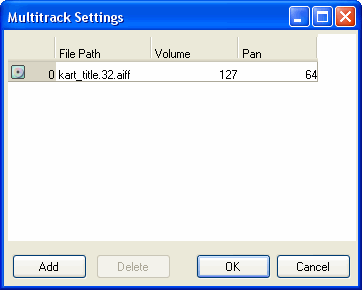
If multiple files have been specified for the stream sound, an asterisk displays in the File Path field of the Stream Sound List; the file path cannot be edited from here.
CONFIDENTIAL