Layout Viewer can be used to emulate and display on a PC the layout data created by LayoutEditor to check the contents of the layout and play animations.
Sometimes Layout Viewer is simply referred to as the Viewer.
The environment variable W4C_ROOT must be configured. Normally you specify the directory NintendoWare\CTR.
Layout Viewer is installed to (NW4C_ROOT)\tools\LayoutEditor\Viewer\Win32 .
If you start LayoutEditor and select Menu →Tools →Transfer to Viewer, the Layout Viewer window will open automatically and the data will be transferred.
The following operations can be performed on the Viewer using PC key operations.
| Key Operations | Description |
| A | Starts and stops animation playback. |
| B | Resets the animation frame to 0. |
| R | Toggles information display show/hide. |
| E | Switches the screen that is the target of operations (upper/lower). |
| T | Shows the Settings window. |
| Arrow keys Up/Down | Switches the operation item. |
| Arrow keys Left/Right | Changes value. |
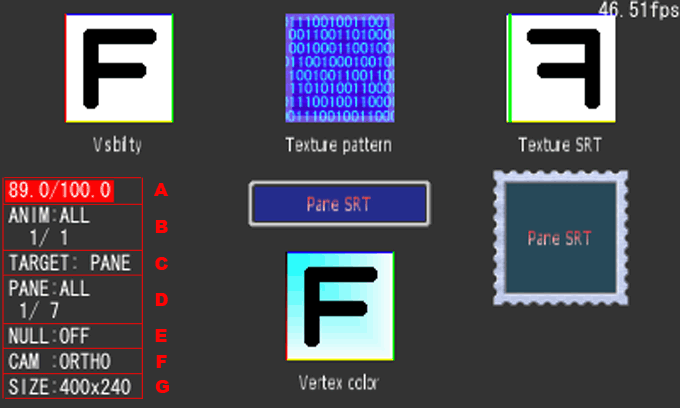
The Layout Viewer screen displays the following information.
The item that is the target of operations is displayed in red.
Use the Up/Down arrow keys to change the operation target item.
Displays the frame information for the animation currently operating.
The number at the left is the current frame; at right, the total number of frames.
The Animation Frame is not shown if there is no attached animation.
You can change the current frame using the Left/Right arrow keys.
Left arrow key: Moves one frame backward in the layout animation. Right arrow key: Moves one frame forward in the layout animation.
Displays information about the animation targeted for operations.
ANIM:ALL indicates that the entire animation is displayed or played.
If animation segment tags have been set, the range of frames specified by these tags can be shown or played.
What displays at this time is ANIM: animation segment tag name.
Below this, the serial number of the currently-displayed animation and the total number of animations are displayed.
Each press of the Right arrow key toggles through in this order:
[Entire animation] > [1st animation segment tag] > [2nd animation segment tag] > ....
Each press of the Left arrow key toggles through in the reverse order.
When groups have been configured, select whether to play animation one pane at a time or one group at a time.
Switch the mode using the Up/Down arrow keys.
The state selected here switches the below content of D. Switch Animation Target below.
When Target: Pane is selected, switching is done on a pane basis.
When Target: GROUP is selected, switching is done on a group basis.
Select pane or group as the animation operation target.
Switch between pane and group using the Left/Right arrow keys.
◇ When Target: PANE
PANE:ALL targets all panes containing animations.
PANE: pane name targets the pane whose name is displayed.
◇ When Target: GROUP
PANE:ALL targets all groups containing animations.
GROUP: group name targets the group whose name is displayed.
By definition, null panes and boundary panes are not displayed because they do not contain content to render. However, it is possible to force their outlines to display to make them visible on the Viewer.
When NULL:OFF is selected, null panes and boundary panes are not displayed.
When NULL:DISP is selected, null panes and boundary panes are displayed as green outlines.
Displays the current camera mode.
Switch the camera mode using the Left/Right arrow keys.
CAM:ORTHO is for normal 2D display.
CAM:PERS is for 3D-like display. The smaller the pane's Z value, the smaller things display.
The camera takes its Near, Far, Fovy settings from the Settings window.
Indicates the width and height (in pixels) of the displayed layout.
The width and height of a layout are set in the LayoutEditor using Layout Environment Settings under the File menu.
Open the Settings window by pressing the T key on the PC.
Here you can configure the camera and frame rate.
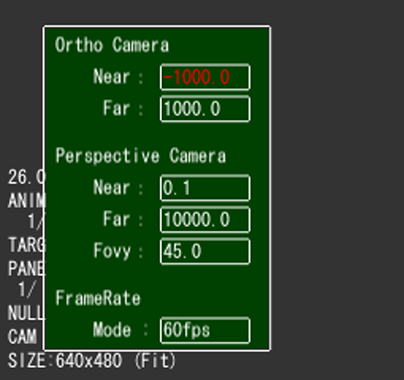
Near, Far values for CAM :ORTHO.Near, Far, Fovy values for CAM :PERS.
CONFIDENTIAL