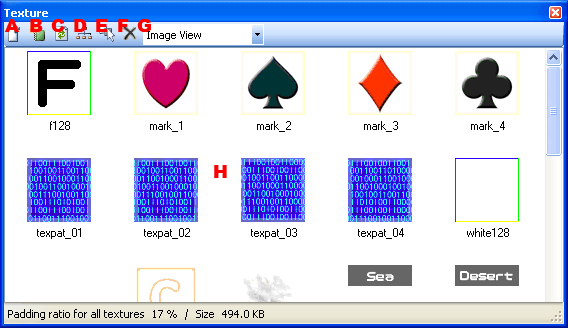
Use this window to manage textures in the layout.
-
Loads texture image files.
-
Creates a picture pane using the selected texture.
-
Updates the display based on the latest information. Click here when the texture image has been changed externally.
-
Resets the image file path for the texture.
Use when the texture position, such as the folder structure, changes.
In this case, the specified file must have the same filename.
-
Selects textures not used in the layout.
-
Deletes the selected texture.
-
Selects the Display Format for Texture Information
- Image View format
-
Displays texture information as a list of images.
- Detail View Format
-
Displays texture information in a list.
-
This area is used to display texture information. Displays texture information in either Image View format or Detail View format.
- Image View format
-

- Displays a list of textures using resized images.
- The name of the texture.
- Detail View Format
-

- The name of the texture.
-
The format of texture after binary conversion.
- L4
- 4-bit luminance
- L8
- 8-bit luminance
- A4
- alpha 4 bits
- A8
- alpha 8 bits
- LA4
- 4-bit luminance and 4-bit alpha
- LA8
- 8-bit luminance and 8-bit alpha
- HILO8
- 8-bit R and 8-bit G components
- RGB565
- 5-bit R, 6-bit G, and 5-bit B components
- RGB8
- 8-bit RGB components
- RGB5_A1
- 5-bit RGB and 1-bit alpha components
- RGBA4
- 4-bit RGBA components
- RGBA8
- 8-bit RGBA components
- ETC1
- Compressed RGB
- ETC1_A4
- Compressed RGB and 4-bit alpha components
- The texture width.
- The texture height.
- The proportion of blank area when texture size has been padded to a power of two.
- The size of blank area when texture size has been padded to a power of two.
- The file path where the texture is saved.
- This area is used to display texture images. Displays the selected texture's image.
- Shows the size of the blank area in the overall texture and the size of that blank area as a percentage of the entire texture size.