Curve Editor panel
The Curve Editor panel can be used to edit lookup tables and animations.
On the CreativeStudio menu, select Window > CurveEditor to open the CurveEditor panel in a separate window.
If the CurveEditor panel is opened while contents on the Contents panel are selected, it will open as a panel associated with that content.
For details on the Curve Editor shortcut keys, click Here.
CurveEditor Panel Settings and Features
This page describes CurveEditor panel settings and features.
For details on the horizontal and vertical axes shown on the CurveEditor panel, click here.

-
Contents Name/Pin Feature
Displays the content name selected on the CreativeStudio main window.
Edited contents can be fixed by applying the pin feature. -
Key control
Allows you to change the numeric input of keys and type of keys (Hermite, linear, step or flat).
-
Slope control
Allows you to change the slope and enter numeric values.
-
Snap
Allows you to change the frame for the key to be created and the snap unit for the value.
-
Graph tree view
Displays the contents and graph primitive nodes.
The content name is displayed emphasized if a curve already exists.
-
Graph view
Allows you to create and edit a curve for the selected content.
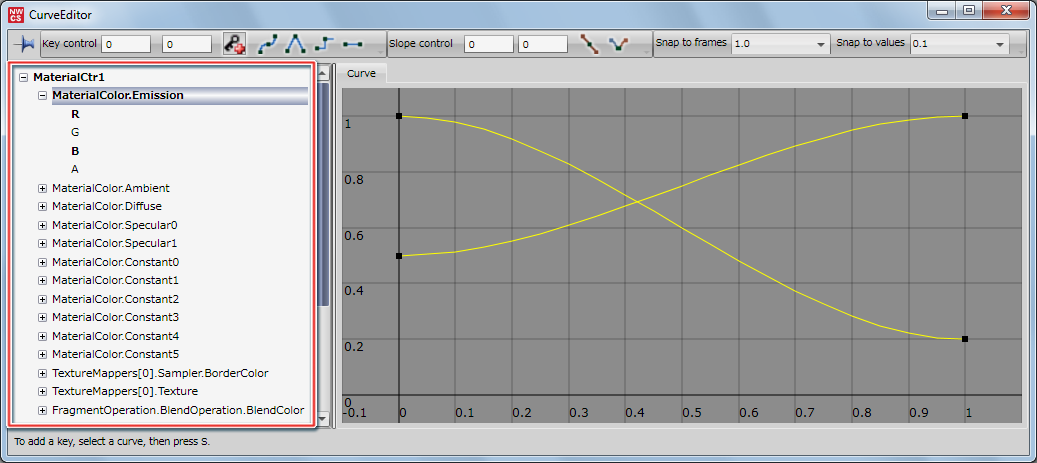
Graph tree view
Contents selected under CreativeStudio are displayed when CurveEditor is opened.
Contents and nodes for which a curve has been created are displayed emphasized.
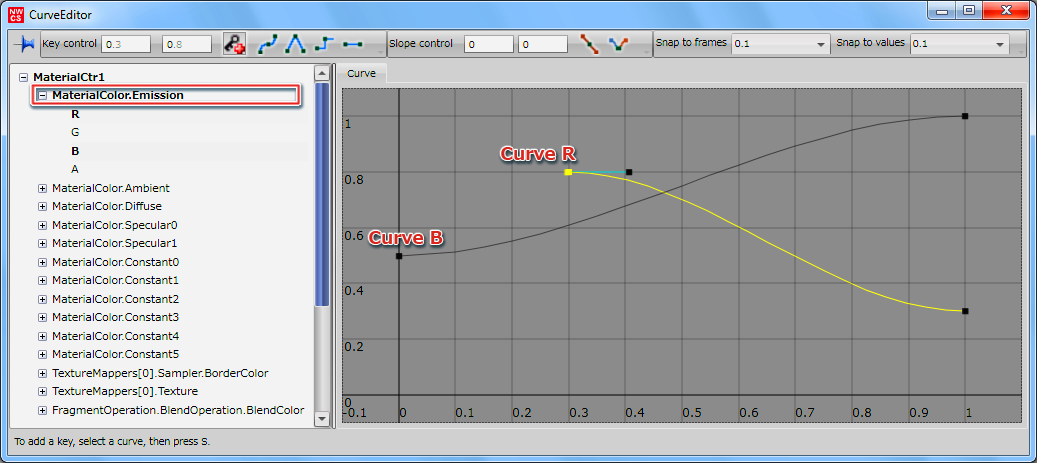
Editing Multiple Curves
If there are multiple curves, all curves are displayed in the graph view and can be edited when a graph primitive node is selected.
In the figure below, the curves for R and B included in the graph primitive node named MaterialColor.Emission are being edited at the same time.
Configuring the Color Editor Panel
The values set for the horizontal and vertical axes of the CurveEditor panel differ for each animatino and lookup table.
Animation
The values of the horizontal and vertical axes when creating an animation using CurveEditor are as follows.
For the types of animations that can be created using CurveEditor, click here.
SRT Animation
Currently, SRT animations are supported for texture UV, lights, and cameras.
| Animation | Vertical axis and horizontal axis of CurveEditor | Values being set |
|---|---|---|
| Scale | Horizontal axis | Number of frames (number of frames to be animated) |
| Vertical axis | Sets the scale value. | |
| Rotate | Horizontal axis | Number of frames (number of frames to be animated) |
| Vertical axis | Sets the rotation value. | |
| Translate | Horizontal axis | Number of frames (number of frames to be animated) |
| Vertical axis | Sets the translation value. |
Color Animation
Values set for color animations are as follows.
A (Alpha) is only supported for diffuse color under Color.
| Setting | Vertical axis and horizontal axis of CurveEditor | Description of Setting |
|---|---|---|
| Color animation (R G B A) | Horizontal axis | Number of frames (number of frames to animate the color) |
| Vertical axis | Color can be set in the range 0 to 1 for each RGB. The RGB color components become stronger as the set value approaches 1. For A, the alpha becomes more transparent as the set value approaches 1. |
Texture pattern animation
Values set for texture pattern animations are as follows.
| Animation | Vertical axis and horizontal axis of CurveEditor | Values being set |
|---|---|---|
| Texture pattern animation | Horizontal axis | Number of frames (number of frames to animate the texture) |
| Vertical axis | Sets the texture number to be used. |
Visibility Animation
Values set for visibility animations are as follows.
| Animation | Vertical axis and horizontal axis of CurveEditor | Values being set |
|---|---|---|
| Visibility Animation | Horizontal axis | Number of frames (number of frames to show/hide the model) |
| Vertical axis | 0 (hide) and 1 (show) are used to set the visibility of a model. |
Camera View Animation
Values set for camera view animations are as follows.
| Animation | Vertical axis and horizontal axis of CurveEditor | Values being set |
|---|---|---|
| Near/Far Animation | Horizontal axis | Number of frames (number of frames to animate near/far) |
| Vertical axis | Sets near/far values. | |
| Fovy Animation | Horizontal axis | Number of frames (number of frames to animate Fovy) |
| Vertical axis | Sets the view angle in degrees. | |
| Aspect Animation | Horizontal axis | Number of frames (number of frames to animate the aspect) |
| Vertical axis | Configures the aspect ratio. | |
| Viewpoint Animation | Horizontal axis | Number of frames (number of frames to animate the viewpoint) |
| Vertical axis | Sets the viewpoint position in world coordinates. | |
| UpVector Animation | Horizontal axis | Number of frames (number of frames to animate the UpVector) |
| Vertical axis | Sets the UpVector position in world coordinates. |
For details on cameras, click here.
Lookup tables
Settings using the horizontal and vertical axes on the CurveEditor panel when setting a lookup table are as follows.
Lookup tables are used for lighting calculations by pre-registering output values for each of 256 different input values.
| Settings | Vertical axis and horizontal axis of CurveEditor | Values being set |
|---|---|---|
| Lookup tables | Horizontal axis | Input value. May be set from 0 min. to 256 max. |
| Vertical axis | Output value. May be set in the range from 0.0 to 1.0. |
For details on lookup tables, click Here.