Creating fire effects using particles
CreativeStudio can create a myriad of effects using particles.
This page describes how to create a fire effect using particles and sample textures.
Creating a Particle Effect
On the CreativeStudio menu, select Create → Effect.
The ParticleCtrCreationPanel dialog box appears, where you can enter a name for the particle.
Here, we enter "fire" for the paricle name.

Enter a particle name, then click Apply and close or Apply to create the effect.
Click the Play button in CreativeStudio to display the particles in the Preview panel.

Emitter Settings
Here, we will set an emitter using the particle emitter Properties panel.
Parameters for the emitter shape, size, and volume of particles to be emitted can be set on the particle emitter Properties panel.
Single clicking on fireEmitter displayed in the Contents panel will display particle emitter settings in the Properties panel.
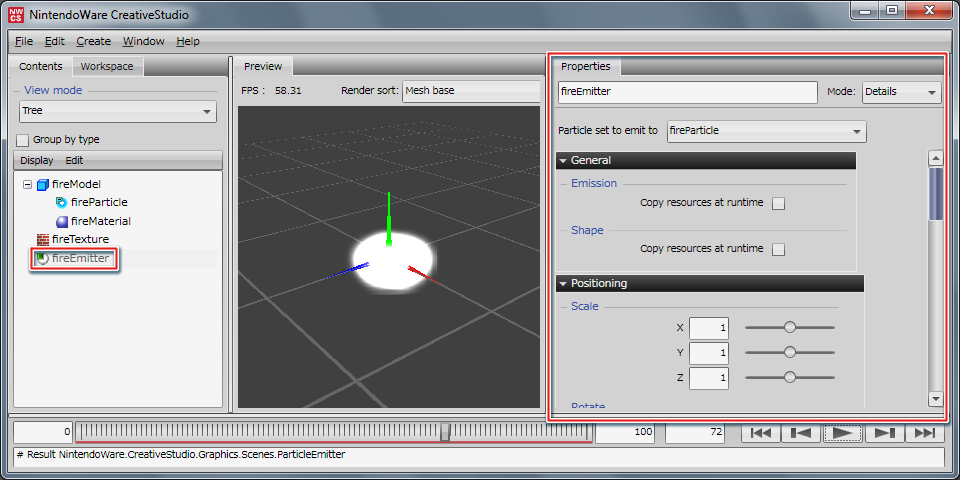
Selecting the CreativeStudio menu Window > Property panel or double-clicking on a particle emitter icon displayed in the Contents panel will open the Properties panel in a separate window, where the same emitter settings as given above can be made.
Changing the emitter shape
On the particle emitter Properties panel, the emitter shape can be selected from among point, disc, sphere, cylinder, rectangle, and cube.
Here, we will change the emitter shape to a sphere.
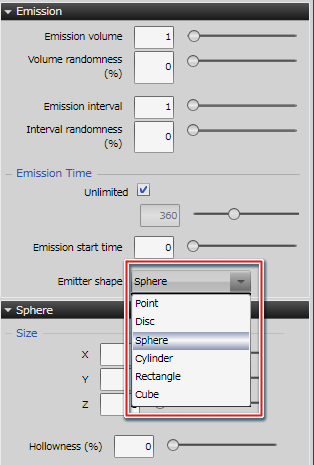
Confirm that particle emission changes on the Preview panel when the emitter shape is changed.
Loading texture intermediate files
On the CreativeStudio menu, select File → Open → Intermediate file to load the fire texture intermediate file located in the following folder:
%NW4C_ROOT%/SampleData/Effect/Intermediate/fire_particle/fire_anim.ctex
The following texture image is used. L8 is used for the texture format.

Loading the fire texture intermediate file will display fire_anim in the CreativeStudio Contents panel.
Material settings
The fire texture intermediate file loaded into CreativeStudio will be applied to particles using the material Properties panel.
Single clicking on fireMaterial displayed in the Contents panel will display the material Properties panel.
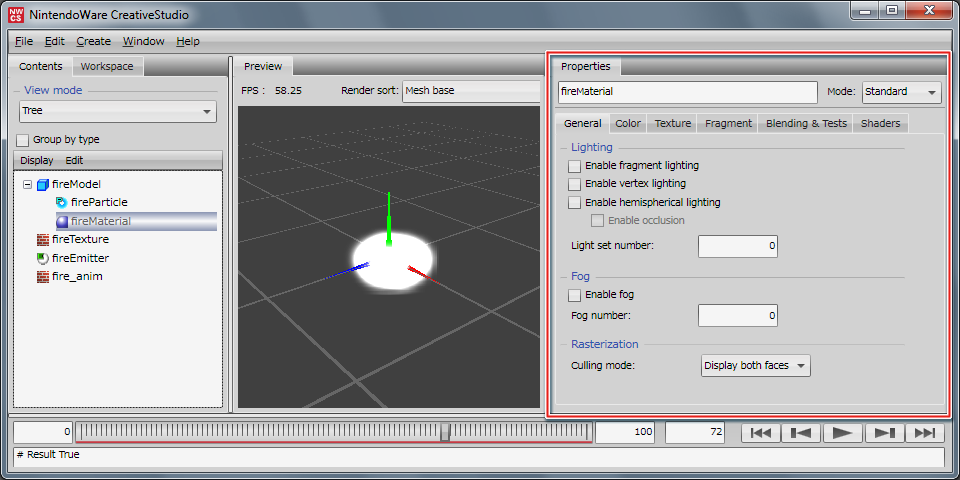
Standard mode, Details mode and Particle mode have been prepared on the material Properties panel.
The description here uses Details mode on the material Properties panel.
For details on the material Properties panel, click here.
Adding textures
The fire texture intermediate file is added to available settings on the material Properties panel under Texture configuration.
Right click on the box labelled Texture number 0, select Apply texture and then choose fire_anim.
Now, we will apply fire_anim.
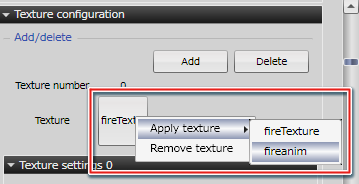
The CreativeStudio Preview panel will appear as follows when fire_anim is applied.

Particle effect settings
In this section, we will set the particle lifespan and an animation using the particle set Properties panel.
Single click fireParticle displayed on the Contents panel.

The particle set Properties panel will appear in the CreativeStudio main window. Change the following settings.
Lifespan setting
Lifespan sets the particle lifespan.
Change the lifespan values to those given below.
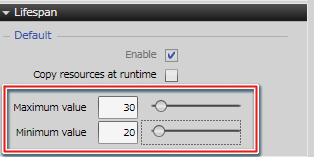
- Max. value: 30f
- Min. value: 20f
Making the above settings randomly varies the particle lifespan between 20f to 30f.
The particle lifespan is the amount of time between the emission of a particle from a particle emitter and its expiration.
It can be used to animate individual particles.
Color Settings
Here, we will change the colors used by the particle vertex shader to the numeric values given below.
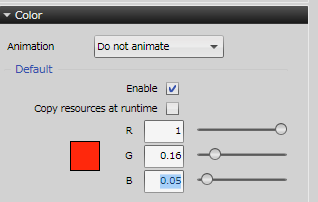
- R: 1
- G: 0.16
- B: 0.05
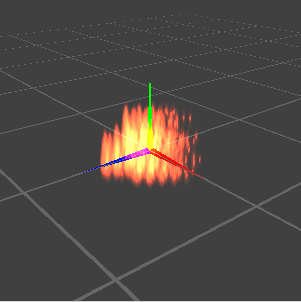
Making the above settings will cause the CreativeStudio Preview panel to appear as shown below.
Animation settings
Now, we will create a fire-like animation.
Alpha animation settings
Now we will set an animation for the vertex alpha of the particle.
Under Alpha, select Overwrite previous value from the Animation pull-down menu.

The setting option Overwrite previous value will appear. Check the playback option Fit to lifespan.
Fit to lifespan is a playback option that automatically links animations created on the CurveEditor panel with particle lifetimes.
This allows you adjust the duration of alpha animation to match the particle lifespan.
Create an alpha animation curve using the CurveEditor panel.
Select Window → CurveEditor to open the CurveEditor panel in a separate window.
Clicking on the plus sign next to fireParticle displayed on the CurveEditor panel expands the hierarchy. Expand to Alpha and then Curve and set the following numeric values.

- Horizontal axis: 0, Vertical axis: 1
- Horizontal axis: 20, Vertical axis: 1
- Horizontal axis: 30, Vertical axis: 0.25
The values for the horizontal axis and vertical axis when the alpha animation is displayed on the CurveEditor panel represent the following information.
Horizontal axis: Frame value
Vertical axis: Alpha value
Texture coordinate 0 animation setting
Return to the particle set Properties panel. Configure an animation under Vertex UV translation for Texture coordinate 0.
Select Texture pattern from the pull-down menu.
Texture pattern settings will be displayed. Change the settings as follows.

- Number of divisions U: 4
- Sets the number of divisions in the horizontal (U) direction of loaded texture coordinates.
- Playback order: 0 - 3
- Sets the playback order of the divided texture.
- Playback options: Check Fit to lifespan.
- Adjusts the duration of the animation curve to match the particle lifespan.
Making the above settings will cause the CreativeStudio Preview panel to appear as shown below.

Scale settings
Set the size and amplitude of the effect by changing the particle scale.
Change scale values to those given below.

- Standard value X: 2
- Standard value Y: 2
- Standard value Z: 1
- Amplitude: 25 ( % )
Amplitude (%) is a random value multiplied by the standard value at the time of particle generation.
Amplitude formula
Standard Value ± (Random Value × Standard Value)
Example
The calculation formula when the above settings, X axis = 2, Amplitude = 25%, have been made is 2 ± (0.25 × 2), with a random value varying between 1.5 and 2.5.
Applying an animation to the scale
Additional settings are appear under Scale when Add to previous value is selected from the Animation pull-down menu.

Settings for Add to previous value and Default value for X, Y and Z will be displayed. Change the default values for Add to previous value as given below.
- X: -0.02
- Y: -0.02
- Z: 0
The above settings scale the effect by -0.02 each frame.
The Add to previous value method animates by adding a value to the value from the previous frame every frame.
Use this to animate at a set speed.
Rotation settings
Rotation settings are used to set the rotation of a particle around the XYZ axes and its angular velocity when generated.
Change rotation values to those given below.

Standard Value
- X: 0
- Y: 0
- Z: 360
Amplitude
- X: 0 ( % )
- Y: 0 ( % )
- Z: 100 ( % )
Applying an animation to rotation
Be sure to select Add to previous value from the Animation pull-down menu under Rotation.
Settings for Add to previous value and Default value for X, Y and Z will be displayed. Change the settings for Add to previous value as given below.

Select the radio button labeled Random table.
Random table is a playback option for getting a value at the time of particle emission from a random animation frame.
Selecting Random table will randomly select from among the Rotate Z keys created below.
Open the CurveEditor panel to create the following keys for the Rotate Z.

- Horizontal axis: 0, Vertical axis: -0.1
- Horizontal axis: 1, Vertical axis: -0.05
- Horizontal axis: 2, Vertical axis: 0.1
- Horizontal axis: 3, Vertical axis: 0.05
- Horizontal axis: 4, Vertical axis: 0
The values for the horizontal axis and vertical axis when an animation using Add to previous value is displayed on the CurveEditor panel are as follows.
Horizontal axis: Frame value
Vertical axis: Default value to be added.
Speed settings
Set gravity for the speed.
Select gravity (accelerate in the specified direction) from the speed animation pull-down menu and press the Add button.
Gravity settings will be displayed. Change the settings as follows.

- X direction: 0
- Direction Y: 1
- Z direction: 0
- Speed: 0.02
Making the above settings will cause the CreativeStudio Preview panel to appear as shown below.

This completes the creation of fire effect using particles.