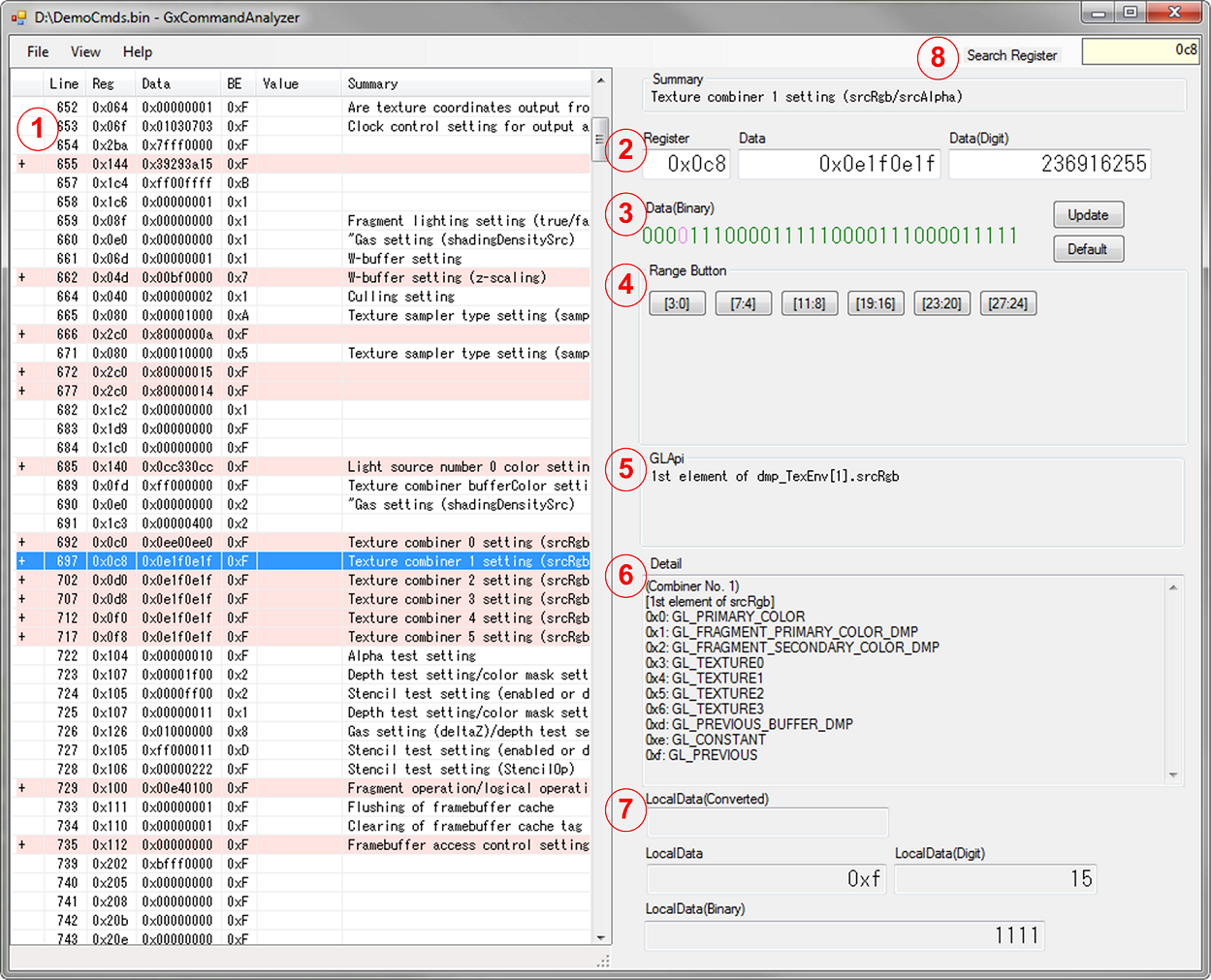
ctr_GxCommandAnalyzer
The ctr_GxCommandAnalyzer command line tool is for parsing 3D commands output from the debugger and elsewhere, and converting them into a format that is easier to view.
You can also use this as a GUI tool by double-clicking to open the executable file.Note: If you directly drag-and-drop to the binary icon, the tool operates as the command line version.
$ ctr_GxCommandAnalyzer32.exe [options...] [CommandFile]
| Options | Description |
|---|---|
| -h | Displays help. |
| -nd | Converts a physical address to a virtual address, and halts functionality that performs additional output. |
| -ni | Halts functionality that outputs an overview of the registers. |
| -sb | Displays data that was output in burst mode in simple format. |
After parsing, a file is saved in the format [file name]_Analyze.txt in the location of the file that was used for input.
Open data from the File menu or drag-and-drop to the List View area to parse commands.
| Number | Description |
|---|---|
| 1 | Displays the command parsing data. This is nearly the same as the data output by the console version.Here are the meanings of the various columns: Far left - Indicates whether burst transfer.Line - The order in which commands are stacked. Reg - The register number. Data - The data entered in this register. BE - The byte enable. Value - Displays the virtual address when the data is an address.Summary - Displays a summary of that register. Click on the columns to sort them.Right-click on a column to open a menu and choose whether to show/hide the column.Click on an item to display details in the left panel.Here are the meanings of the various colors for items: Blue - Burst transfer; single register access.Red - Burst transfer; consecutive register access.Gray - Dummy command (BE is 0x0). Folding is the default loading mode for burst transfer.If the " + " symbol displays in the far left column, you can double-click on it to expand the view. Once expanded, the " - " symbol displays. Double-click it to collapse the view. The View menu has a feature for expanding/collapsing all. |
| 2 | A summary of the selected register. This is the same as what is displayed in List View. |
| 3 | Simple command editing can be performed here. Data can be edited in hexadecimal, decimal, and binary.Enter data and then apply the edited changes to the command by pressing the [Enter] key (except when entering binary) or pressing the Update button.Press the Default button to restore the command to its original state when loaded.For binary, click on each digit to swap out 0/1s. Bits shown in black have not been specified for byte enable. |
| 4 | The entire range of bits that can be set for this register, displayed as buttons.Place the cursor above a button to show the bits that are binary data in red (or purple if not specified by BE) and to display detailed data about that range in the lower part of the panel (explained in more detail below).Note that if a command has been edited but the edits have not been applied (by pressing the Update button or otherwise), then this detailed data will not be updated either. |
| 5 | Shows the corresponding API of OpenGL. |
| 6 | Displays detailed data. The contents are nearly the same as the specification. |
| 7 | Displays the range of data specified by Range Button in hexadecimal, decimal, and binary.If the register is a register that takes data such as floating-point values or addresses, that value is displayed in the LocalData(Converted) field. |
| 8 | Use this to search for registers.Enter a register number and press the [Enter] key to select the relevant item in the List View.After moving the focus to List View, press the F3 key to search for the next item in that same register.You cannot use the Search Register feature with any sort order except the default (which is to sort by ascending Line). |
Here is a description of the menu items.
| Category | Name | Description |
|---|---|---|
| File | Open | Opens a file. |
| Save | Saves the parsing results. | |
| Save As Command | Saves the file as command data. | |
| Exit | Exits the program. | |
| View | Show All | Displays all data that was omitted for burst access.If the command data is large in size this could take some time. |
| Hide All | Omits all data written by burst access.If the command data is large in size this could take some time. | |
| Help | Version | Shows the version of the DMPGL specification on which the command detailed data is based. |
The command data you are entering should have the format of a 64-bit collection of commands, comprising a 32-bit header and 32 bits of data.
If you are using PARTNER-CTR, you can output the command data from the File menu by selecting Save binary... or Save binary [Size].... Use binary data that are output this way as the input file for this tool.Use the nngxGetCmdlistParameteri function to get the command buffer address needed when saving the binary.Get the starting address of the command buffer by specifying NN_GX_CMDLIST_TOP_BUFADDR for the first argument of the function.Get the current address of the command buffer by specifying NN_GX_CMDLIST_CURRENT_BUFADDR for the argument.Get the accumulated size of the command buffer by specifying NN_GX_CMDLIST_USED_BUFSIZE.Here is an example of pseudo-code for getting the starting address of the command buffer and the post-rendering size of the command buffer:
void Initialize()
{
    nngxInitialize(allocator, deallocator);

    nngxGenCmdlists(1, &cmdList);
    nngxBindCmdlist(cmdList);
    nngxCmdlistStorage(0x400000, 128);

    // Get starting address
    nngxGetCmdListParameteri(NN_GX_CMDLIST_TOP_BUFADDR, &addr);

    /* Initialization process */
}

void DrawFrame()
{
    /* Various processes */

    // Rendering functions
    Draw();

    // Get size
    nngxGetCmdListParameteri(NN_GX_CMDLIST_USED_BUFSIZE, &size);

    // When getting current address
    //nngxGetCmdListParameteri(NN_GX_CMDLIST_CURRENT_BUFADDR, &addr);
}
Pass the address and size obtained with this code to the parameters for Save binary [Size]... and output to get command data in a format that can be used by this tool.If you use Save binary... to output the command data, get the current address for the command buffer by specifying NN_GX_CMDLIST_CURRENT_BUFADDR for the first argument of the nngxGetCmdListParameteri function.
0x041 : 0x0045E000 (BE: 0x7)	viewport settings (width)
0x042 : 0x38111112 (BE: 0xF)	viewport settings (width)
0x043 : 0x00469000 (BE: 0x7)	viewport settings (height)
0x044 : 0x3747AE14 (BE: 0xF)	viewport settings (height)
0x068 : 0x00000000 (BE: 0xF)	viewport settings register (x/y)
BurstSequence	  3 times (BE: 0xF)
	0x065 : 0x00000003				scissoring settings (false/true)
	0x066 : 0x00000000				scissoring settings (x/y)
	0x067 : 0x018F00EF				scissoring settings (width/height)
0x111 : 0x00000001 (BE: 0xF)	framebuffer cache flush
0x110 : 0x00000001 (BE: 0xF)	framebuffer cache tag clearing
BurstSequence	  4 times (BE: 0xF)
	0x200 : 0x0402C048 [0x14160240]	Shared base address for array of all vertices
	0x201 :0x0000000B				Internal vertex attribute type (Attributes 0 - 7)
	0x202 :0x00000000				Internal vertex attribute type (Attributes 8 - 11, mask, number of attributes)
	0x203 :0x00000004 [0x00000004]	Address offset for load array 0
0x200 :0x0402C048 [0x14160240] Shared base address for array of all vertices
In this example, 0x200 is the register number, 0x0402C048 is the data content, [0x14160240] is the value of the data content converted to a virtual address, and Shared base address for array of all vertices is the description for that register.
$CTRSDK_ROOT/tools/ComandlineTools/ctr_GxCommandAnalyzer/ctr_GxCommandAnalyzer32.exe
CONFIDENTIAL