

This document describes graphics data for the Download Play icon used on the CTR HOME Menu. The information presented here is primarily for directors and designers.
There are two download play icon types.
The Download Play software icon used on the HOME Menu. (provided in PSD format)
You can use this icon, for example, when accompanied by a message such as "Select the Download Play icon from the HOME Menu" in each application.
Figure 2-1 No Launcher Box
| 48x48 pixels | 24x24 pixels |
|---|---|
|
|
Figure 2-2 With Launcher Box
| 72x72 pixels | 30x30 pixels |
|---|---|
 |
 |
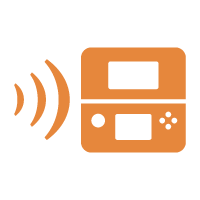
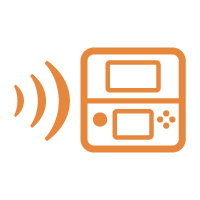
Download Play icon that signifies the feature itself. (provided in AI format)
This icon can be used, for example, when placed in a Download Play button or menu in each application.
In consideration of the size of the icon when placed, several icon types have been created. Use the display size that works best for the button or menu.
Figure 2-3 Download Play Icon
| Somewhat real A | Somewhat real B |
|---|---|
 |
 |
| Simple A | Simple B |
|---|---|
 |
 |
| Small simple A | Small simple B |
|---|---|
 |
 |
The data is stored in $CTR_SDK/resources/icon/DlplayIcon.
Both a Photoshop format (PSD) and Illustrator format (AI) have been prepared. Convert to TGA as needed and use.
The images cannot be modified. Do not add elements or alter the design.
Also be careful not to alter the aspect ratio when positioning the icons.
The basic color is orange (R,G,B =230, 135, 60). You can make fine adjustments to get softer coloration.
In addition to orange, you can also use white, black, and gray. Do not use any other colors besides these.
There is no problem with adding a mask to the icon background for the purpose of increasing icon visibility.
There is no specification for the mask size, but be sure to fill the inside of the mask.
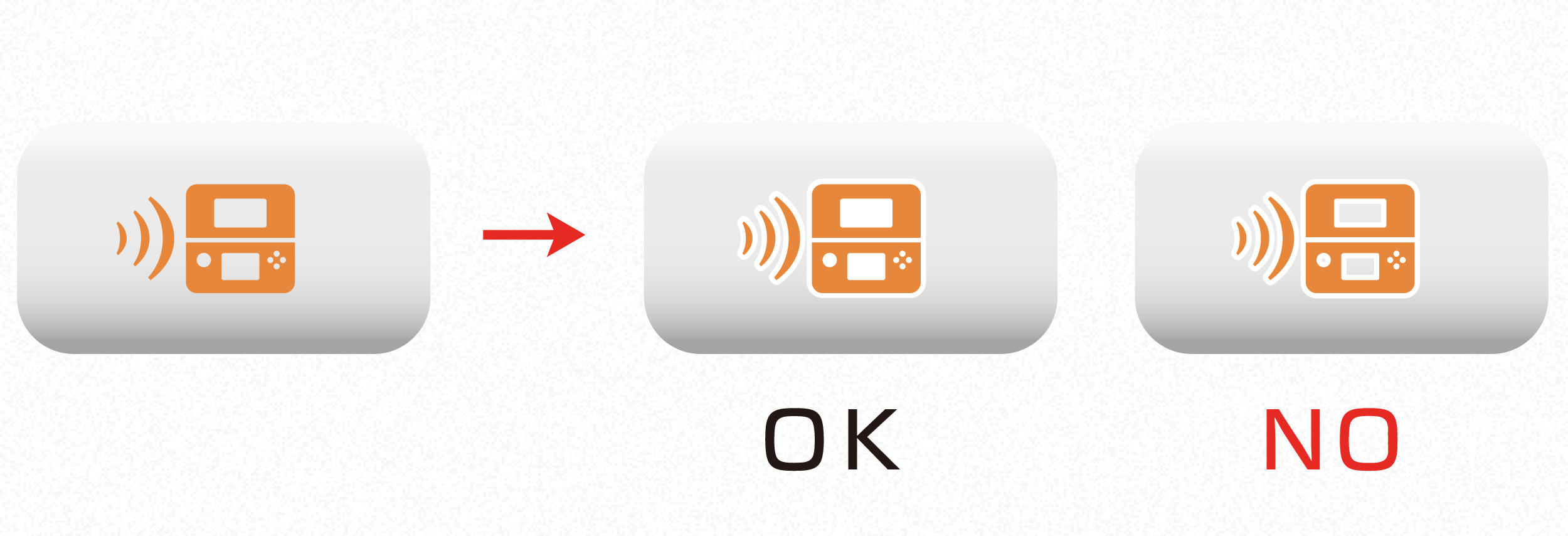
There is no problem with using embossing for the purpose of increasing icon visibility.
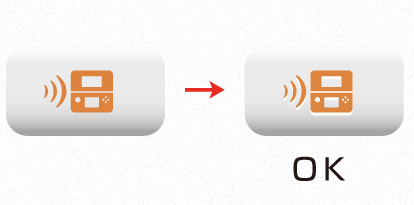
But contact Nintendo if this makes the image different significantly.
CONFIDENTIAL